
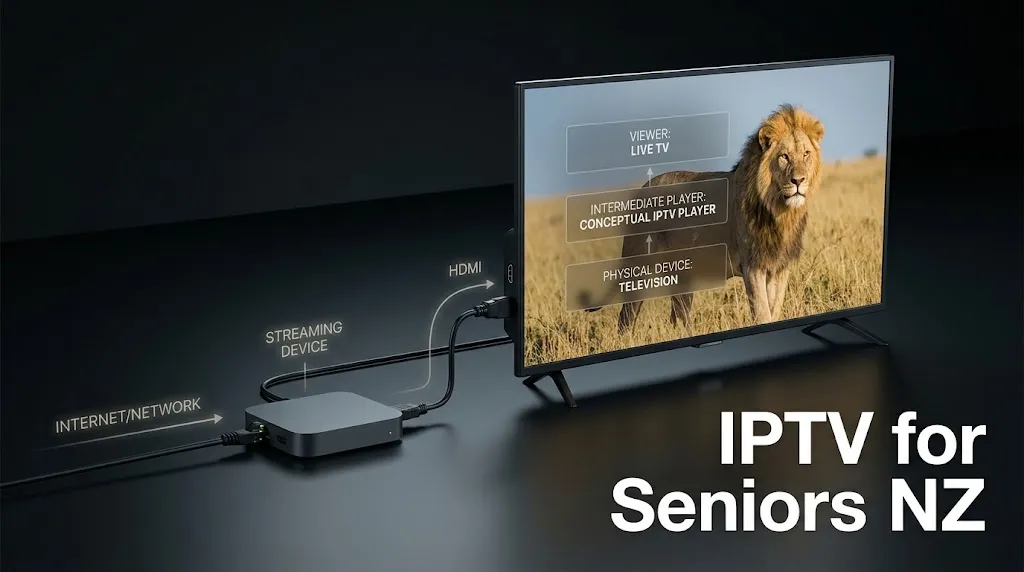
Most of the difficulty with IPTV for seniors NZ households run into has nothing to do with the service and everything to do with the layers stacked in front of it. A television input, a streaming device, a launcher screen, an app, a login, a channel list — that’s five things to get right before anything appears, and any one of them can quietly break.
The fix isn’t a special “seniors” product, because no such thing exists. It’s choosing hardware and software that fail less often, then setting them up so the everyday path to live television is short. If you’re setting up from scratch across the house, the complete IPTV setup guide for NZ covers the general ground; this one stays on what changes when the viewer isn’t the person doing the configuring.
Quick Answer
Easier setups share four traits: a device with a simple remote, a player app with a favourites list, one short path from the TV turning on to live channels, and settings that survive a restart. Compatibility matters most — the wrong device and app pairing can’t be fixed by configuration.
IPTV for Seniors NZ: What Makes a Setup Easy to Use?
Ease of use comes down to how many decisions sit between switching the television on and watching something. Every extra menu, input change, or login prompt is another point where a session ends in frustration. The goal is a path of two or three predictable steps that behaves identically every time.
Six things decide that in practice:
- Menu clarity. Fewer top-level choices beats more features. An interface showing eight tiles is easier to navigate than one showing forty.
- Text and icon size. Some players let you increase guide font size or switch to a list rather than a grid. This matters more than any other cosmetic setting.
- Steps to reach live TV. Count them honestly on the finished setup. More than three, and it’s worth rethinking.
- Remote simplicity. Fewer buttons, clearly separated, with an obvious power and volume position.
- Setting stability. Does the app reopen where it was, or does it ask for credentials again?
- Restart behaviour. After a power cut, does everything come back on its own?
That last point deserves a note rather than a section. Power cuts happen, and a setup that needs someone to re-enter a server address afterwards isn’t finished — but it’s one property of a good setup, not the main thing to design around.
Key takeaway: Count the steps between the television turning on and live channels appearing — if there are more than three, the setup needs simplifying rather than explaining.
Which Streaming Devices Are Easier for Older Viewers?
There’s no single right device for an older viewer, but the categories behave differently in ways that matter. What decides it is remote simplicity, how busy the home screen is, and which player apps the platform allows — and one recent compatibility change on Amazon’s Fire TV Sticks has caught a lot of buyers out.
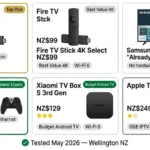
Newer Amazon Fire TV Sticks — the 4K Select released in late 2025 and the second-generation Fire TV Stick HD from April 2026 — run Vega OS, which is Linux-based rather than Android. Apps can only be installed from Amazon’s own Appstore. Amazon’s developer documentation states that all future Fire TV Sticks will run Vega. The older Fire OS models, including the 4K Plus and 4K Max, are Android-based and behave differently. You can check any Fire TV under Settings → My Fire TV → About: a software version listed as Fire OS means the Android-based platform.
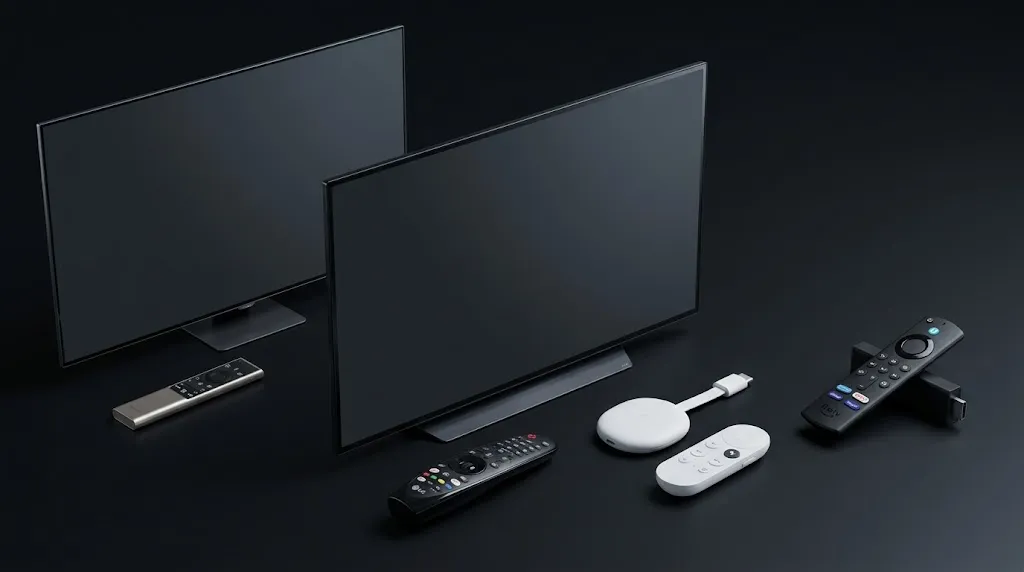
This matters because it decides which player apps are even possible, and that decision can’t be undone afterwards without buying different hardware.
| Device type | Remote | Interface | Player choice | Best for |
|---|---|---|---|---|
| Fire TV Stick (Vega OS) | Small, few buttons | Simple, content-forward | Amazon Appstore only | Someone who wants the simplest possible remote and will use an Appstore player |
| Fire TV Stick (Fire OS) | Small, few buttons | Simple, content-forward | Wider — Android-based | Households wanting more player options on a cheap device |
| Android TV / Google TV box | Varies by brand | Busier home screen | Widest available | A family member who can configure it properly once |
| Smart TV built-in app (Tizen / webOS) | The TV’s own remote | No extra device or input switching | Limited to the TV’s own store | The simplest physical setup — one remote, no HDMI juggling |
| Apple TV | Minimal, touch-sensitive | Clean and consistent | App Store players only | Households already using Apple devices |
The Smart TV row is worth pausing on, because it’s often overlooked. Using the television’s own app store means one remote and no input switching at all, which removes two of the most common points of confusion in a single decision. The trade-off is fewer player options.
One New Zealand-specific point on buying: many streaming devices sold here are grey imports, and support or warranty can differ from a local retail purchase. Buying from a New Zealand retailer keeps Consumer Guarantees Act protections straightforward if something fails — which matters more when the person using it won’t be troubleshooting it themselves. The best IPTV devices in NZ guide goes deeper on the hardware itself.
Choosing an IPTV Player for Seniors
The player app determines almost everything about the daily experience, and compatibility narrows the field before preference does.
TiviMate — Android Family Only
TiviMate runs on Android-family devices only — Android TV, Google TV, and Fire OS. There is no version for Samsung Tizen, LG webOS, iOS, Windows, or macOS, and none is planned. On a Vega OS Fire TV Stick it cannot be installed at all, since it isn’t in Amazon’s Appstore. It’s often described as too complex for older viewers, but that’s the second problem: the first is whether it can run on the device at all. Our TiviMate NZ guide covers it in detail.
IPTV Smarters Player and the Smart TV Route
IPTV Smarters Player is the broader-compatibility option, with builds across more platforms including Amazon’s Appstore — see the IPTV Smarters Pro NZ guide. For Samsung and LG televisions, the practical route is a native app from the TV’s own store rather than anything Android-based; the Samsung and LG guides cover what’s actually available.
What to Judge Once Compatibility Is Settled
Once compatibility is settled, judge a player on five things: whether it has a favourites list, whether the guide can be simplified or enlarged, how many presses it takes to change channel, whether it opens straight into live TV or into a menu, and whether it remembers credentials. The best IPTV app NZ comparison covers the wider field.
Key takeaway: Check that a player runs on the device before comparing features — the wrong pairing can’t be fixed by any amount of configuration.
How to Set Up IPTV for Seniors in NZ
The order matters, because each step depends on the one before it. Work through it in a single sitting rather than across a week.
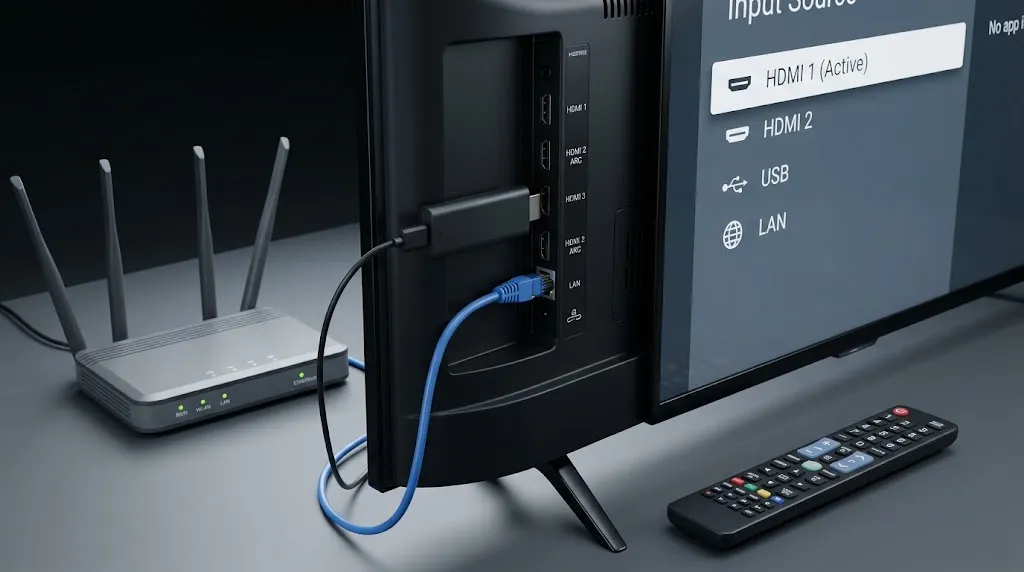
- Start at the television. Note which HDMI input the device will use, and check whether the TV can be set to wake on that input by default. If it can, one whole step disappears from daily use.
- Connect the device. Wired Ethernet is steadier than Wi-Fi if the router is close enough, because it removes interference and distance from the equation entirely — a meaningful difference during peak evening hours. The internet speed guidance for IPTV in NZ explains what the connection actually needs to sustain.
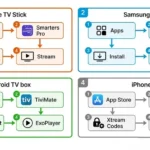
- Install the player app — from the device’s own store where possible, since store-installed apps update themselves and won’t need reinstalling later.
- Enter the service details — the M3U URL or the Xtream Codes host, username and password. Do this yourself rather than leaving credentials for someone to type in with a remote.
- Let the channel list and EPG load fully before judging anything. The Electronic Programme Guide is the on-screen grid of what’s on now and next; a large list can take several minutes to populate the first time. If it stays blank, the EPG setup guide covers why.
- Test a few channels, then restart the device and confirm everything returns without prompting.
How to Make the Setup Easier to Use
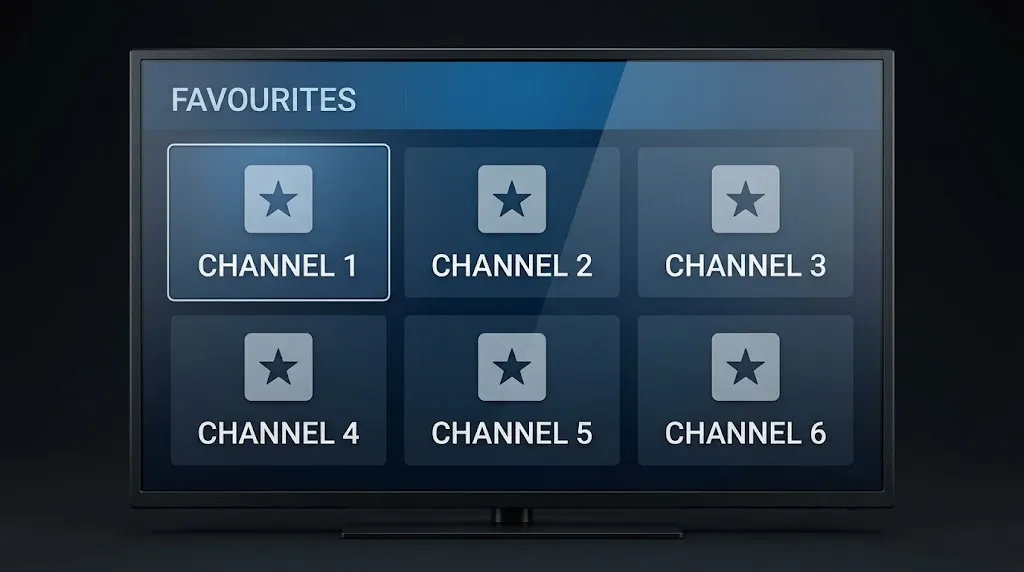
This is the part most people skip, and it’s where the real difference is made.
Build a favourites list containing only the channels actually watched — six or eight, not sixty — and set the player to open on favourites rather than the full list. Order them the way the person already thinks about them, which usually means their most-watched first, not by channel number.
Turn off what isn’t needed. Many players let you hide categories, VOD sections, or adult content filters entirely. Every hidden section is one fewer place to get lost.
Simplify the physical side too. If the TV remote and the device remote overlap, programme one to handle volume and power so the other can be put in a drawer. Two remotes on a coffee table is a reliable source of confusion.
Finally, write the steps down — three or four lines on a card beside the television, in large print. “Press the round button. Wait. Press OK on the channel.” It sounds trivial; it’s the single most effective thing you can do, because it removes the need for a phone call when something simple goes wrong.
Common Problems With IPTV for Seniors NZ
Most support calls come down to five things, and knowing the cause makes each one easier to talk someone through over the phone.
- No picture, but the device is on. Usually the television is on the wrong HDMI input rather than anything to do with the stream. If the screen is genuinely black inside the app, the black screen guide covers the causes.
- Picture but no sound. Often the TV’s own volume or mute rather than the app — but audio format mismatches between a device and a soundbar cause it too. The IPTV no sound guide works through it.
- The app asks for a login again. This means the app was reinstalled, updated badly, or cleared its data. It’s worth photographing the credentials and keeping them somewhere findable before this happens.
- Channels have disappeared. Usually a playlist that failed to refresh rather than a removed channel. Reopening the app often resolves it.
- The device won’t connect. After a power cut, a router can take several minutes longer to come back than the streaming device does, so the device gives up first. Restarting the device once the router’s lights are steady is usually all that’s needed.
For anything beyond these, the IPTV not working guide goes through full diagnostics.
Key takeaway: Most problems an older viewer reports are input, volume, or timing after a restart — not faults with the stream itself.
Is IPTV Safe and Legal for Seniors in New Zealand?
The player app is software, and installing one raises no legal question. What determines legal standing is the source of the content loaded into it, governed by the Copyright Act 1994 regardless of who is watching. Age changes nothing about how that applies.
The practical safety point is different and worth more attention: older viewers are disproportionately targeted by online payment scams, so the checks in the next section matter here more than they would elsewhere. The is IPTV legal in NZ guide covers the legal framework in full.
This article is for educational and comparison purposes only. Verify the licensing status of any streaming service and ensure compliance with New Zealand copyright law before subscribing.
What to Check Before Choosing an IPTV Service
Before paying anything, establish six things — and do this on behalf of the person who’ll be watching rather than expecting them to:
- Who is behind the service, and whether a real business identity is stated anywhere
- What it is licensed to carry, stated plainly rather than implied by a channel count
- How payment works — recurring or one-off, and how it is cancelled
- Whether there is a refund policy, written down rather than promised in a chat window
- What support exists when something breaks, and in what time zone
- Device compatibility, confirmed against the hardware already in the house
If any of these can’t be answered before payment, that is itself the answer. Verify what you can during any trial period, and check the channels actually wanted are present rather than assuming a large total covers them.
Explore More
Setup: Complete IPTV Setup Guide NZ · Internet Speed for IPTV NZ · IPTV EPG Setup NZ
Devices: Best IPTV Devices NZ · Firestick NZ · Android TV IPTV NZ · Samsung TV IPTV NZ · LG TV IPTV NZ · Apple TV IPTV NZ
Apps: Best IPTV App NZ · TiviMate NZ · IPTV Smarters Pro NZ
Troubleshooting: IPTV Not Working NZ · IPTV No Sound NZ · IPTV Black Screen NZ
Bottom Line
IPTV for seniors NZ setups tend to fall into three situations:
If the television already has its own app store — use it. One remote, no input switching, and nothing extra to plug in removes more daily friction than any configuration change can. Accept the narrower player choice as the price of that simplicity.
If you’re buying a streaming device — check the operating system before the price, since it decides which player apps are possible. On Fire TV that means knowing whether the model runs Vega OS or Fire OS, and buying from a New Zealand retailer keeps warranty support straightforward.
If the setup already exists and isn’t being used — the problem is usually the number of steps, not the hardware. Build a short favourites list, hide what isn’t needed, reduce it to one remote, and leave written instructions beside the television.
Sources
- Consumer Guarantees Act 1993 — consumerprotection.govt.nz
- Copyright Act 1994 — legislation.govt.nz