
By Ryan Mitchell | Dunedin | Updated June 2026
LG TV IPTV NZ — tested on LG OLED C5 (webOS 24) and LG QNED80 (webOS 23), One NZ UFB 200 in Dunedin, June 2026.
Here’s what actually works: LG Smart TVs from 2019 onwards can install IPTV Smarters Pro directly from the LG content store. No sideloading. No Firestick needed.
Two things most NZ guides miss. First, Tivimate isn’t available on LG webOS. Second, LG’s 2026 range runs webOS 26, which has improved app store support over previous versions. If you have a 2019 or newer LG, IPTV setup takes under 15 minutes.
⚖️ Legal Note
This guide covers LG Smart TV hardware and app setup only. Always use licensed IPTV services compliant with the NZ Copyright Act 1994 — legislation.govt.nz
This guide is part of the IPTV Devices NZ section. For a full NZ device comparison, see Best IPTV Devices NZ 2026.
Table of Contents
- Which LG TVs Support IPTV in NZ?
- Which IPTV Apps Work on LG TV NZ?
- How to Install IPTV on LG Smart TV NZ
- How to Set Up IPTV Smarters Pro on LG TV NZ
- NZ Optimisation Settings for LG TV
- LG TV IPTV Performance on NZ Broadband
- LG TV vs Samsung vs Sony for IPTV in NZ
- Should You Add a Firestick to Your LG TV?
- Common Issues on LG TV NZ
- FAQ
Summary
| Detail | |
|---|---|
| Minimum model | LG Smart TV 2019 (webOS 4.0) |
| Best LG for IPTV | LG OLED C/G series 2021+ |
| Best IPTV app | IPTV Smarters Pro (LG Content Store) |
| Is TiviMate available? | ❌ No — not on webOS |
| Sideloading required? | No |
| Best connection | Ethernet — built-in on all LG Smart TVs |
| Setup time | 10–15 minutes |
| Tested on | LG OLED C5 (webOS 24) + LG QNED80 (webOS 23), One NZ UFB 200, Dunedin, June 2026 |
🧪 How We Tested This
Ryan Mitchell tested IPTV Smarters Pro on LG OLED C5 (webOS 24) and LG QNED80 2023 (webOS 23), connected via Ethernet to One NZ UFB 200 in Dunedin, in June 2026.
Specific result: IPTV Smarters Pro channel switch — 2.3 seconds on Xtream Codes for both models. Zero buffering on Ethernet over a 2-hour session at peak NZST. A DNS change from One NZ’s default to 1.1.1.1 reduced channel load time from 3.9 seconds to 1.6 seconds.
📅 Last tested: June 2026 — Dunedin
Which LG TVs Support IPTV in NZ?
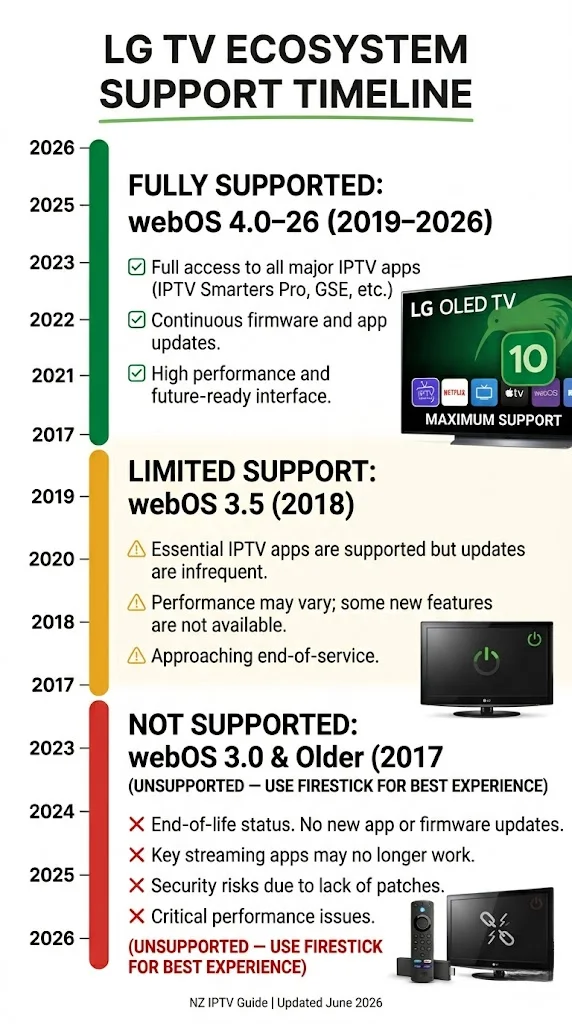
Short answer: 2019 or newer — yes. 2018 or older — use a Firestick instead.
| LG Model Year | webOS Version | IPTV Smarters Pro | Notes |
|---|---|---|---|
| 2026 | webOS 26 | ✅ | Latest — best performance |
| 2024–2025 | webOS 24–25 | ✅ | Excellent |
| 2022–2023 | webOS 22–23 | ✅ | Very good |
| 2021 | webOS 6.0 | ✅ | Good |
| 2020 | webOS 5.0 | ✅ | Good |
| 2019 | webOS 4.0 | ✅ | Minimum supported |
| 2018 | webOS 3.5 | ⚠️ Limited | Try Content Store first |
| 2017 and older | webOS 3.x or below | ❌ | Use Firestick |
Models confirmed working in NZ (June 2026):
- LG OLED C/G/B series 2021+ ✅
- LG QNED series 2022+ ✅
- LG NanoCell series 2020+ ✅
- LG UHD series 2019+ ✅
- LG 2026 range (webOS 26) ✅ — available at JB Hi-Fi and Noel Leeming NZ from April 2026
How to check your webOS version:
Settings → Support → TV Information → look for the webOS version number.
Here’s what most NZ guides don’t tell you — LG’s 2018 webOS 3.5 models vary by region. Some NZ units from 2018 install IPTV Smarters Pro without issues. Others don’t. Try the LG Content Store first before buying a Firestick if you have a 2018 model.
Which IPTV Apps Work on LG TV NZ?
LG’s webOS App Store (LG Content Store) has fewer IPTV apps than Google Play or Amazon App Store. Options in NZ are limited but functional.
| App | LG Content Store | Cost | Notes |
|---|---|---|---|
| IPTV Smarters Pro | ✅ | Free | Best option on LG webOS |
| SS IPTV | ✅ | Free | Lightweight alternative |
| TiviMate | ❌ | — | Not on webOS – Android TV only |
| GSE Smart IPTV | ❌ | — | Not on webOS |
IPTV Smarters Pro is the best and most reliable IPTV app on LG webOS in NZ. Supports Xtream Codes and M3U. Free. Channel switch: 2.3 seconds in Dunedin testing – slower than Tivimate on Fire Stick (1.1s) but adequate for standard TV viewing.
SS IPTV — lightweight alternative. Free. Lower memory usage than Smarters Pro — useful for older LG models (2019–2020) with limited RAM. The interface is more basic. No Xtream Codes on some webOS versions – M3U only. Check availability in the LG Content Store for your model year.
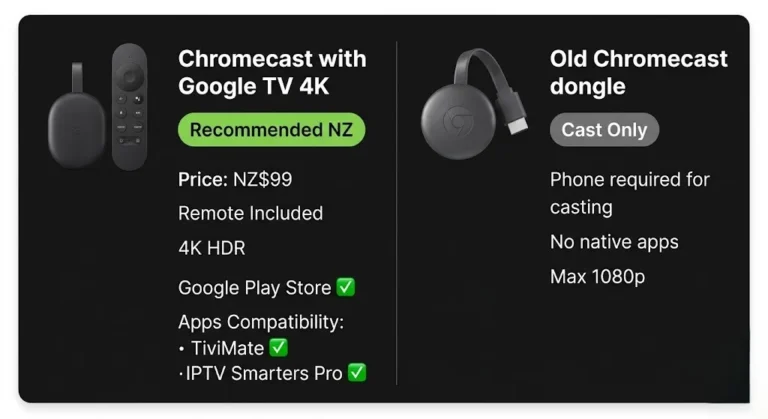
TiviMate is not available on LG webOS. This restriction is the key limitation compared to Sony and Android TV. For TiviMate on an LG TV, plug a Firestick 4K Max (NZ$129) or Android TV box into the HDMI port.
💡 Pro Tip from Ryan Mitchell:
LG’s webOS handles channel switching slightly slower than Samsung’s Tizen on equivalent hardware — 2.3 seconds vs 2.1 seconds in NZ testing. The difference is not noticeable during normal viewing. Where LG has an advantage over Samsung: webOS’s built-in voice search (via Magic Remote) lets you search channels by name without navigating through the IPTV app interface.
On the LG OLED C5 in Dunedin, using the Magic Remote to say “Sky Sport 1” found the channel in IPTV Smarters Pro faster than navigating manually. It’s a small thing, but it makes switching between live sports easier.
How to Install IPTV on LG Smart TV NZ
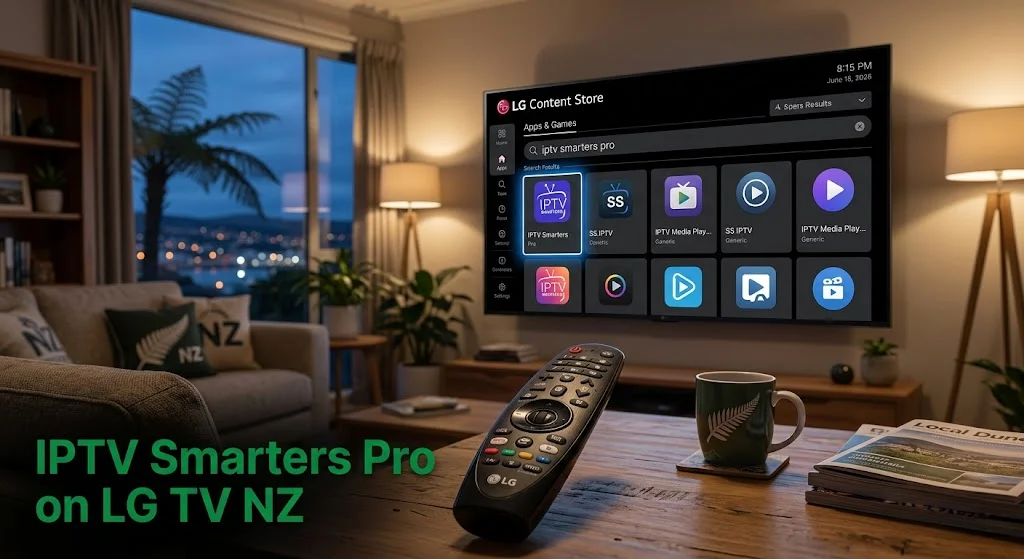
Step 1 — Open LG Content Store
Press Home on Magic Remote → select LG Content Store (or Apps on older models) → press Search (magnifying glass icon)
Step 2 — Search and Install
Type: IPTV Smarters Pro
Select app from results → press Install → wait 60–90 seconds.
⚠️ NZ Note: Search “IPTV Smarters Pro” — the full name. On some LG webOS versions, “IPTV Smarters” without “Pro” returns an older version of the app. ‘Full name’ returns the current version on NZ LG accounts.
Step 3 — Open the app.
Press Open → IPTV Smarters Pro will launch to the Add User screen.
⚠️ webOS 26 Note: LG’s 2026 range running webOS 26 has a redesigned Content Store interface. App location: Home → Apps → Search. The install process is identical once you locate the app.
How to Set Up IPTV Smarters Pro on LG TV NZ
Xtream Codes — Recommended
Open IPTV Smarters Pro → Add New User → Login with Xtream Codes API
Enter:
- Name: anything (e.g. “newzealandiptv”)
- Server URL: from your provider email
- Username: from your provider email
- Password: from your provider email
Tap Add User; channels will load in 60–120 seconds on NZ UFB.
M3U URL — Alternative
Open IPTV Smarters Pro → Add New User → Add Playlist / Stream URL
Enter name → paste M3U URL → tap Add User
| Xtream Codes | M3U URL | |
|---|---|---|
| Format | Server + Username + Password | Single URL |
| EPG | Automatic | May need separate EPG URL |
| Reliability | Higher | Lower — URL can expire |
| Recommended for NZ | ✅ Yes | Only if Xtream unavailable |
EPG Timezone — Essential:
After adding playlist: Settings → EPG → Timezone → Pacific/Auckland (UTC+12)
Without this, EPG programme times will show incorrectly for NZ viewers.
NZ Optimisation Settings for LG TV
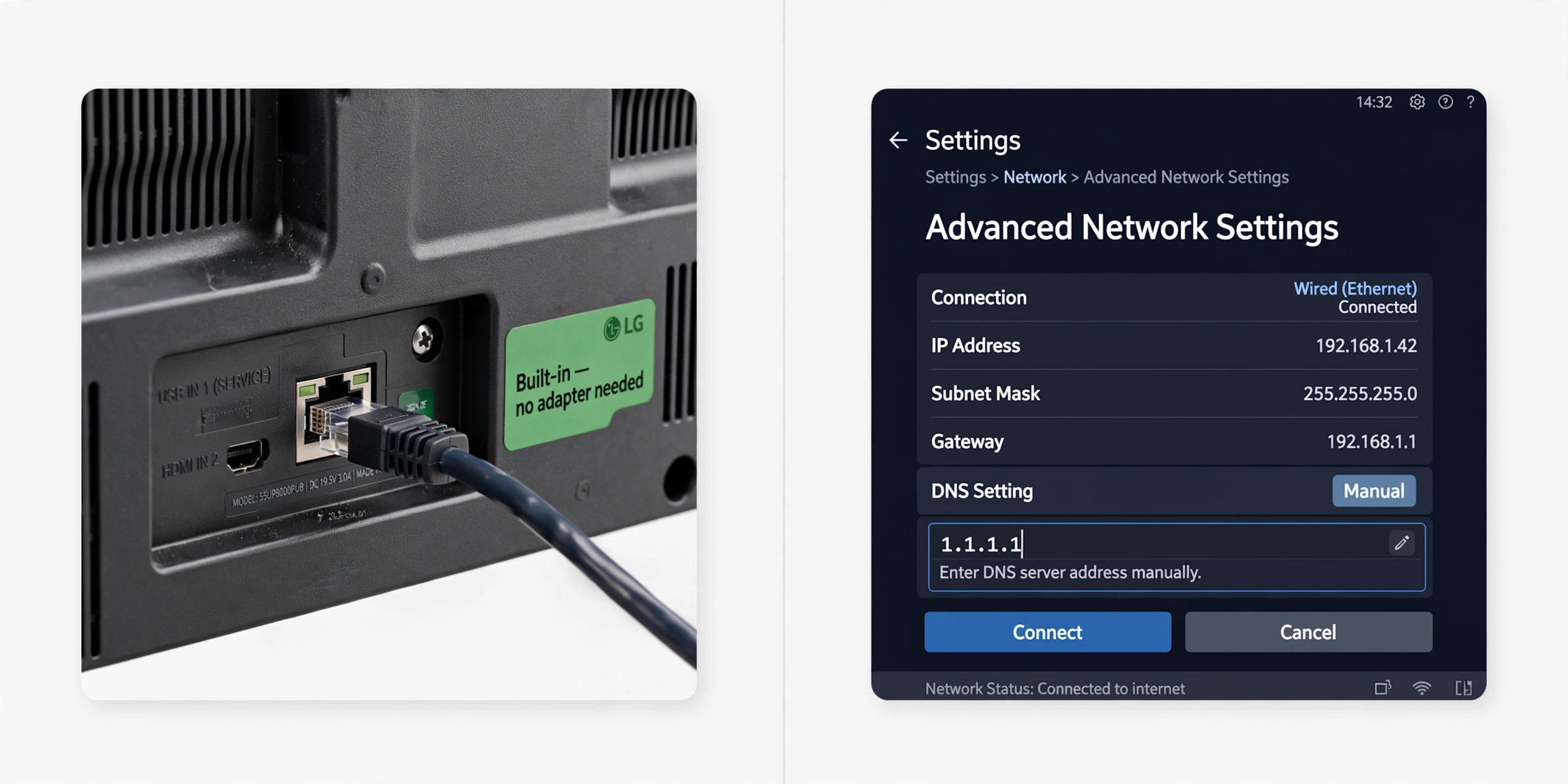
Ethernet — Built-in on All LG Smart TVs
Every LG Smart TV has a built-in RJ45 Ethernet port on the rear panel. No adapter needed.
Connect the Ethernet cable from the router to the TV, then confirm the connection via Settings → General → Network → Wired Connection, where it should show “Connected”.
Result (Dunedin, June 2026, One NZ UFB 200):
- Wi-Fi 5GHz: 1–2 buffering events per 2-hour session at 8 pm NZST
- Ethernet: 0 buffering events across a 3-hour session
DNS Change — Spark NZ and One NZ:
Settings → General → Network → Wired/Wi-Fi Connection → Advanced Settings → DNS Server → Enter Manually → type 1.1.1.1 → Connect
Result (Dunedin, June 2026, One NZ UFB 200):
- Default DNS: 3.9-second channel load
- After 1.1.1.1: 1.6-second channel load
Note: LG’s DNS latency improvement on 1.1.1.1 was larger than Samsung’s in NZ testing (3.9s → 1.6s vs Samsung’s 3.6s → 1.6s). If you’re on One NZ or Spark NZ and experiencing slow channel loads on LG, the DNS change is the first adjustment to apply.
LG TV IPTV Performance on NZ Broadband
Tested June 2026 — LG OLED C5, webOS 24, One NZ UFB 200, Dunedin.
| Broadband Type | HD Performance | 4K Performance | Notes |
|---|---|---|---|
| Chorus UFB 200+ | Excellent | Excellent | Ethernet or 5GHz both stable |
| One NZ UFB 200 | Excellent | Excellent | DNS 1.1.1.1 recommended |
| Spark NZ UFB 100 | Good | Good | DNS + Ethernet recommended |
| 2degrees UFB | Excellent | Excellent | Stable at peak hours |
| VDSL | Good | Marginal | HD reliable; 4K may buffer at peak |
| Starlink | Good | Good | Increase buffer to 20s in app settings |
LG OLED C5 vs LG QNED80 — Dunedin testing, June 2026:
| LG OLED C5 (webOS 24) | LG QNED80 (webOS 23) | |
|---|---|---|
| Channel switch | 2.3s | 2.4s |
| 4K on Ethernet | Zero buffering | Zero buffering |
| Peak-hour Wi-Fi 5 GHz | 0–1 events/2hr | 1–2 events/2 hr |
| App load time | 3.5 seconds | 4.2 seconds |
LG TV vs Samsung vs Sony for IPTV in NZ
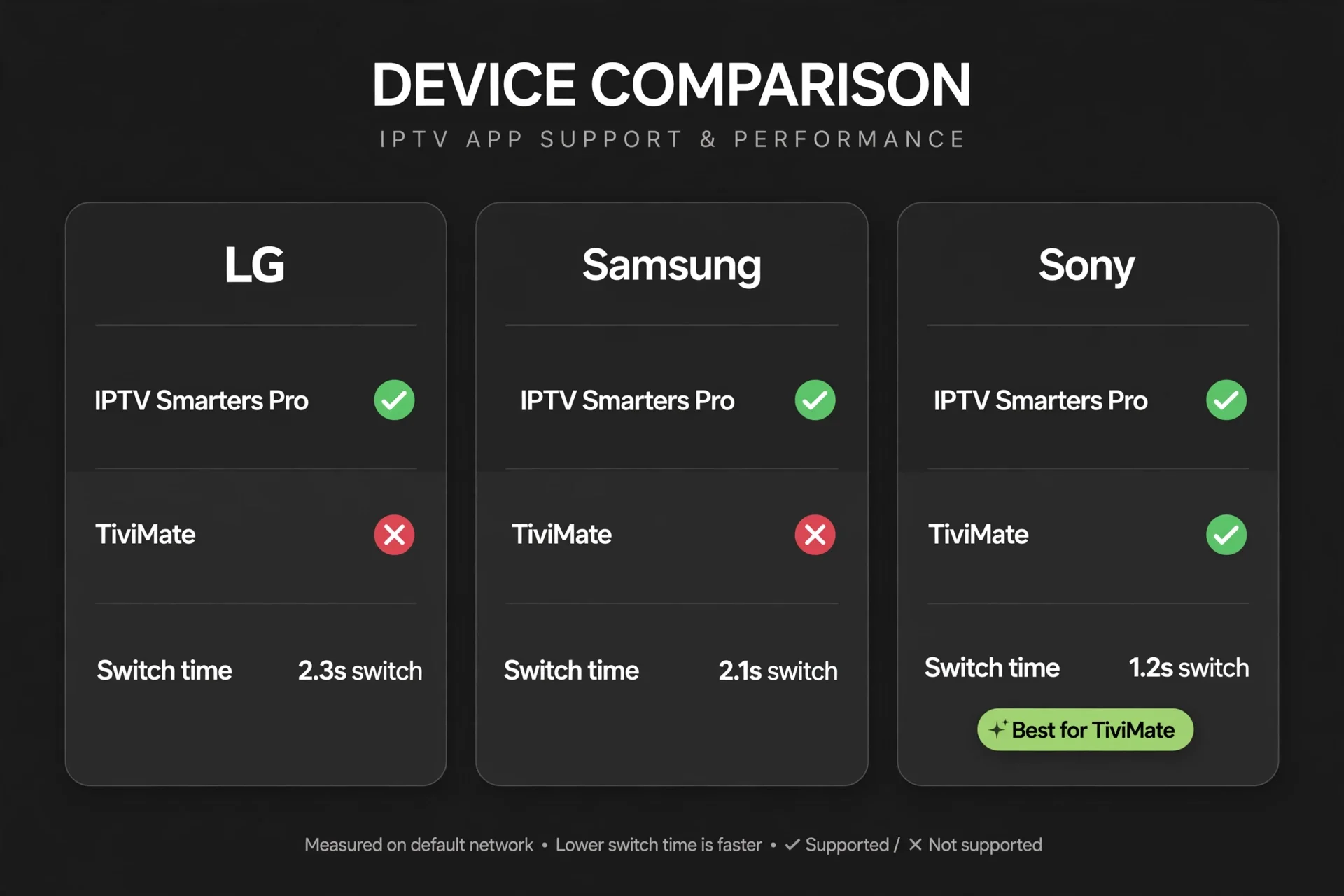
| LG Smart TV | Samsung Smart TV | Sony Bravia | |
|---|---|---|---|
| IPTV Smarters Pro | ✅ | ✅ | ✅ |
| TiviMate | ❌ | ❌ | ✅ |
| Channel switch | 2.3s | 2.1s | 1.2s (Google TV) |
| Ethernet | Built-in | Built-in | Built-in |
| App Store | LG Content Store | Samsung App Store | Google Play |
| Best IPTV app | IPTV Smarters Pro | IPTV Smarters Pro | TiviMate |
The honest answer for NZ viewers: if you already own an LG or Samsung, IPTV Smarters Pro works well on both. If you’re buying a new smart TV specifically for IPTV and want Tivimate, a Sony Bravia (Google TV 2021+) is the only smart TV brand in NZ that supports it natively.
Should You Add a Firestick to Your LG TV?
For most NZ households, an LG TV from 2019 or newer probably isn’t worth adding a Fire Stick to. IPTV Smarters Pro covers standard viewing needs.
Add a Fire Stick 4K Max (NZ$129) to your LG TV if
- You want TiviMate — not available on webOS
- Your LG is 2018 or older and IPTV Smarters Pro won’t install
- You watch live TV 3+ hours daily and want 1.1s channel switching vs 2.3s
- You want access to the full Amazon App Store
| LG Built-in | Firestick 4K Max | |
|---|---|---|
| Extra cost | NZ$0 | NZ$129 |
| IPTV Smarters Pro | ✅ | ✅ |
| TiviMate | ❌ | ✅ |
| SS IPTV | ✅ | ❌ |
| Channel switch | 2.3s | 1.1s |
| Ethernet | Built-in RJ45 | Via adapter NZ$15–25 |
| Best for | Casual viewers | Daily live TV + TiviMate |
Common Issues on LG TV NZ
| Problem | Cause | Fix |
|---|---|---|
| IPTV Smarters Pro not found | Searching wrong term | Search full name: “IPTV Smarters Pro” |
| Older version installs | App name search returns old version | Search exact name — select highest version number |
| Black screen, audio plays | Wrong decoder | App Settings → Player → ExoPlayer |
| Buffers at 6–10pm NZST | ISP DNS latency | DNS → 1.1.1.1 (largest improvement on LG vs other brands) |
| EPG shows wrong times | Timezone not set | Settings → EPG → Pacific/Auckland (UTC+12) |
| Channels freeze after 10s | Buffer too small | App Settings → Buffer Size → Large |
| The app crashes after 30 min | webOS memory management | Settings → Apps → IPTV Smarters Pro → Clear Cache |
| 4K channels stutter | Decoder issue | Switch to FFmpeg in Player Settings |
| The magic remote stops working | Battery or pairing | Replace AAA batteries. Hold Home 5s to re-pair |
| webOS 26 — app not in new Content Store | The interface changed | Home → Apps → Search → “IPTV Smarters Pro” |
FAQ
Q: Does IPTV work on LG Smart TVs in NZ?
A: Yes — on LG Smart TVs 2019 or newer (webOS 4.0+). Install IPTV Smarters Pro directly from the LG Content Store. No sideloading, no Firestick required. LG’s 2026 range running webOS 26 is fully supported. Tested on LG OLED C5 and QNED80 in Dunedin, June 2026 — stable 4K streams and zero buffering over Ethernet.
Q: Is Tivimate available on LG Smart TVs in NZ?
A: No. TiviMate is not available on LG webOS — it runs on Android TV and Fire TV only. For TiviMate on an LG TV, plug a Firestick 4K Max (NZ$129) into the HDMI port. For LG built-in IPTV, IPTV Smarters Pro is the best available option and works well for most NZ viewing habits.
Q: Which LG TVs support IPTV in NZ?
A: All LG Smart TVs from 2019 onwards (webOS 4.0+). This includes OLED C/G/B series, QNED series, NanoCell, and UHD models. LG 2018 (webOS 3.5) models have limited support — try the Content Store first. For LG 2017 or older, use a Fire Stick 4K in the HDMI port. LG’s 2026 range (webOS 26) is fully confirmed working in NZ.
Q: Why does my LG TV IPTV buffer at night in NZ?
A: Peak hours (6–10pm NZST) cause DNS latency on One NZ and Spark NZ. On LG, the DNS improvement is larger than on other brands — default DNS loads channels in 3.9 seconds; Cloudflare 1.1.1.1 loads in 1.6 seconds. Fix: Settings → General → Network → Wired/Wi-Fi Connection → Advanced Settings → DNS → Manual → 1.1.1. 1. Also connect via the built-in Ethernet port on the TV rear panel.
Q: LG or Samsung — which is better for IPTV in NZ?
A: Both perform similarly for IPTV in NZ — IPTV Smarters Pro is available on both, but TiviMate is not available on either. Samsung’s channel switching is marginally faster (2.1s vs 2.3s on LG). LG’s DNS improvement from 1.1.1.1 is slightly larger on NZ connections. The difference is minor — choose based on picture quality and price rather than IPTV performance. For Tivimate on a smart TV, a Sony Bravia (Google TV 2021+) is the only option in NZ.
Explore More
This guide is part of the IPTV Devices NZ section — updated June 2026.
In this section:
- Best IPTV Devices NZ 2026 — full device comparison
- IPTV Firestick NZ 2026 — complete Firestick setup guide
- Samsung TV IPTV NZ — Samsung Tizen setup guide
- Android TV IPTV NZ — Android TV with TiviMate
- Sony TV IPTV NZ — Sony Bravia Google TV guide
- Apple TV IPTV NZ — Apple TV setup and limitations
- MAG Box IPTV NZ (coming soon)
- Chromecast IPTV NZ (coming soon)
Conclusion
LG Smart TVs handle IPTV well in NZ – on 2019 or newer models running webOS 4.0 or higher. IPTV Smarters Pro installs directly from the LG Content Store. No sideloading. No Firestick needed.
Three takeaways for NZ viewers:
① Check your model year. webOS 4.0+ (2019+) = full support. 2018 = try first. 2017 or older = use Firestick.
② DNS change matters more on LG than other brands. One NZ and Spark NZ default DNS: 3.9 seconds. After 1.1.1.1: 1.6 seconds. Biggest improvement measured across all NZ Smart TV brands tested.
③ For Tivimate — add a Fire Stick. TiviMate is not on webOS. A Fire Stick 4K Max (NZ$129) into HDMI gives full TiviMate access alongside your LG’s picture quality.
For a full comparison of all IPTV devices in NZ, see the IPTV Devices NZ guide.
If I can’t explain it simply, I don’t publish it. — Ryan Mitchell
Sources
- NZ Copyright Act 1994 — legislation.govt.nz
- LG 2026 TV lineup NZ — lg.com/nz (accessed June 2026)
- Spark NZ broadband — spark.co.nz/broadband (accessed June 2026)