
Silence is a harder fault to read than a frozen picture. The stream is clearly alive—the picture moves, the clock in the corner ticks over, and the channel list responds—and yet nothing comes out of the speakers. That combination sends most people straight into the app settings, changing things at random until something works or everything breaks.
IPTV no sound NZ reports almost always resolve to one of five causes, and four of them are settings on your own equipment rather than faults with the stream. The difference between a two-minute fix and an hour of guessing is whether you identify which of the five you are looking at before you start changing anything.
Quick Answer: No sound with a working picture is usually a decoding or audio-output problem, not a broken stream. Switch your player from hardware to software decoding first. If that fails, set your TV’s audio output to PCM instead of Dolby Digital or passthrough. Test a second channel and a second app before touching anything else.
If you are still setting the service up rather than repairing it, start with the IPTV Setup Guide NZ. And if your problem is the mirror image of this one — audio playing over a black picture — that is a different fault with different causes, covered in IPTV Black Screen NZ.
The Three Tests That Identify IPTV No Sound NZ Faults in Two Minutes
Before changing a single setting, run three tests. They are not fixes. Their only job is to narrow five possible causes down to one or two, and on most setups they take about two minutes to work through—longer if your device is slow to switch apps.
The logic is elimination. Each test removes a layer of the chain: the channel, the player, then the hardware.
Test 1 — Switch to a Completely Different Channel
Pick something structurally different from what you were watching. If you were on an HD sports feed, try a standard-definition news channel from another country. Sport and HD feeds commonly carry Dolby audio; smaller channels usually do not.
Test 2 — Play the Same Channel in a Second App
Add your login details to a second player and open the identical channel. VLC works well for this because it decodes almost everything in software and has no audio-output settings of its own to complicate the result.
Test 3 — Open Something That Isn’t IPTV At All
Open TVNZ+ (Television New Zealand’s free ad-funded streaming platform) or the Freeview Streaming app and play anything. If those are also silent, the fault has nothing to do with IPTV—it sits in your TV, your soundbar or your HDMI chain, and every fix below in Cause 2 applies.
| What you observe | Most likely cause | Go to |
|---|---|---|
| Only one channel is silent | Channel codec or a broken feed | Cause 4, then Cause 5 |
| All IPTV channels silent; other apps fine | Player decoder setting | Cause 1 |
| Every app on the TV is silent | Audio output or the HDMI chain | Cause 2 |
| The second app plays sound normally | First player’s audio configuration | Cause 1 |
| Sound returns after unmuting something | A volume control was down | Cause 3 |
Key takeaway: Three elimination tests will tell you whether the fault is in the channel, the player or the hardware, which is information no settings change can give you.
Cause 1 — Your Device Cannot Decode the Audio Format
This is the single most common cause, and the fix is one toggle.
Why HD and Sport Feeds Use Dolby
Channels do not all encode audio the same way. Standard-definition and smaller international channels typically use AAC or MP3, which every device made in the last fifteen years handles without complaint. HD channels, and sports feeds in particular, frequently use AC3 (Dolby Digital) or E-AC3 (Dolby Digital Plus) because those formats carry surround information that a stereo format cannot.
Your device receives that audio perfectly well. It simply has no licensed decoder for it, so it outputs nothing rather than outputting noise.
Hardware Decoding Versus Software Decoding
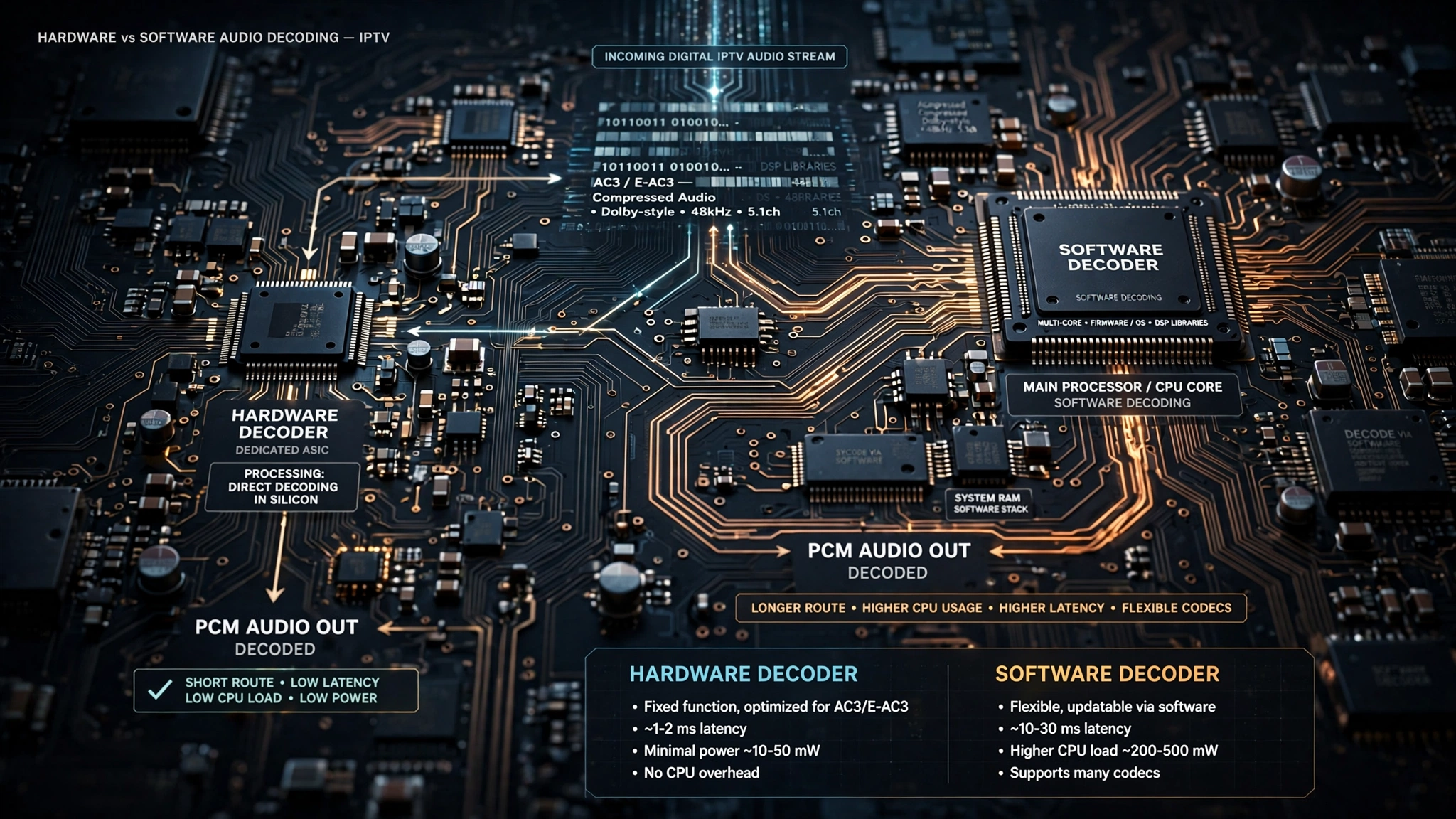
Hardware decoding hands the stream to a dedicated chip inside your device. It is fast and it barely touches the processor, which is why nearly every IPTV player uses it by default. The limitation is that the chip only decodes the formats it was built for.
Software decoding does the same work on the main processor. It is slower and uses more power, but it will decode formats the chip has never heard of. On any device made in roughly the last five years, the performance cost is not something you will notice on a live channel.
That trade-off is the whole reason the toggle exists — and the reason switching it fixes so many cases.
Where the Decoder Setting Lives
The wording varies by app, but the setting is always in the same conceptual place: playback or player settings, then a decoder or hardware-acceleration option.
- IPTV Smarters Pro — Settings, then Player Settings, then switch the decoder from hardware to software
- Tivimate — long-press the channel, then Player Settings, then change the decoder for that channel or globally. TiviMate is Android-only; it does not run on Samsung Tizen, LG webOS or iOS, so Smart TV owners will be using a different app with a differently worded menu
- Generic Xtream Codes players — look for “Decoder”, “Hardware acceleration” or “HW/SW” under “Playback”
Set it, then reopen the channel rather than resuming it. Most players only apply a decoder change on a fresh stream.
For app-specific walkthroughs, see TiviMate NZ and IPTV Smarters Pro NZ.
Cause 2 — Audio Output Is Set to Passthrough Instead of PCM
If Test 3 showed that TVNZ+ or Freeview is also silent, stop looking at your IPTV app. The fault is in the audio path.
What Passthrough Actually Does
Passthrough (sometimes labelled Bitstream, Auto or Dolby Digital) tells your TV or streaming device not to decode the audio at all and to send the raw compressed signal down the HDMI cable to whatever is at the other end. PCM does the opposite: the device decodes the audio itself and sends plain uncompressed stereo.
Passthrough only works if the receiving equipment can decode what arrives. Send Dolby Digital to a soundbar that only accepts PCM, and you get silence — not an error message, not distortion, just nothing.
The Soundbar and HDMI-ARC Chain
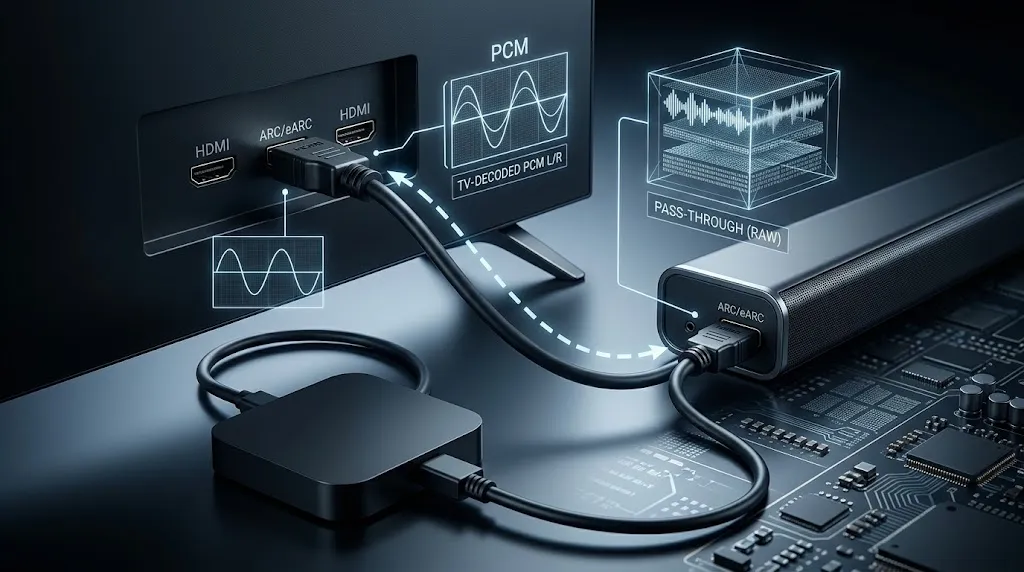
HDMI-ARC (Audio Return Channel) is the connection that sends sound backwards from your TV to a soundbar over a single cable; eARC is the higher-bandwidth version on newer sets. It is also where most household audio faults live, because there are now three devices that each have an opinion about the audio format.
Work through the chain in order. Set the TV’s audio output to PCM. Confirm the soundbar is on the ARC or TV input rather than Bluetooth. Check that the HDMI cable is in the port physically labelled ARC or eARC, which is not always the port that carries the picture best.
When Passthrough Is Actually the Right Setting
If you own an AV receiver or a soundbar that genuinely decodes Dolby Digital, passthrough is what you want — it is the only way to get surround sound rather than a downmixed stereo pair. The rule is not “passthrough is bad”. It is set to the format at whichever device in the chain can actually decode it, and let everything upstream pass it along untouched.
Key takeaway: Silence with no error message is the signature of an audio format arriving somewhere that cannot decode it.
Cause 3 — Three Volume Controls, and One of Them Is Muted
The least technical cause is also the one people rule out first and shouldn’t. There are more volume controls in a modern setup than most people realise, and they do not talk to each other. A Fire TV Stick muted at the device level will play a perfectly healthy stream in complete silence while the TV shows a volume bar at 40 — and it accounts for a steady share of IPTV no-sound NZ reports every month.
| Control | Where to check | Telltale sign |
|---|---|---|
| Streaming device | Device settings, or the volume keys on its own remote | TV volume bar moves, but there is still no sound |
| TV or soundbar | The TV’s own volume, plus the soundbar’s separate control | Mute icon on screen, or soundbar display at zero |
| Inside the player app | Volume slider in the playback overlay, separate from system volume | Other apps play fine; only IPTV is silent |
The in-app slider is the one that catches people out, because nothing on screen indicates that a second, independent volume exists underneath the system one.
Why Is There No Sound on Only One Channel?
A single silent channel almost always means that channel’s audio stream uses a format your device cannot decode, or the feed itself is broadcasting without sound at the source. Every other channel working normally rules out your TV, your soundbar and your network in one step.
Two causes remain, and they are distinguished by one test.
Cause 4 — The Channel Is Playing the Wrong Audio Track
Plenty of international channels carry more than one audio track: an original-language feed, a dubbed feed, and sometimes a commentary or descriptive-audio track. If the player defaults to a track, the feed is not actively transmitting; you get a picture with silence.
During playback, open the audio or track menu — most players expose it in the playback overlay — and cycle through the available tracks. If a track exists that produces sound, the channel was never faulty; the default selection was wrong. Some players let you set a preferred audio language so the choice sticks across channels.
Cause 5 — The Fault Is on the Provider’s Side, Not Yours
Most IPTV no-sound NZ cases that reach a support queue have already passed the point where the customer could fix them. If a channel is silent in two different players, on two different devices, while every other channel on the same service plays normally, the audio track on that feed is broken at the source. No setting on your equipment will restore it.
Reporting it well shortens the fix considerably. Send the exact channel name as it appears in your list, the time and date you tested, the app and version you used, the device, and the fact that a second player produced the same result. Support teams can act on that immediately; “the sound doesn’t work” starts a conversation instead.
Channel lineups and stream quality vary considerably between providers, and audio encoding is part of that. Check the channels you actually care about during a trial period rather than after committing to a longer plan — silent audio on a niche channel is exactly the kind of thing that only surfaces once you go looking for it.
Why Does My IPTV Audio Lag Behind the Picture?
Audio that lags behind the picture is a timing fault, not a sound fault. The player, the TV and any soundbar each add their own delay, and IPTV streams give the player less buffer to work with than on-demand video does. Fix the chain in order: player first, then the audio path.
Start With the Player Buffer
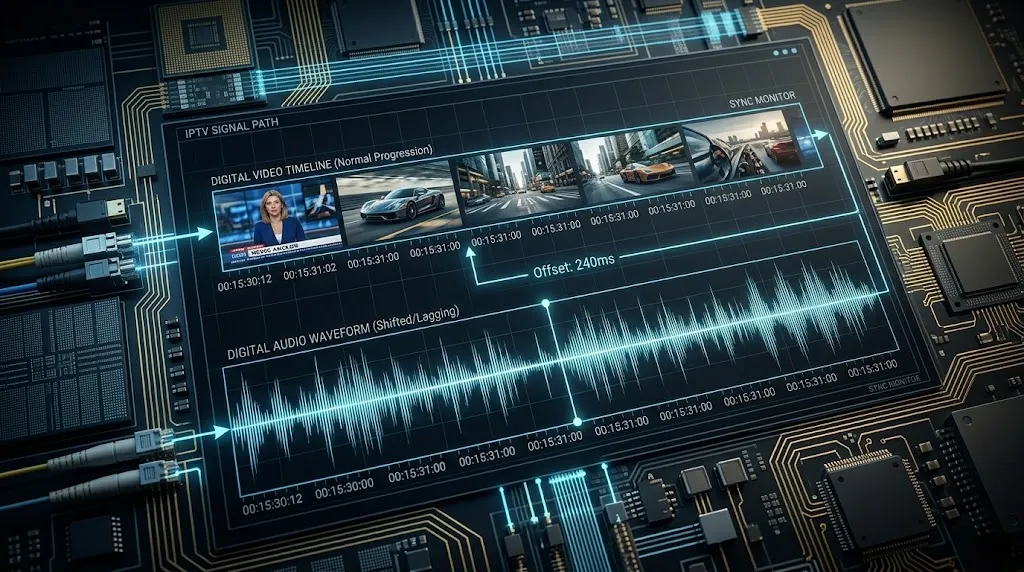
Most IPTV players expose a buffer size in milliseconds. A buffer that is too small makes audio and video drift apart under network jitter; one that is too large adds a noticeable pause when you change channels. Raise it in steps and retest rather than jumping to the maximum.
Then the Audio Path
Soundbars connected by ARC introduce their own processing delay, and some sound modes — surround simulation, night mode, voice enhancement — add more. Switching to a plain stereo or standard mode often removes the drift entirely.
Then the TV’s Own Delay Setting
Most TVs have an audio delay or lip-sync adjustment buried in the sound menu, usually measured in milliseconds. Use it last, after the other two, because it corrects the symptom rather than the cause — and if you set it while the real fault is a small player buffer, you will find yourself resetting it every time the network varies.
What Goes Wrong Most in NZ Households
Two patterns account for most of the audio complaints I deal with, and neither is what people expect.
The first is the firmware update. A TV or streaming device installs an update overnight and quietly resets its audio output back to ‘Auto’ or ‘Dolby Digital’. The customer changed nothing, so they assume the IPTV service broke — and they are half right, in that something did change, just not on the service side. New Zealand viewers saw the same pattern outside IPTV entirely when the Freeview Streaming app was updated in May 2026 to work with TVNZ’s new channel delivery system, and some televisions started behaving differently on channels that had worked the day before (Freeview NZ service update). Playback behaviour is not fixed; it moves underneath you.
The second is the Fire TV Stick, which is the most common IPTV device in New Zealand households and also the most commonly misunderstood one here. Many units are grey imports, and the newer models — the 4K Select and the current HD stick — run Vega OS rather than Fire OS. They do not run Android IPTV apps at all, which means the decoder toggle described in Cause 1 does not exist on them. People follow a guide written for an older stick, cannot find the setting, and conclude their device is faulty. It is not; it is a different device wearing a familiar name.
Key takeaway: A setting you never touched can still change, because device updates routinely reset audio outputs back to their defaults.
Stopping It From Happening Again
Fixing IPTV no sound NZ faults once is straightforward. Stopping the same fault from returning every few months takes three habits.
Write down the audio settings that worked – decoder mode, TV audio output, and soundbar input – somewhere you will find them again. After any firmware update on the TV, the streaming device or the player app, check the audio output setting before assuming a stream is broken. And when you add a soundbar or receiver to a setup that previously ran through TV speakers, expect to reconfigure the output format, because the chain has genuinely changed.
If sound is only part of a wider problem, IPTV Buffering Fix NZ covers stream stability, and IPTV Error Codes NZ covers authentication and connection failures.
A Note on Services and Licensing
Audio faults are technical, but the service carrying them is not automatically legitimate. IPTV as a technology is entirely legal in New Zealand. What determines whether a particular service is lawful is whether it holds valid distribution licences for the content it delivers under the Copyright Act 1994. Verify a provider’s licensing position before subscribing, and keep the distinction clear between official streaming platforms such as TVNZ+ and Sky Sport Now, and third-party services that redeliver channels.
This article is for educational and comparison purposes only. Verify the licensing status of any streaming service and ensure compliance with New Zealand copyright law before subscribing.
Explore More
Troubleshooting
- IPTV Black Screen NZ — the opposite symptom: sound with no picture
- IPTV Buffering Fix NZ
- IPTV Error Codes NZ
- IPTV Keeps Disconnecting NZ
Devices and apps
Setup