
By Ryan Mitchell · IPTV Setup NZ · Last updated: August 2026
A message I get regularly runs something like this: the connection is fibre, the speed test reads well over 300 Mbps, and Netflix plays in 4K without a hiccup — and yet live channels stutter every few minutes. The reader has usually already decided the solution is a faster plan and is asking me which one to buy.
It is almost always the wrong purchase. The internet speed for IPTV NZ households needs to be far lower than the speed most of them already have. What changes the outcome is everything else in the chain between the source and the screen.
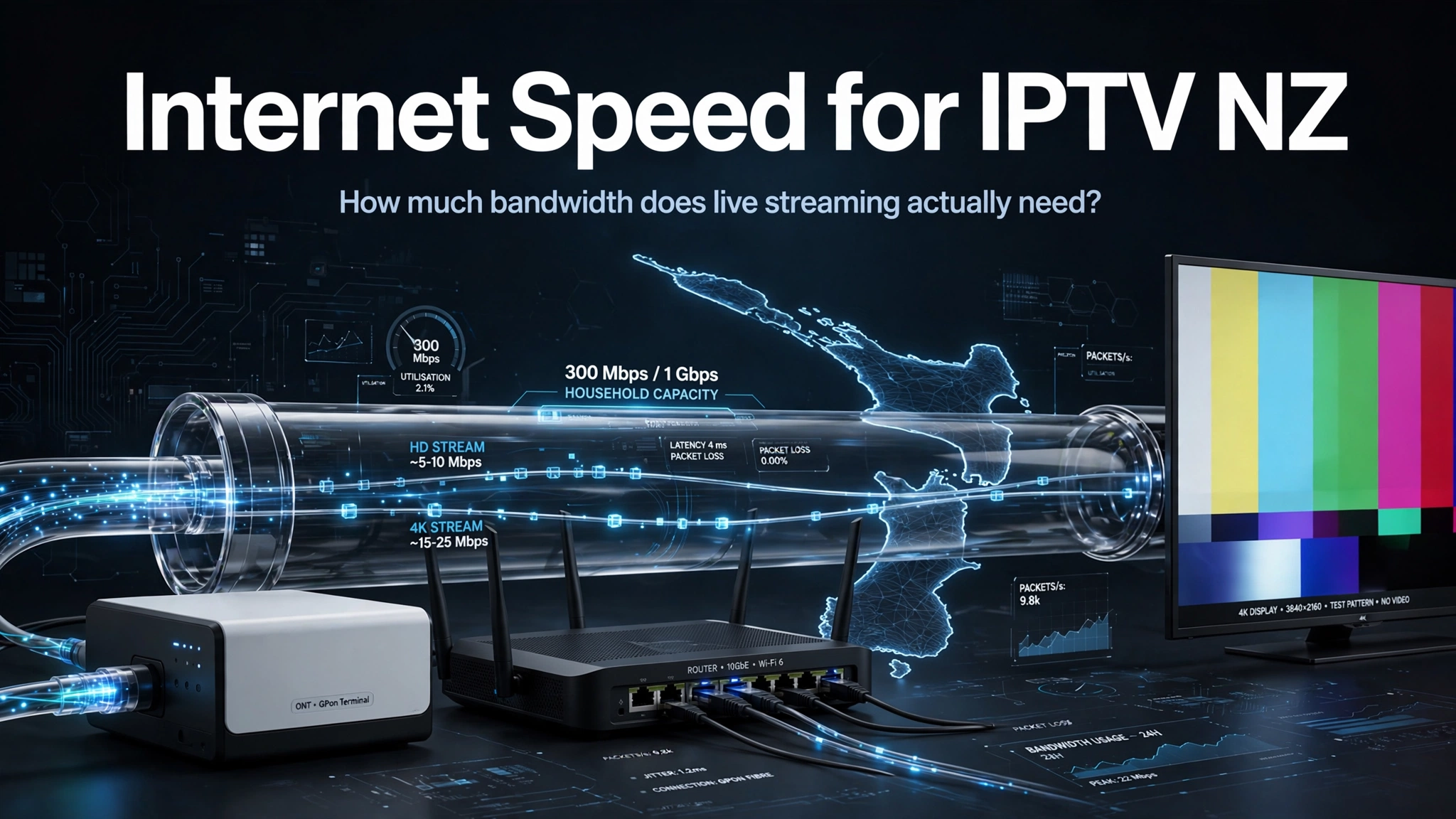
Quick Answer: A single HD stream needs roughly 8–12 Mbps, and a 4K stream around 25–50 Mbps depending on the encoding. Any current New Zealand fibre plan comfortably clears that. If you are buffering on 100 Mbps or more, the bottleneck is usually the player app, the device, your in-home Wi-Fi, or the route to the source — not the plan.
If you are still setting things up, start with the IPTV setup guide for New Zealand, which covers the configuration steps this article assumes you have already completed.
What Internet Speed for IPTV NZ Streaming Requires
Bandwidth figures for streaming are ranges, not fixed values. The actual demand depends on the codec, the bitrate the source encodes at, and the quality of the original feed. A well-encoded HD channel can use less bandwidth than a poorly encoded one at the same resolution. Treat the table below as a working frame rather than a specification.
| Stream quality | Approximate speed per stream | Notes |
|---|---|---|
| SD (480p) | 3–5 Mbps | Older channels and some international feeds |
| HD (720p–1080p) | 8–12 Mbps | The most common quality for live channels |
| 4K / UHD | 25–50 Mbps | Range, not a fixed figure — encoding varies widely |
| Three devices at once | 30–40 Mbps combined | Assumes HD on each screen |
The second table is the one that answers what most people are actually asking when they search this topic.
| Your plan | Enough for IPTV? | When it might not be |
|---|---|---|
| VDSL (up to ~70 Mbps) | Usually yes for HD | 4K or several simultaneous streams consume much more of the available headroom |
| Fibre 100/20 | Yes | Only if many devices are saturating the line simultaneously |
| Fibre 300 | Yes, with large headroom | Effectively never a capacity limit for household viewing |
| Fibre 500 / 1 Gbps | Yes | Capacity has not been your constraint for some time |
| Hyperfibre (2 Gbps+) | Yes | Buys nothing extra for streaming specifically |
The pattern is worth stating carefully: above roughly 100 Mbps, additional capacity is unlikely to improve a single live stream unless other devices are already consuming the available bandwidth. Chorus lifted its entry-level fibre tier to 300 Mbps at the previous price point, meaning a large share of New Zealand households now have many times the bandwidth a television needs. If you are buffering at those speeds, more of the same will not help.
Key takeaway: Above roughly 100 Mbps, extra capacity rarely improves a single live stream, so a plan upgrade is seldom the fix for buffering.
Why Fast Fibre Still Buffers in New Zealand
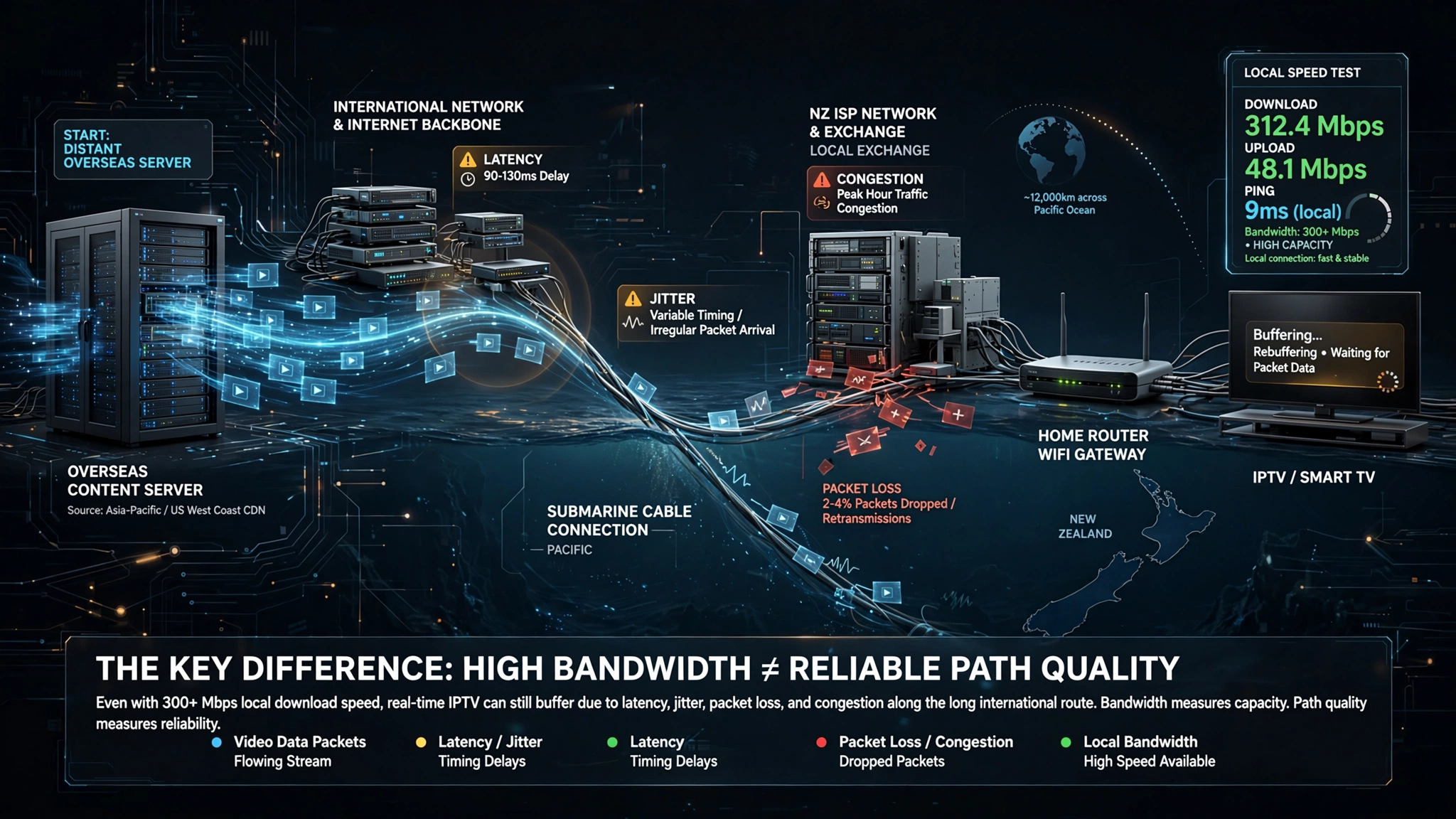
Buffering is often a path-quality problem rather than simply a speed problem. Your plan’s speed describes capacity — how much data can move at once. Live streaming also depends on consistency: whether packets arrive steadily, in order, without gaps. A connection can have enormous capacity and still deliver an unstable stream if the path between the source and your device introduces jitter, packet loss, or congestion at any point along the way.
That path matters more in New Zealand than in most markets, and the reason is geographic. New Zealand connects to the wider internet through a limited set of international submarine cable links. Traffic from an overseas source travels through your home network, your retail provider, the domestic network, an international transit path, the destination network, and finally the server itself. Any one of those segments can degrade the stream while your local speed test still reads 300 Mbps—because a speed test measures throughput to a nearby test server, not the behaviour of a long international path carrying live video.
To be precise about it: the cables are not the fault. They explain why the journey is long, not why it fails. A long path simply has more places where something can go wrong.
Why Does Netflix Work Perfectly When IPTV Does Not?
Large platforms like Netflix and TVNZ+ use distributed delivery infrastructure, holding copies of popular content in caches close to New Zealand users. A live IPTV stream may instead depend on a single distant source with a longer and less predictable path. The same connection can have a different journey and a different result.
This is the comparison that trips people up, and it is a fair thing to be confused by. A working Netflix stream genuinely does tell you something useful — it tells you your line is functional and your device can decode video. What it does not tell you is anything about the route to a different source. On-demand content also has a structural advantage over live television: a player can buffer several minutes ahead of what you are watching, so a brief interruption goes unnoticed. Live channels have no such cushion. What arrives late is simply late, and you see it.
Key takeaway: A flawless Netflix stream confirms your line and device are working but says nothing about the route to a different streaming source.
The Four Causes I See Most Often
When I troubleshoot a buffering complaint, I start with two questions: what is the speed of the connection, and what player app is being used? The first question rules out the obvious. The second one is where the answer usually lives.
The Player App
One of the most common causes I encounter is a free, poorly maintained player app. Free players tend to stop receiving updates, and an unmaintained player handles unstable network conditions badly — it manages its buffer poorly, recovers from interruptions clumsily, and stutters where a maintained app would ride through the same dropout without a visible glitch. The stream is identical. The software handling it is not.
Playlist handling matters here too. A player that reloads an entire large channel list on every launch or fetches EPG data inefficiently puts a load on both the device and the connection before you have watched anything.
The Device and Large Channel Lists
Underpowered devices struggle with very large channel lists. A list containing many thousands of entries has to be parsed, held in memory, and rendered by the interface, and a budget streaming stick with limited RAM will slow noticeably under that weight. What the viewer sees is stuttering playback, so the connection gets the blame — but the device was already at its limit before the video started.
This is why the internet speed for IPTV NZ readers ask about so often turns out to be a red herring — the constraint was hardware, not bandwidth. The clue that separates this from a network fault: the interface itself feels sluggish. Slow menus, delayed channel switching, and a laggy guide point at the device, not the line.
In-Home Wi-Fi
Internet speed and Wi-Fi quality are two different measurements, and this distinction resolves more complaints than anything else on this list. Your plan speed describes what arrives at the fibre ONT. ‘Wi-Fi’ describes what survives the trip from your router to the television — through walls, competing 2.4 GHz networks, and distance.
A 300 Mbps plan can deliver 20 Mbps to a TV in a back room, fluctuating as neighbouring networks compete on the same channel. That fluctuation is what breaks live streams, more than the average figure.
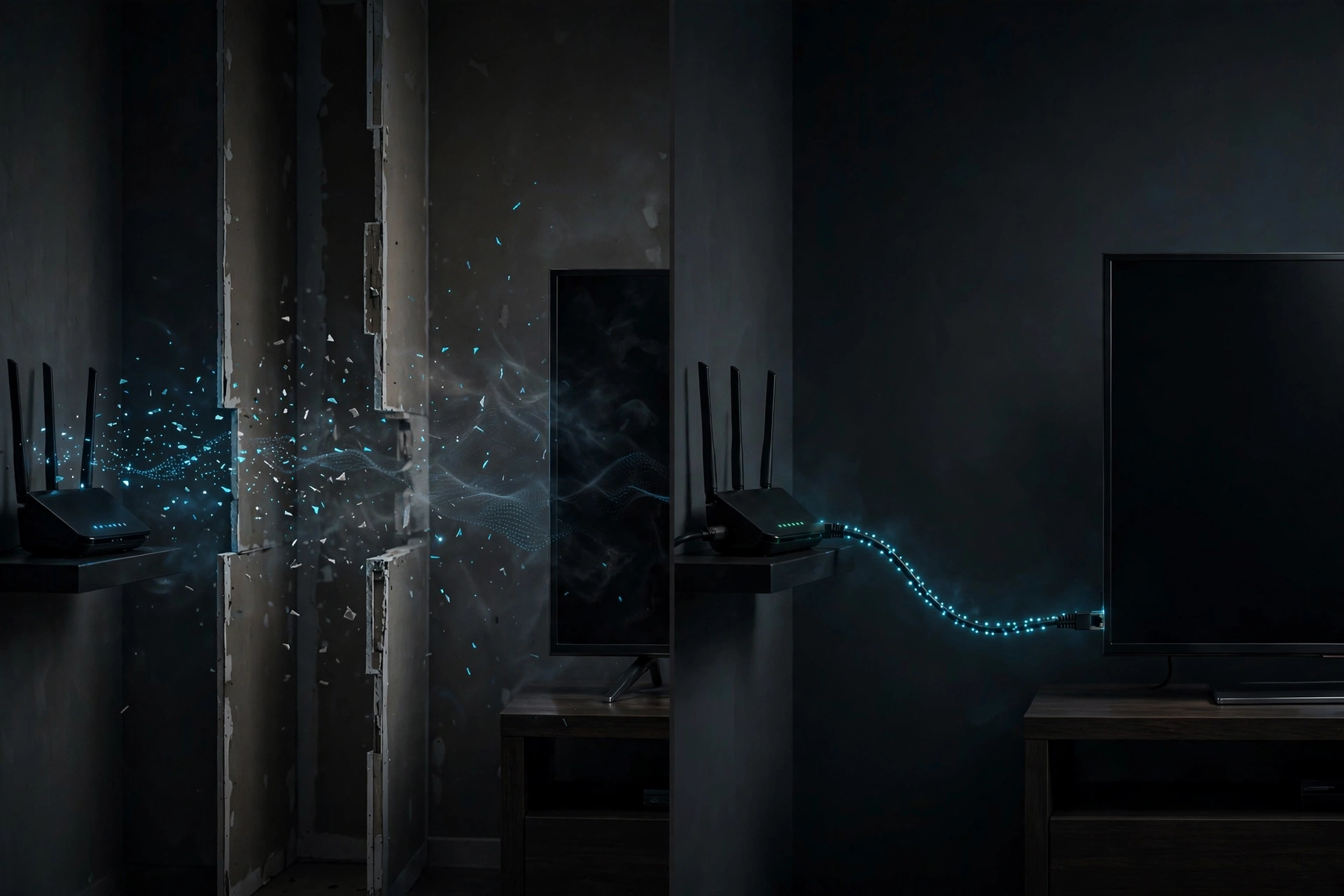
Where it is practical, use an Ethernet cable. This is the single change I recommend most often, and the reason is not raw speed — a cable delivers stable throughput, and stability is what live video needs. If running a cable is not realistic, moving the device to the 5 GHz band usually beats 2.4 GHz for a television sitting within reasonable range of the router.
Peak-Hour Demand
Complaints cluster around major sporting events. That timing does not prove the network is congested — it means high simultaneous demand exposes a weakness in the source, the route, or the service infrastructure that lighter usage never reveals. A path that copes fine on a Tuesday afternoon can degrade when a large audience hits the same source at once.
The practical implication: judge a service by how it behaves during a live event, not during a quiet weekday test.
How Do I Test If the Problem Is My Internet?
Run your service through your phone’s mobile hotspot instead of the home connection. If it plays cleanly on mobile data but buffers on home broadband, the fault sits somewhere in the home path — your Wi-Fi, your router, or your retail provider’s route. If it buffers on both, the connection is not the variable.
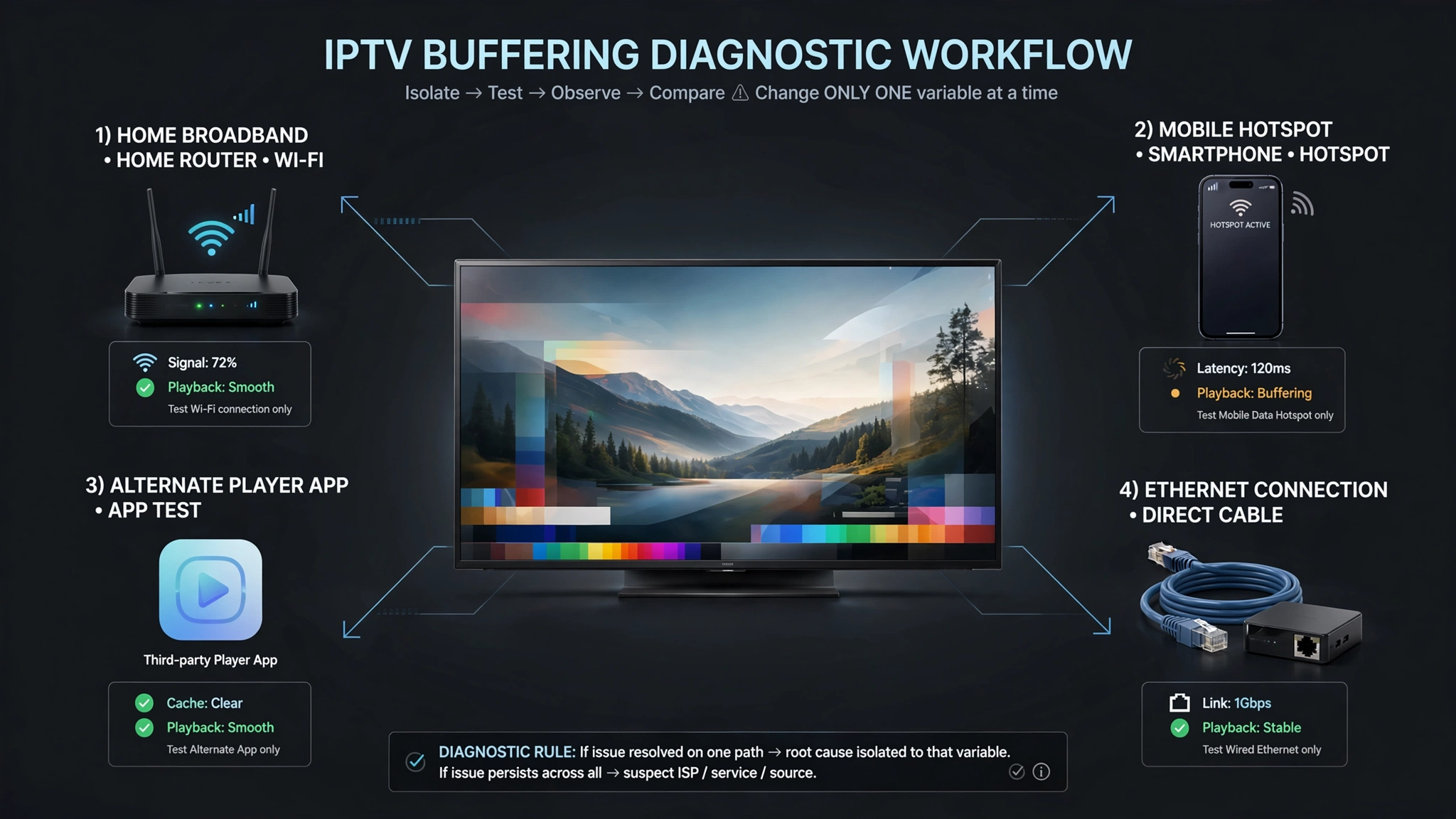
This is an isolation test, not proof. Switching to a hotspot changes several things at once — the network, the wireless link, the routeing, and the public IP address — so a positive result narrows the field rather than convicting a specific culprit. That is still worth a great deal when you are trying to work out where to look next.
The second useful test targets the most common misreading of internet speed for IPTV NZ connections. A 300 Mbps subscription does not mean every connection to every source achieves 300 Mbps at every moment. The figure you were sold describes the capacity of your line, not the throughput available along a particular path at the moment your channel froze. So run your speed test while the problem is happening, not afterwards, and repeat it at the time of day the buffering occurs. A connection that tests perfectly at 10am tells you nothing about 8pm.
Two more variables are worth changing one at a time. Switch the player app — testing with a different one on the same device tells you whether the software is the variable. On Android devices and Fire TV sticks, TiviMate is a common alternative; on Samsung Tizen and LG webOS televisions, where TiviMate does not run at all, IBO Player is available through the official Samsung and LG stores. Neither is being presented here as better than what you have. They are simply a way to change one variable and observe the result. Second, plug in an Ethernet cable temporarily, even if the permanent arrangement will be wireless.
Key takeaway: Change one variable at a time — network, app, then connection type — and test during the period when the problem actually occurs.
Chorus or Your Retail ISP — Who Do You Actually Call?
Call your retail provider first, in every case. Spark, One NZ, 2degrees and the rest sell the plan and own the customer relationship; Chorus and the local fibre companies build and maintain the physical network. Chorus does not take consumer calls, so your provider is the entry point wherever the fault sits.
This split confuses a lot of people, and it is worth understanding because it shapes what you should say when you call. If the problem is a physical fault — a damaged line, a failed ONT, an installation issue — your provider raises it with the network operator, which then despatches a technician. If the problem is routeing, congestion on the provider’s network, or the plan configuration, your provider handles it directly.
What helps the call: tell them the times the problem occurs, whether it happens on wired as well as wireless connections, and whether other services on the same connection are affected. A provider can investigate “streaming degrades between 7pm and 10pm on Ethernet, with other services unaffected” far more usefully than “the internet is slow.”
Rural New Zealand and Starlink
Rural connections shift the problem from capacity to consistency. Starlink and fixed wireless connections generally deliver ample bandwidth for streaming, but latency is higher and more variable than a good fibre connection, and heavy rain or snow can affect satellite performance. For live video, that variability matters more than the headline speed figure.
The practical consequence is that a rural connection can pass a speed test convincingly and still stutter during live playback. If you are on Starlink specifically, the Starlink and IPTV guide for New Zealand covers what changes about the setup.
A Note on Legality
Streaming legality in New Zealand depends on whether the source holds the rights to the content it distributes, and the Copyright Act 1994 governs that question. If your goal is New Zealand television or sport, start with the licensed platforms that officially carry it — TVNZ+ and ThreeNow for free-to-air catch-up, MĀORI+ for Māori broadcasting, Sky Sport Now for sport, and Neon for entertainment. None of them raise the licensing question at all.
This article is for educational and comparison purposes only. Verify the licensing status of any streaming service and ensure compliance with New Zealand copyright law before subscribing.
Explore More
Setup and devices: IPTV setup guide NZ · Best IPTV app NZ · TiviMate NZ · Firestick IPTV NZ · Samsung TV IPTV NZ · IPTV on Starlink NZ
Troubleshooting IPTV buffering fixes in NZ · IPTV keeps disconnecting NZ · IPTV not working NZ · IPTV freezing on Firestick NZ
Bottom Line
The internet speed for IPTV NZ viewers needs to sit well below what most New Zealand households already pay for, so the plan is rarely where the answer is. Three situations cover almost everyone:
You are on fibre and buffering. Do not upgrade the plan. Run the hotspot isolation test, then try Ethernet, then try a different player app — one change at a time, tested during the hours when the problem occurs.
You are on VDSL or fixed wireless. HD should be reliable; 4K and multiple simultaneous streams are where you will feel the ceiling. Wired connections and a maintained player app matter more here than anywhere else.
You are rural or on Starlink. Capacity is not your constraint — consistency is. Expect variability during weather events, and prioritise a stable wired link from the router to the television over any change to the plan itself.
SOURCES
- Chorus — fibre plan speeds, network tiers and infrastructure: https://www.chorus.co.nz/
- Chorus Hyperfibre — residential speed tiers: https://sp.chorus.co.nz/product/hyperfibre-home/overview
- Consumer Protection NZ — internet and telecommunications services: https://www.consumerprotection.govt.nz/
- Copyright Act 1994 — New Zealand Legislation: https://www.legislation.govt.nz/act/public/1994/0143/latest/DLM345634.html
- TVNZ Help — streaming and buffering guidance: https://helptvnz.zendesk.com/hc/en-us/articles/360015545511-Video-is-slow-to-load-buffering-or-freezing
- LG Content Store — IBO Player web OS version support: https://us.lgappstv.com/main/tvapp/detail?appId=1209143