
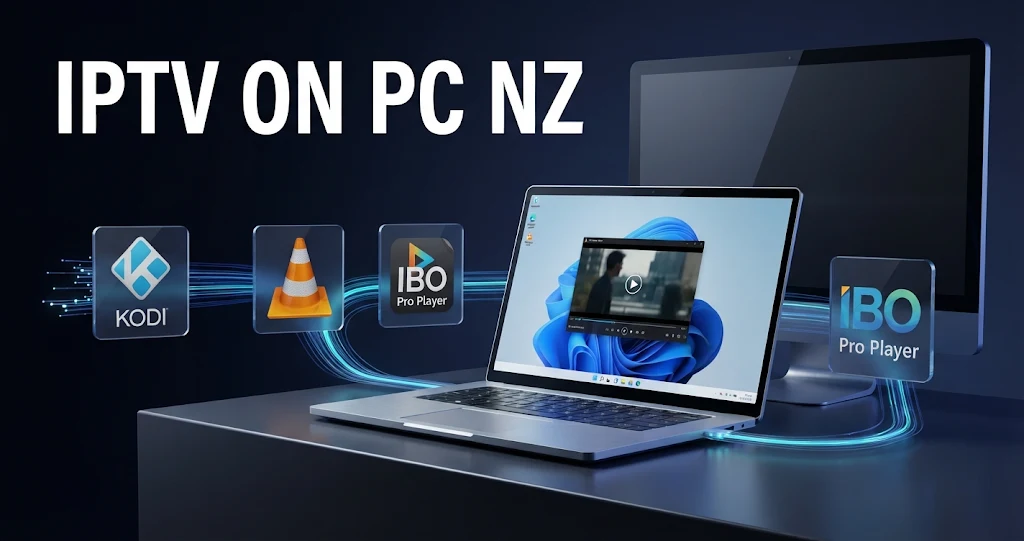
A laptop or desktop is the one screen most New Zealand households already own, and watching IPTV on PC in NZ needs no extra hardware at all.
What it does need is the right player. Windows has plenty of IPTV apps, but they range from simple, guided players to full media centres that take an evening to configure.
The choice that matters is how much setup you are comfortable with, because the player you pick decides how easy everything after it will be.
Quick Answer
If you are new to IPTV, start with IBO Pro Player, installed from the Microsoft Store listing its developer links to, and check the publisher name before you install. If you want a full TV-style guide and are happy to spend time on setup, use Kodi with the official IPTV Simple Client add-on. VLC opens a playlist link in seconds but has no proper programme guide.
This guide is part of the IPTV Setup Guide NZ. For how Windows compares with Smart TVs, Fire TV and Apple devices, see Best IPTV App NZ.
What Do You Need to Watch IPTV on PC NZ?
You need four things: a PC running Windows 10 or Windows 11, an IPTV player app, the login details your IPTV service provides, and a stable internet connection. The player is free or low cost. The login details come from your provider as either an M3U playlist link or an Xtream Codes login.
Your Login Type Decides Your Player
An M3U playlist is a single web link that lists every channel. Xtream Codes is a login made of a server address, username and password. This matters on Windows because not every player accepts both.
Kodi’s IPTV Simple Client is built around M3U links, while IBO Pro Player’s developer lists support for both formats. Check which one your provider has given you before you install anything.
Your Connection
Across New Zealand UFB connections, HD and 4K IPTV play comfortably. UFB (Ultra-Fast Broadband) is the fibre network built by Chorus and the local fibre companies. For 4K, allow roughly 25–50 Mbps for the stream itself. On Fixed Wireless or Starlink, raw speed is rarely the issue; stability at peak times is. Our Internet Speed for IPTV NZ guide covers this in detail.
Which Windows IPTV Player Should You Choose?
Choose by experience. IBO Pro Player suits beginners because adding a login takes few steps. Kodi with IPTV Simple Client suits experienced users who want a full programme guide and are comfortable configuring settings.
VLC plays a playlist link instantly but offers no organised guide or channel management for daily viewing.
| Player | Where to get it | Login types | Best for | Setup effort |
|---|---|---|---|---|
| IBO Pro Player | Microsoft Store (listed by the developer, iboproapp.com) | M3U and Xtream Codes | First-time IPTV users | Low |
| Kodi + IPTV Simple Client | Microsoft Store or kodi.tv | M3U playlist + XMLTV guide | Experienced users wanting a TV-style guide | High |
| VLC media player | videolan.org | M3U link or single stream | Quickly checking that a link plays | Very low |
App listings and features change between updates. Check the publisher name on the store page before installing.
IBO Pro Player: The Easiest Start
IBO Pro Player is the player I recommend to people setting up IPTV for the first time, on Windows as on Smart TVs. The interface is simple and the advanced options stay out of the way. T
he developer’s site, iboproapp.com, links to its Microsoft Store listing, so install it from there rather than from a third-party download site. Activation is handled inside the app; check the current terms and price there before paying. That activation is for the player only and is separate from whatever you pay your IPTV service.
Kodi with IPTV Simple Client: The Full Guide
Kodi is a free, open-source media centre. On its own it does not play IPTV; the official IPTV Simple Client add-on, maintained by the Kodi team, adds live TV channels and a programme guide from an M3U playlist and an XMLTV guide link.
The result looks and works like a TV guide, which is why experienced users like it. The cost is setup time, which is why the full walkthrough below uses Kodi.
VLC: Fast, but Basic
VLC is a free media player that can open an M3U link or a single stream through Media → Open Network Stream. It is the quickest way to check that a link plays at all. It does not give you a grid guide, favourites or tidy channel groups, so most people find it awkward for everyday viewing.
Can You Use Android IPTV Apps on Windows Without an Emulator?
No. Android IPTV apps such as TiviMate are built for Android and do not run natively on Windows. Running them needs an Android emulator, which adds another layer of software, uses more system resources and complicates troubleshooting. A native Windows player such as IBO Pro Player or Kodi avoids all of that.
Microsoft’s own route for running Android apps, the Windows Subsystem for Android, reached end of support on 5 March 2025, so there is no official option either. If TiviMate is the app you want, the simpler answer is an Android-based streaming stick on your TV, not an emulator on your PC.
Key takeaway: On Windows, pick a native player that matches your experience rather than forcing an Android app to run.
Setting Up Kodi and IPTV Simple Client, Step by Step
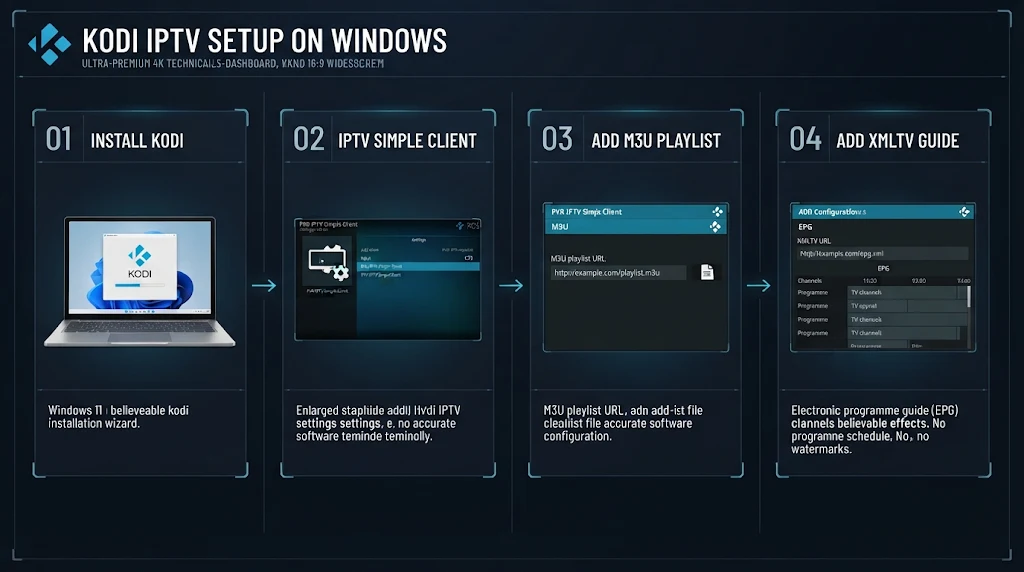
These steps assume your provider has given you an M3U playlist link, and ideally an XMLTV guide link as well. If you only have an Xtream Codes login, ask your provider for the M3U version, or use IBO Pro Player instead.
Step 1: Install Kodi From an Official Source
Open the Microsoft Store, search for Kodi, and check the publisher is the XBMC Foundation before installing. Alternatively, download the Windows installer from kodi.tv. The Store version updates itself automatically, which is one less thing to manage.
Microsoft Defender SmartScreen warns when Windows does not recognise a downloaded file. A warning does not prove a file is harmful, and the absence of one does not prove it is safe. What matters is the source: if a warning appears on a file from anywhere other than the Microsoft Store or kodi.tv, stop and download it again from one of those two.
Step 2: Install IPTV Simple Client
In Kodi, go to Settings → Add-ons → Install from repository → PVR clients, select IPTV Simple Client and choose Install. This add-on comes from Kodi’s own official repository. Do not install “IPTV” add-ons from unknown third-party repositories: they are a common source of broken setups and unwanted software.
Step 3: Add Your Playlist
Open the add-on’s Configure screen. In the general settings, set the playlist location to a remote path (internet address) and paste your M3U playlist link. This link loads the channel list only, not the programme guide.
Paste carefully: a single missing character is enough to leave the channel list empty. Exact menu labels can differ slightly between Kodi versions, so look for the equivalent option if a name does not match.
Step 4: Add the Programme Guide
In the add-on’s EPG settings, paste the XMLTV guide link your provider supplied. The EPG (electronic programme guide) is the on-screen TV guide, and XMLTV is the file format that carries it.
This is a different link from the M3U playlist. Adding the playlist alone does not give you a guide, and even with both links the guide only fills in for channels the guide data actually covers.
Step 5: Restart and Check
Open TV from the main menu. If your channels do not appear, restart Kodi so the add-on reloads with the new settings. The first guide download can take a few minutes on a large playlist. Let it finish before closing Kodi, otherwise it may start again next time.
Key takeaway: Most Kodi IPTV setups fail at the paste stage, so check the playlist and guide links character by character before anything else.
How Do You Get the TV Guide Working on PC?
The TV guide needs two things: guide data from your provider and correct time settings. In Kodi, that means an XMLTV link in IPTV Simple Client.
If programme times look shifted, check three causes in order: the Windows time zone, the time offset in the guide data, and the player’s own time-shift setting.
Set Windows itself to (UTC+12:00) Auckland, Wellington with automatic daylight saving switched on, under Settings → Time & language → Date & time. Kodi uses the system clock, so a wrong Windows time zone shifts every programme in the guide.
If times are still off by a fixed number of hours after that, the guide data may be using a different time zone, and IPTV Simple Client includes an EPG time-shift setting to adjust it. If the guide is blank rather than shifted, the guide link itself is missing or not loading.
Our IPTV EPG Setup NZ guide explains guide sources and timing in more depth, including the switch between NZST and NZDT.
Watching on the Big Screen: PC to TV via HDMI
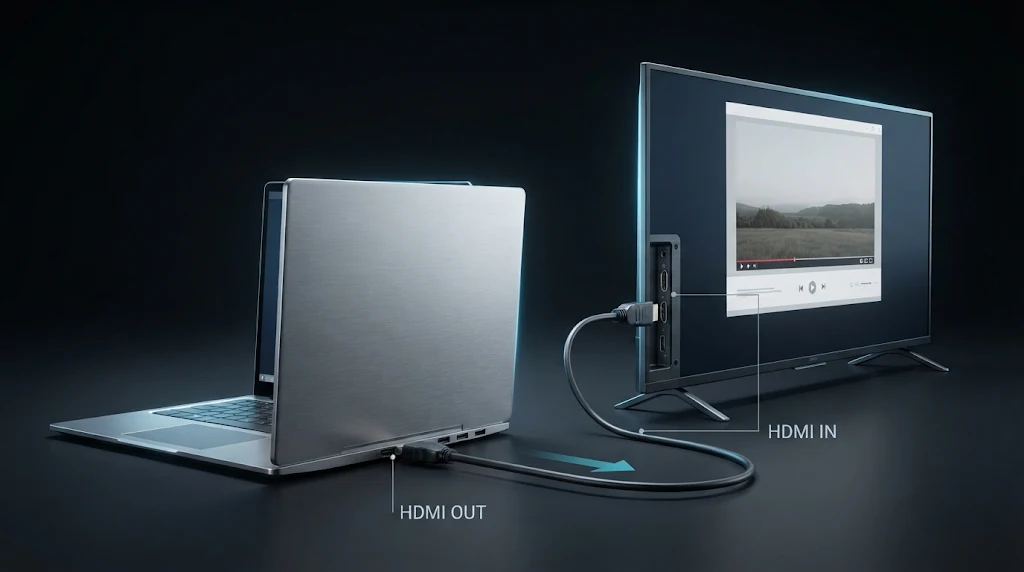
Many people use a laptop as a simple IPTV box for the lounge TV, which avoids buying a separate streaming device. Connect the laptop to the TV with an HDMI cable, then press Windows key + P and choose Duplicate or Second screen only. Run the player full screen.
Two settings make this work better. First, plug the laptop into power, because battery-saving modes can lower video performance. Second, check the sound output: Windows sometimes keeps playing audio through the laptop speakers, which you can change by selecting the TV in the volume menu on the taskbar.
If the PC will live permanently by the TV, a dedicated streaming device is usually more convenient. Our Best IPTV Devices NZ guide compares the options.
Why Does IPTV Buffer on My Laptop?
Buffering on a laptop can come from Wi-Fi, background downloads, power settings, the stream itself or the wider connection. Wi-Fi is a common suspect because walls and distance weaken it, so the quickest first test is a wired Ethernet cable. If buffering stops on a cable, Wi-Fi was the cause.
Check the Connection First
If your laptop has an Ethernet port, or you have a USB Ethernet adapter, test with a cable. If buffering stops, the cause was Wi-Fi. If it continues on a cable, the problem is more likely with the stream or the wider connection.
Check What Else Is Running
Cloud backups, game downloads and Windows updates all compete for bandwidth in the background. Pause them and test again. Also check the Windows power mode: on battery, Windows may reduce performance to save power, which can cause stuttering on high-quality streams.
For a full diagnosis, including problems that sit with your retail ISP or with Chorus, see our IPTV Buffering Fix NZ guide.
Key takeaway: Test with an Ethernet cable before changing anything else, because it separates a Wi-Fi problem from a stream problem in minutes.
Safety and Legal Notes
Install players only from the Microsoft Store or the developer’s official website, and treat a SmartScreen warning on an unfamiliar download as a reason to stop. Never enter your provider login into a player you found through an advert or an unknown download page.
An IPTV player is legal software. It plays the playlist you give it and supplies no content of its own. Whether your viewing is legal depends on the service you connect to, which must own the rights to the content it distributes or hold the necessary licences, as required under the Copyright Act 1994.
This article is for educational and comparison purposes only. Verify the licensing status of any streaming service and ensure compliance with New Zealand copyright law before subscribing.
Explore More
Other devices
Apps and setup
If something goes wrong
Bottom Line
The right way to set up IPTV on PC in NZ depends on your experience and how you watch.
- New to IPTV, watching on a laptop: install IBO Pro Player from the Microsoft Store, enter your login and start watching. Check the activation terms inside the app before paying.
- Experienced, wanting a proper TV guide on a desktop: use Kodi with IPTV Simple Client, add both your M3U and XMLTV links, and set Windows to the Auckland timezone so the guide lines up.
- Using a laptop as the lounge TV box: connect by HDMI, keep the laptop on power and use a cable connection to the router if you can. If it becomes permanent, consider a dedicated streaming device.
SOURCES
- New Zealand Legislation — Copyright Act 1994: https://www.legislation.govt.nz/act/public/1994/0143/latest/whole.html
- Kodi official wiki — Add-on: PVR IPTV Simple Client (kodi.wiki) — M3U playlist, live TV and EPG support; installation from the official Kodi repository
- Kodi official website (kodi.tv) — Windows installer and Microsoft Store listing
- IBO Pro Player developer site (iboproapp.com) — Microsoft Store listing 9MSNK97XPVRK (checked November 2026)
- Microsoft — Windows Subsystem for Android end of support, 5 March 2025 (Microsoft Learn notice)