
IPTV on an iPhone for NZ trips up a lot of people for one simple reason: Apple doesn’t build a live-TV app of its own, and an iPhone doesn’t behave like an Android streaming box. That confusion is fair — and it’s fixable without doing anything unusual. Nothing here involves jailbreaking, sideloading, or stepping outside the App Store. This guide covers which apps genuinely work on iOS, which well-known one doesn’t, how to load a playlist once you’ve picked one, and how to get the picture off your phone and onto the actual TV in the lounge
.
Quick Answer
IPTV on iPhone NZ works through a standard app store player — GSE Smart IPTV and IPTV Smarters Player are the two most established, where you add your own M3U playlist or Xtream Codes login. No jailbreak is needed. TiviMate, by contrast, has no iOS version at all. AirPlay handles casting to an Apple TV directly; Chromecast needs a different approach, since it doesn’t speak AirPlay’s protocol.
If you’re setting up IPTV across more than one device, the complete IPTV setup guide for NZ is a better starting point — this article stays focused on the iPhone and iPad side of things. It pairs well with the best IPTV apps for the NZ roundup if you’re also deciding what to run on other screens in the house.
Before You Look at IPTV Apps, Check What’s Already on Your iPhone
Official New Zealand streaming apps already run natively on iOS — TVNZ+, ThreeNow, Sky Go, and Neon all have their own App Store apps, and none of them need a third-party player. If what you actually want is New Zealand free-to-air or a Sky subscription you’re already paying for, those official apps cover it directly and more reliably than any third-party route. IPTV apps become relevant once you’re after something broader that those official apps don’t carry — an international channel bundle, for instance.
Key takeaway: Official NZ apps like TVNZ+ and Sky Go already run natively on iPhone — worth checking those before adding a third-party IPTV player.
IPTV on iPhone NZ: Can You Actually Run It?
Yes, IPTV works on iPhone through ordinary App Store apps like GSE Smart IPTV and IPTV Smarters Player, which accept an M3U playlist or an Xtream Codes login from your provider. No jailbreak or sideloading is involved. The one commonly mentioned app that isn’t available is TiviMate, which Android supports and iOS does not.
It’s worth being precise about what these apps actually are. GSE Smart IPTV and IPTV Smarters Players are players — software that displays a video stream. Neither one supplies channels, and neither is an IPTV service in itself. What you load into them has to come from an active subscription or playlist you already hold elsewhere; the app is just the screen it plays on.
The Apps That Actually Work — GSE Smart IPTV and IPTV Smarters Player
Both are listed on the New Zealand App Store as general-purpose IPTV players, not tied to any one provider. Each accepts a playlist in M3U format (a plain text file or link listing channel streams) or, for services that support it, an Xtream Codes login (a server address plus a username and password, rather than a single URL). Both display an EPG — the Electronic Programme Guide, the on-screen grid showing what’s on now and next — once a playlist with guide data is loaded.
Why TiviMate Isn’t an iPhone Option
TiviMate is built for Android only; there’s no official iOS version, and that’s a deliberate design choice by its developer rather than an oversight. Chasing it onto an iPhone through jailbreaking or sideloading isn’t something worth doing — it trades away the security of a standard iOS install for an app that was never built to run there. GSE Smart IPTV and IPTV Smarters Player exists precisely to fill that gap for iPhone and iPad users.
Key takeaway: TiviMate has no native iOS app and isn’t coming to iPhone – GSE Smart IPTV and IPTV Smarters Player are the direct substitutes.
How Do I Set Up IPTV on My iPhone?
Setup itself is short, and it’s the same handful of steps regardless of which player app you pick. 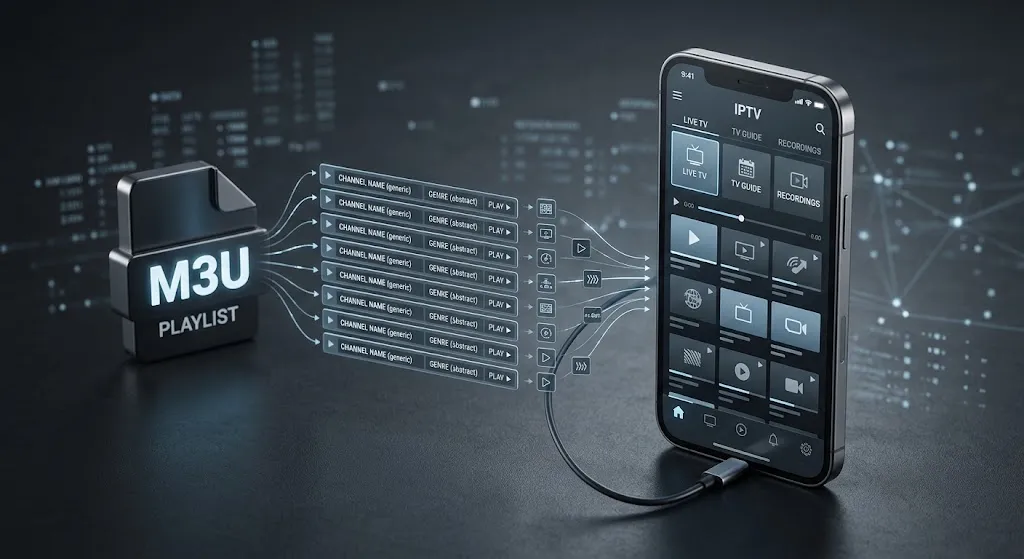
Step-by-Step: Adding Your Playlist
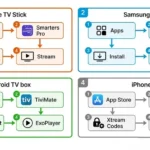
- Download the app from the New Zealand App Store — search for it by name and confirm it’s the official listing before installing.
- Open it and choose “Add Playlist” or “Add User”, depending on the app’s wording.
- Enter your playlist details — either the M3U URL or the Xtream Codes host, username, and password your subscription provides. The app has no channels of its own until this step; whatever you load in is what you’ll see.
- Give it a minute to pull down the channel list and EPG data before assuming something’s broken — a large channel list can take longer than a typical app to populate the first time.
- Test a channel or two before relying on it for anything time-sensitive, like live sport.
Getting It on Your Big Screen — AirPlay to Apple TV (and the Chromecast Caveat)
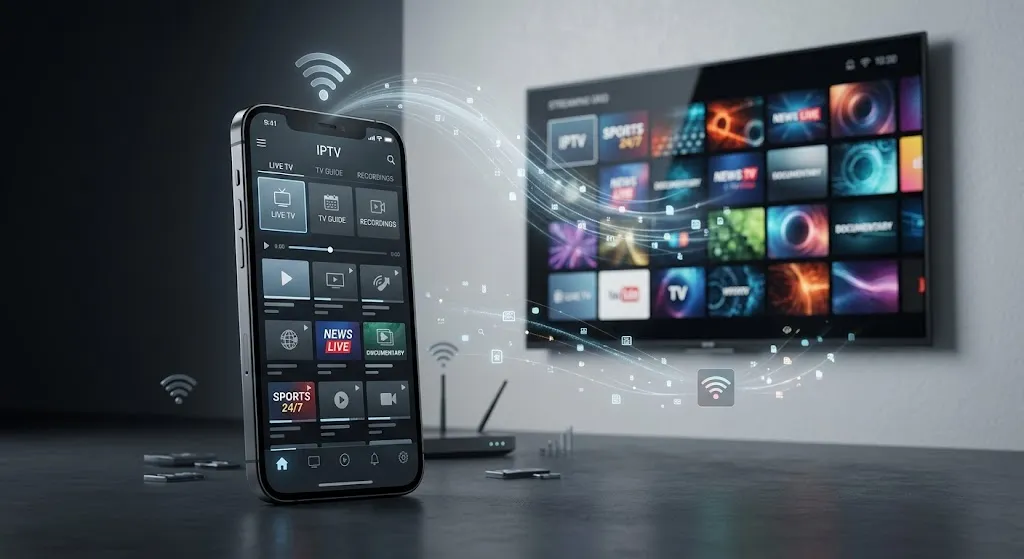
AirPlay is Apple’s built-in screen and audio mirroring protocol, and it’s the most direct way to get an iPhone’s picture onto a television. Open Control Centre, tap Screen Mirroring, and select an Apple TV on the same Wi-Fi network — the stream then plays on the television instead of the phone.
Chromecast is a different story, and it’s worth understanding why rather than just being told it doesn’t work: Chromecast runs on Google Cast, a separate casting protocol that AirPlay was never built to speak to. A household running Chromecast rather than Apple TV is generally better served running the IPTV player app directly on an Android TV device or a smart TV’s own app, rather than trying to bridge an iPhone into a system it wasn’t designed for.
Does Watching IPTV on iPhone Use a Lot of Mobile Data?
Yes, relative to ordinary phone use, an hour of standard-definition video can use half a gig or more, and HD substantially more. Most New Zealand mobile plans aren’t built for hours of daily video, so switching to Wi-Fi on a UFB connection — New Zealand’s fibre network — is worth it beyond a score check.
If you do need to watch on the go, most player apps let you drop the stream quality for cellular use — worth doing before a train commute, not during it. It’s also worth glancing at your carrier’s own data usage screen after the first session or two, since actual usage varies a lot by how the provider’s stream is encoded.
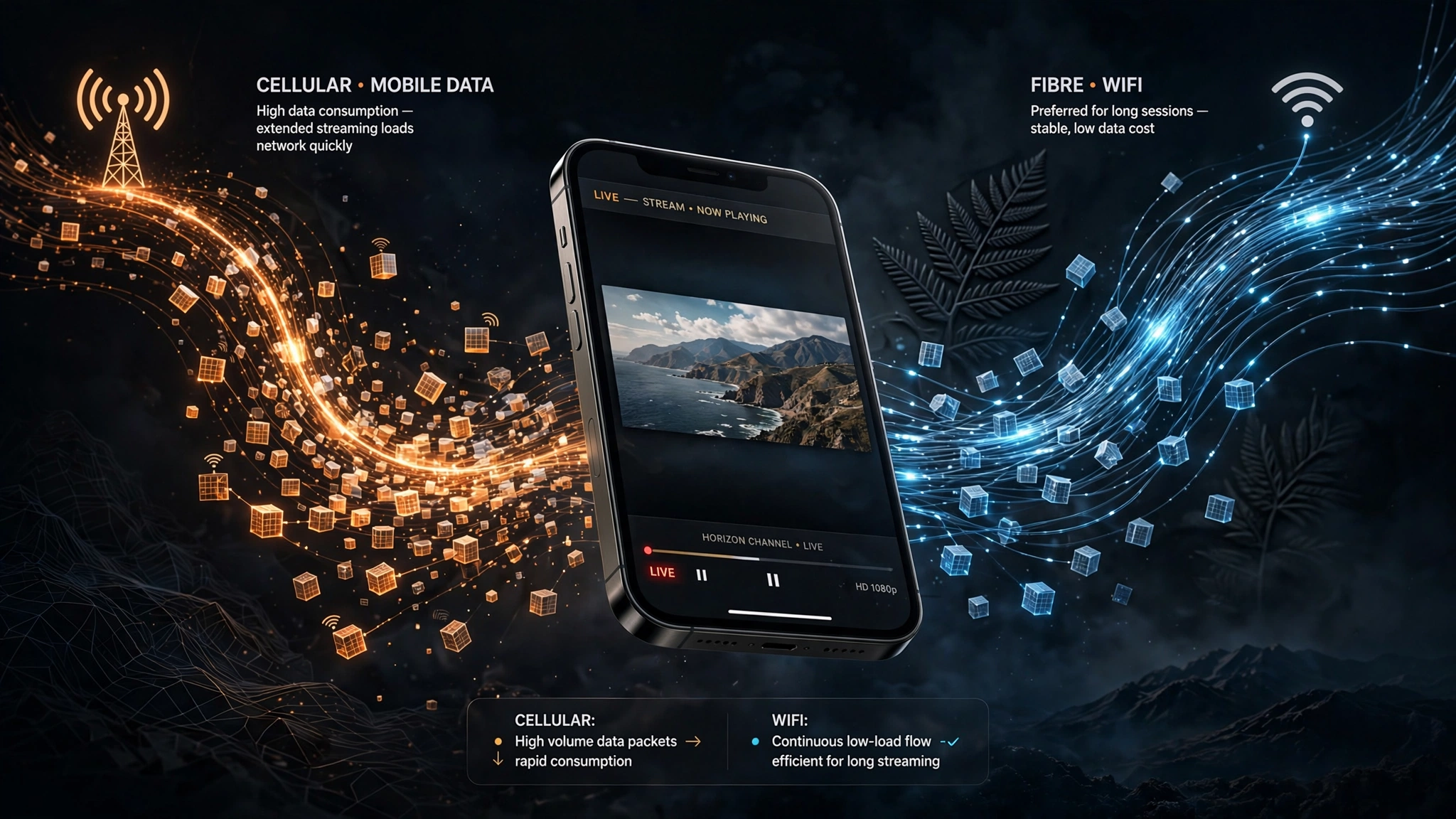
Key takeaway: An hour of HD IPTV can burn through a meaningful chunk of a mobile data plan — Wi-Fi on UFB is the sensible default for anything beyond a quick look.
Common IPTV on iPhone NZ Problems
A few issues come up specifically because of how iOS manages apps in the background, rather than anything to do with the stream itself:
- The stream cuts out when you switch apps. iOS suspends background video more aggressively than Android does, and Background App Refresh being switched off for the player app makes this worse.
- Battery drains fast during long sessions. Screen-on video decode is one of the more power-hungry things a phone does; Low Power Mode can also throttle background processes in ways that make a stream stutter.
- Playback won’t start at all or freezes mid-programme. This is almost always the connection or the source stream rather than the app itself.
For anything beyond these basics, the IPTV buffering fix guide and the general IPTV not working guide go through full diagnostics step by step rather than repeating that ground here.
Do You Need a VPN for IPTV on iPhone in NZ?
No — not to use a legitimate service from inside New Zealand. What actually determines smooth playback is a stable connection, not extra software between the phone and the internet. VPNs are sometimes marketed as a way to reach geo-restricted libraries; this site doesn’t recommend one for that purpose.
Worth knowing, too: a VPN can’t fix a player app’s compatibility or a source stream’s own downtime — it just adds another app’s permissions and, often, extra overhead on a mobile data plan that’s already metered. Running IPTV on iPhone NZ smoothly comes down to connection quality, not extra software layered on top.
Is it legal to use IPTV apps on an iPhone in NZ?
The app itself — GSE Smart IPTV or IPTV Smarters Player — is a media player, comparable to VLC; downloading and owning one isn’t in question. What determines legal risk is the source of whatever’s loaded into it, governed in New Zealand by the Copyright Act 1994 regardless of which player displays the stream.
The legal IPTV in NZ guide covers this in full detail, including how New Zealand’s copyright framework treats streaming differently from file-sharing.
This article is for educational and comparison purposes only. Verify the licensing status of any streaming service and ensure compliance with New Zealand copyright law before subscribing.
Key takeaway: The player app and the content source are legally separate questions — the app itself is just software, and New Zealand copyright law governs what you load into it.
GSE Smart IPTV vs IPTV Smarters Player
| Feature | GSE Smart IPTV | IPTV Smarters Player |
|---|---|---|
| Available on iPhone/iPad (App Store NZ) | Yes | Yes |
| Accepts M3U playlist | Yes | Yes |
| Accepts Xtream Codes login | Limited — check current version | Yes, built around it |
| EPG display | Yes, when the playlist includes guide data | Yes, when the playlist includes guide data |
| Multiple user/profile support | Varies by version — confirm in-app | Yes |
| Best suited for | Users with a plain M3U link | Users with Xtream Codes credentials |
Feature sets shift between app updates on both sides — confirm current functionality on the App Store listing or inside the app itself before relying on either for something specific.
Explore More
Setup & Devices: Complete IPTV Setup Guide NZ · Best IPTV App NZ · Apple TV IPTV NZ · Android TV IPTV NZ · Firestick NZ
Troubleshooting: IPTV Buffering Fix NZ · IPTV Not Working NZ
Guides: Is IPTV Legal in NZ? · How to Choose an IPTV Service in NZ
Bottom Line
IPTV on iPhone NZ comes down to three practical scenarios, depending on what the phone is actually for:
If you just want to check the score or the news occasionally, a standard App Store player loaded with a playlist you already have is plenty, and sticking to Wi-Fi will keep it off your mobile data plan.
If you want it on the lounge TV, AirPlay to an Apple TV is the smoothest iPhone-native route available. Chromecast households are better off running the same playlist through an Android TV device or a smart TV’s own app instead of trying to bridge an iPhone into it.
If you’re deciding whether an iPhone is worth bothering with at all — it’s a solid secondary screen, but a dedicated device like a Fire Stick, an Android TV box, or a smart TV app will generally give a steadier lounge-room experience day to day than a phone ever will.
Sources
- Apple App Store (NZ) — GSE Smart IPTV and IPTV Smarters Player listings, checked for current iOS availability
- Apple Support — AirPlay and Screen Mirroring documentation
- Copyright Act 1994 — legislation.govt.nz