
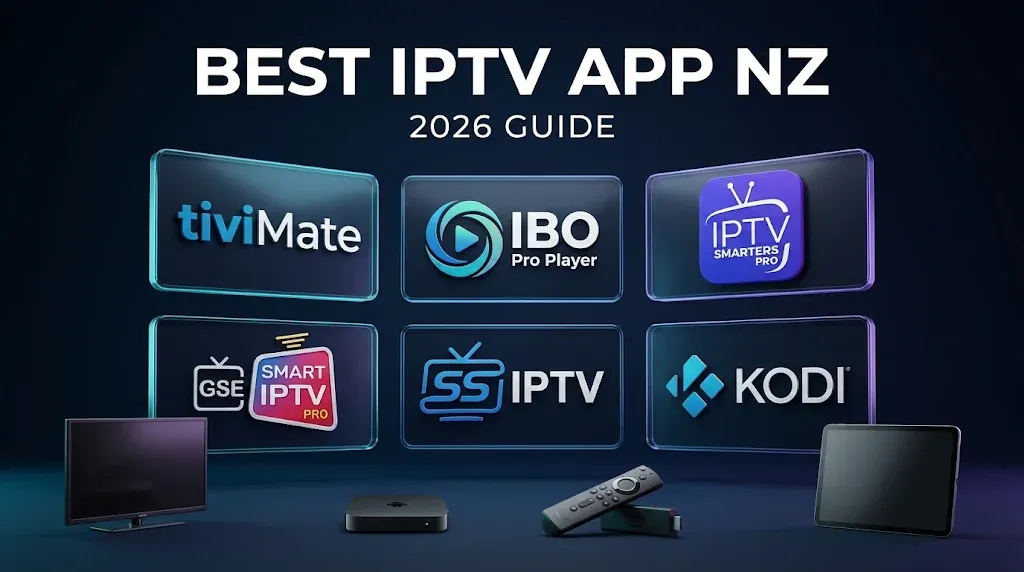
Most people looking for the best IPTV app NZ has to offer start with the wrong question. They ask which app is best overall, when the real question is which app their TV or streaming stick can actually install.
An IPTV app is a player: it opens the playlist or login your service provider gives you and plays it. The app itself carries no channels.
Two things decide the right choice: the operating system on your device, and how much IPTV experience you already have.
In a typical Kiwi household that might mean a Fire TV Stick in the lounge, a Samsung or LG Smart TV in the bedroom and a laptop on the side, used by people who range from first-timers to long-time IPTV viewers.
Quick Answer
If you are new to IPTV, IBO Pro Player is the app I recommend: it is simple to set up and available on Samsung, LG, Android, iPhone and Windows. If you already know your way around IPTV, TiviMate is the stronger choice on Android TV and older Fire TV Sticks. On Apple TV, use GSE SMART IPTV PRO.
This guide is part of the IPTV Setup Guide NZ, which covers installation on every common device. If you already know your app, go straight to the full walkthroughs for TiviMate NZ or IPTV Smarters Pro NZ.
Best IPTV App NZ by Device: The Compatibility Table
| Device | Operating system | New to IPTV | Experienced user | Notes |
|---|---|---|---|---|
| Fire TV Stick 4K / 4K Max | Fire OS (Android-based) | IBO Pro Player (APK install, not an Amazon Appstore listing) | TiviMate | Check whether each app is in your Amazon Appstore before sideloading |
| Fire TV Stick 4K Select / HD (2026) | Vega OS | Amazon Appstore apps only | Amazon Appstore apps only | APK installs not supported |
| Sony, TCL, Chromecast with Google TV, Nvidia Shield | Android TV / Google TV | IBO Pro Player | TiviMate | Both on Google Play |
| Samsung Smart TV | Tizen | IBO Pro Player | IPTV Smarters Pro | TiviMate not available |
| LG Smart TV | webOS | IBO Pro Player | IPTV Smarters Pro | TiviMate not available |
| Apple TV | tvOS | GSE SMART IPTV PRO | GSE SMART IPTV PRO | Dedicated Apple TV edition |
| iPhone / iPad | iOS / iPadOS | IBO Pro Player | GSE SMART IPTV PRO | Check the developer name |
| Windows PC or laptop | Windows | IBO Pro Player | Kodi | IBO is in the Microsoft Store |
App availability and feature sets change between updates and app-store regions. Apps with the same name on different platforms are not always from the same developer. Confirm the listing in your own store before installing.
Which Operating System Is Your TV or Streaming Stick Running?
Your device’s operating system decides which IPTV apps you can install. Android TV and Fire OS run the widest range, including TiviMate. Samsung Tizen and LG webOS only accept apps from their own stores.
Apple TV is limited to the App Store, and newer Vega OS Fire Sticks cannot run Android apps at all.
Android TV and Google TV
Android TV is Google’s television operating system, and Google TV is its newer interface. Sony Bravia models, TCL TVs, Chromecast with Google TV and the Nvidia Shield all run it. These devices install both TiviMate and IBO Pro Player directly from Google Play, which makes them the most flexible platform for IPTV in New Zealand.
Fire OS vs Vega OS: Why Not Every Fire Stick Runs TiviMate
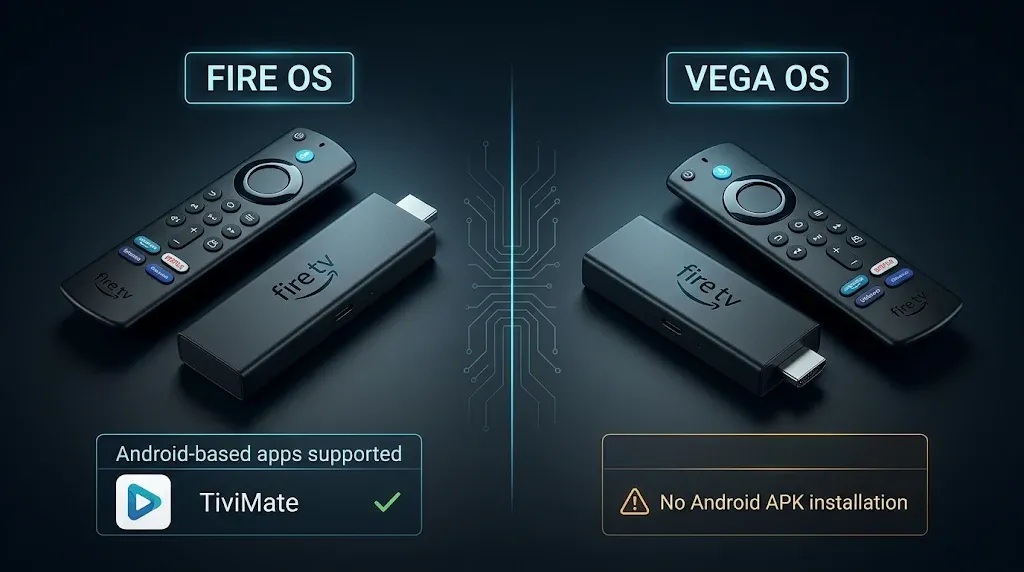
For years, every Fire TV Stick ran Fire OS, Amazon’s interface built on Android. That is why TiviMate, IPTV Smarters Pro and other Android players worked on them.
Amazon’s newer models, the Fire TV Stick 4K Select and the 2026 Fire TV Stick HD, run Vega OS instead. Vega OS is a separate platform that only accepts apps built for it from the Amazon Appstore, so Android IPTV players will not install.
To check your own stick, go to Settings → My Fire TV → About. If it lists Fire OS, you have the full range of apps. If it lists Vega OS, you are limited to what the Amazon Appstore offers.
Because many Fire TV devices in New Zealand are grey imports, check the exact model name before you buy rather than assuming every stick behaves the same.
Samsung Tizen and LG webOS
Samsung Smart TVs run Tizen and LG Smart TVs run webOS. Neither runs Android apps, so TiviMate is not available on either.
You install from the Samsung Apps store or the LG Content Store, where IBO Pro Player, IPTV Smarters Pro and SS IPTV are the usual options. If you want TiviMate on one of these TVs, the workaround is an Android-based streaming stick plugged into a spare HDMI port.
Apple tvOS, iOS and Windows
Apple TV runs tvOS and iPhones run iOS. Both are limited to Apple’s App Store, which does not carry TiviMate. Windows PCs are more open, but TiviMate has no Windows version, so IBO Pro Player, which is listed in the Microsoft Store, or Kodi for more technical users, fills that gap.
Key takeaway: Check your device’s operating system before choosing an IPTV app, because the same brand of stick or TV can run different systems depending on the model.
TiviMate: The Pick for Experienced IPTV Users
TiviMate is an IPTV player for Android TV and Fire OS devices, designed around a TV-guide layout.
It is the app I recommend to people who have used IPTV before, because most of its value sits in settings a first-timer will not need yet. Of all the players here, it feels closest to a traditional pay-TV box.
The programme guide is the main screen, channel groups are easy to reorder and the remote controls are laid out for flicking between channels. For experienced viewers on Android TV and Fire OS, that is why it is usually the best IPTV app NZ households can install.
Free vs Premium
The free version supports a single playlist and basic playback, which is enough to check that your service works.
TiviMate Premium is bought through the separate TiviMate Companion app and adds multiple playlists, recording, catch-up support and more layout control.
Premium is sold as a yearly or lifetime purchase. Check the current price inside the Companion app, because it can vary by region and over time.
When TiviMate Is Not the Right Choice
TiviMate is the wrong pick if your household mostly watches on Samsung or LG TVs, iPhones or a laptop, since it runs on none of them.
It is also not where I would start someone new to IPTV. Its depth of settings, from playlist management to guide sources, is an advantage once you know what you want and a distraction when you just want the channels to play.
It is also less suited to people who mainly watch on-demand films and series, because its strength is live TV and the guide.
IBO Pro Player: The Easiest Start for IPTV Beginners
IBO Pro Player is the app I recommend to people setting up IPTV for the first time. The layout is simple, adding a playlist takes few steps, and it is listed in the Samsung and LG TV stores, Google Play, the Apple App Store and the Microsoft Store.
On Fire OS sticks it is installed from an APK file supplied by the developer rather than from the Amazon Appstore, and it cannot be installed on Vega OS sticks. It supports both M3U playlists and Xtream Codes logins.
Why It Suits First-Timers
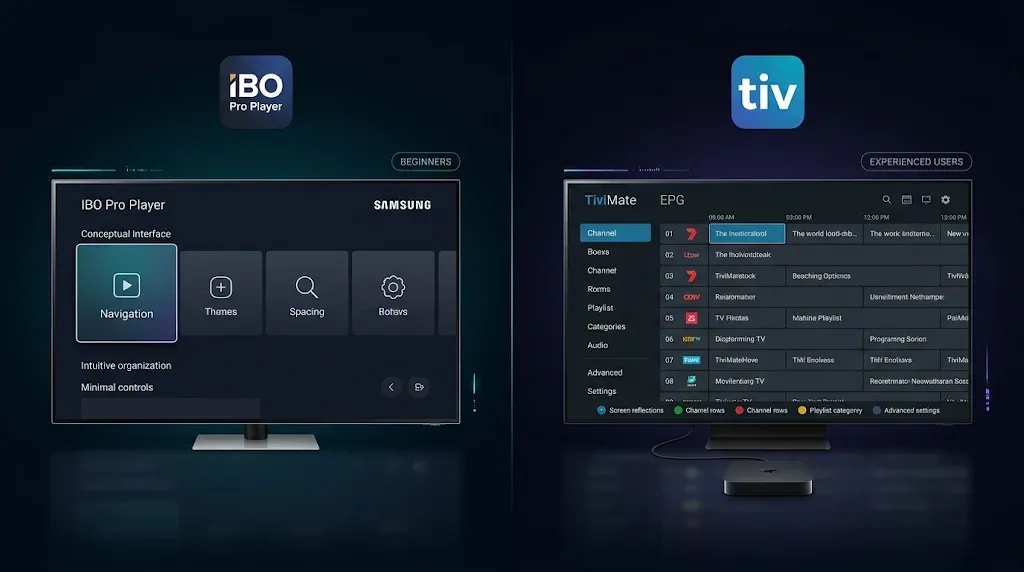
Beginners usually want one thing: to enter their login and see channels. IBO Pro Player keeps that path short and hides the advanced options that make other players feel complicated at the start. It also runs on the Smart TVs most Kiwi households already own, so there is often no extra device to buy.
Finding the Right App
The same player appears under slightly different names. The App Store lists it as “ibo Pro Player” (App Store ID 6449647925), while the developer’s own site, iboproapp.com, calls it “Ibo Player Pro”.
A separate app called “Ibo Player Pro” from a different developer also exists on the App Store. The reliable check is the activation website: if the app sends you to iboproapp.com to activate, you have the right one.
How Activation Works
You register for free, then unlock the app through an in-app activation purchase. Check whether the activation covers one device or several before you pay, and confirm the current price inside the app.
When IBO Pro Player Is Not the Right Choice
If you already use IPTV daily and want recordings, several playlists and detailed guide control on an Android TV or Fire OS device, TiviMate gives you more room to grow.
Key takeaway: Choose IBO Pro Player if you are new to IPTV and TiviMate once you want more control, as long as your device runs the app.
IPTV Smarters Pro: The Cross-Platform Option
IPTV Smarters Pro is available, under that name or a close variant, on more device types than any other player in this guide: Android, Fire OS, Samsung, LG, iOS and Windows. It supports both M3U playlists and Xtream Codes logins.
One caution: the Smarters apps on Apple and Windows stores are not always published by the same developer as the Android and Smart TV versions, so features and pricing can differ from platform to platform.
For a household with a mix of devices, that means everyone can use the same app and the same login steps, which makes support much simpler. On Samsung and LG TVs, it is a good step up for experienced users who want more options than IBO Pro Player offers.
The Name Problem in App Stores
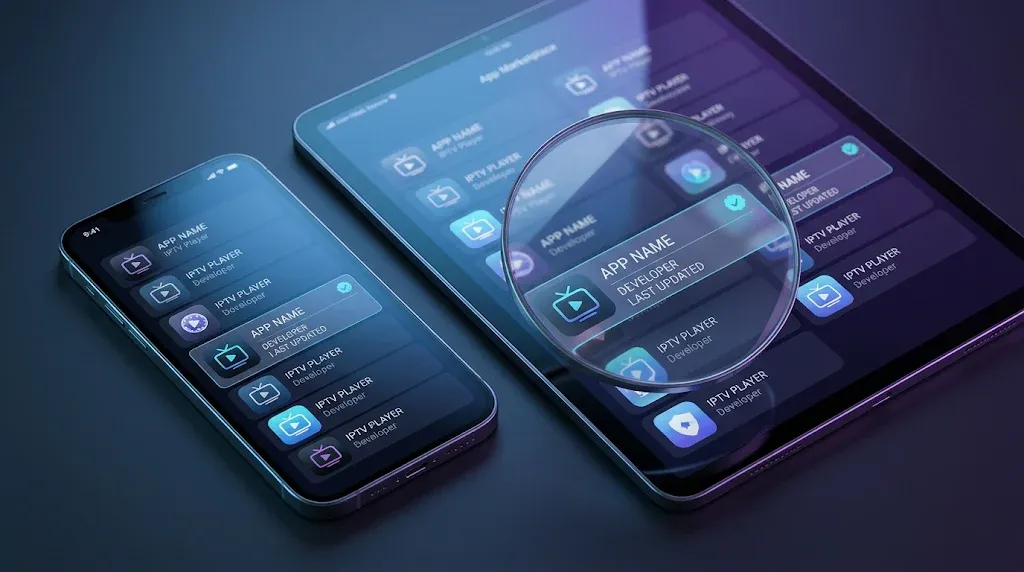
The mistake I see most often with customers is not a setting. It is installing the wrong app. Search “Smarters” in the Apple App Store and you will see several apps with almost the same name and icon, published by different developers.
Some are legitimate players and some are low-quality copies full of ads. On Samsung and LG, customers occasionally search and cannot find the app at all, usually because they searched a shortened name or because availability differs by TV model year.
Before installing, check three things in the store listing: the exact app name, the developer name and the last update date.
If your service provider recommends a specific player, ask them for the exact name and developer rather than searching from memory.
When Smarters Pro Is Not the Right Choice
On an Android TV or Fire OS device where TiviMate is available, Smarters Pro is usually the weaker option for experienced users, mainly because TiviMate’s guide is more detailed. For beginners, IBO Pro Player is simpler to set up. Smarters Pro also has no recording feature to match TiviMate Premium.
Is There a Good IPTV App for Apple TV in NZ?
Yes. GSE SMART IPTV PRO, published by GSE Technology, has a dedicated Apple TV version supporting M3U playlists and Xtream Codes logins, and several Smarters-branded players are also listed on the tvOS App Store.
TiviMate is not available on Apple devices. The main risk is copycat apps, so check the developer first.
The Apple TV edition of GSE is a one-off paid app with a free version to try first. Other apps using “GSE” in their names come from unrelated developers, often with monthly subscriptions, so the developer name is the thing to check.
GSE’s interface looks dated next to TiviMate, but it handles large playlists well once loaded. On first launch with a big playlist, let the programme guide finish loading before you exit, otherwise it starts again.
In the guide settings, set the timezone to Pacific/Auckland so programme times show correctly in NZST and NZDT.
Some players also offer universal purchase, meaning one App Store purchase covers iPhone, iPad and Apple TV. That suits Apple-only households, but confirm it on the listing before paying.
Lighter and Specialist Players
SS IPTV
SS IPTV is a free, lightweight player for Samsung and LG TVs. It uses less memory than Smarters Pro, which can help on older Smart TVs that feel slow. On some TV models it accepts M3U playlists only, so check which login format your provider gives you before relying on it.
Kodi
Kodi is a free, open-source media centre that plays IPTV through the PVR IPTV Simple Client add-on. It gives you a lot of control but takes the longest to set up, and updates can sometimes break add-on settings. It makes sense mainly if you already use Kodi for local media on a PC or Android box.
What Should You Check Before Installing Any IPTV App?
Check four things before installing any IPTV app: that it exists in your device’s own app store, that the developer name matches the app you expect, that it supports the login type your provider gives you (M3U or Xtream Codes), and that you can set the guide timezone to Pacific/Auckland.
Login Type: M3U or Xtream Codes
An M3U playlist is a single web link listing every channel. Xtream Codes is a login using a server address, username and password.
Most players support both, but a few lightweight apps support only M3U. Xtream Codes is usually easier to type on a TV remote and loads the programme guide automatically.
Timezone for the Programme Guide
The EPG (electronic programme guide) is the on-screen TV guide. If the app’s guide timezone does not match New Zealand, every programme appears at the wrong time.
Set it to Pacific/Auckland, which adjusts automatically when daylight saving starts and ends. Our IPTV EPG Setup NZ guide covers this in detail.
Test Before You Commit
Use the free tier of an app, and any trial your provider offers, to check playback on your own UFB fibre or rural connection before paying for anything.
Ultra-Fast Broadband, built by Chorus and the local fibre companies, handles HD and 4K IPTV comfortably. If you are on Fixed Wireless or Starlink, test during the evening peak, because that is when stability problems show up.
Key takeaway: Most installation problems come from picking the wrong app or the wrong login type, not from the app itself.
Is It Legal to Use an IPTV App in New Zealand?
IPTV player apps are legal software in New Zealand. They play whatever playlist you load and supply no content of their own.
Whether your viewing is legal depends on the service you connect to, which must hold the rights to its channels under the Copyright Act 1994.
This article is for educational and comparison purposes only. Verify the licensing status of any streaming service and ensure compliance with New Zealand copyright law before subscribing.
Explore More
App setup guides
- TiviMate NZ — full TiviMate setup and configuration
- IPTV Smarters Pro NZ — Smarters Pro setup on every platform
Device guides
If something goes wrong
Bottom Line
The best IPTV app NZ viewers can choose is the one their device runs and their experience level suits.
- New to IPTV, with a Samsung or LG TV: install IBO Pro Player from the TV’s own store and check it sends you to iboproapp.com for activation. You will be watching with the fewest steps.
- Experienced, with an older Fire TV Stick 4K or 4K Max or an Android TV: use TiviMate, starting with the free version, and move to Premium once you want recordings or several playlists. Before buying a new stick, check it runs Fire OS, not Vega OS.
- An Apple household with Apple TV and iPhones: use GSE SMART IPTV PRO on the Apple TV and IBO Pro Player on iPhones if you are new to IPTV, checking the developer name before every download.
SOURCES
- New Zealand Legislation — Copyright Act 1994: https://www.legislation.govt.nz/act/public/1994/0143/latest/whole.html
- Amazon Fire TV — device information under Settings → My Fire TV → About (Fire OS vs Vega OS)
- Apple App Store — GSE SMART IPTV PRO, GSE Technology Ltd, Apple TV edition, App Store ID 1055456071, requires tvOS 12.0 or later (checked November 2026)
- IBO Pro Player — developer site iboproapp.com; Apple App Store ID 6449647925 (listed as “ibo Pro Player”); Google Play com.ibpro.player; Samsung TV appId 3202410037109; LG Store appId 1273942; Microsoft Store 9MSNK97XPVRK (checked November 2026)
- Apple App Store — separate app “Ibo Player Pro”, App Store ID 1669696096, different developer (checked November 2026)
- Amazon Fire TV — Fire TV Stick 4K Select (2025) and Fire TV Stick HD (2026) run Vega OS and accept Amazon Appstore apps only