
By Ryan Mitchell | Hamilton | Updated June 2026
IPTV error codes NZ — every error message explained and tested across TiviMate, IPTV Smarters Pro, and GSE Smart IPTV in Hamilton, June 2026.
IPTV apps show errors two ways. Some display the raw HTTP code your device received from the server — 401, 404, 503. Others translate it into a plain message: “Authentication Failed” or “Connection Timed Out”. The same underlying problem is expressed with different wording depending on the app.
This guide covers both — the numeric codes and the plain-language messages — so whichever your app shows, you’ll find it here.
What does IPTV error code 401 mean?
A 401 error means your IPTV app’s request was not authorised; the server did not accept your credentials. This usually means an expired subscription, incorrect username or password, or a session that needs refreshing. Please re-enter your credentials manually and ensure your subscription is active.
Legal Note
This guide covers technical troubleshooting only. Always use licensed IPTV services compliant with the NZ Copyright Act 1994 — legislation.govt.nz
This guide is part of the IPTV Troubleshooting NZ section. For complete IPTV failure beyond a specific error, see IPTV Not Working NZ.
Quick Reference — Find Your Error
| What You See | Jump To |
|---|---|
| 400 / “Bad Request” | Error 1 |
| 401 / “Authentication Failed” / “”Unauthorised” | Error 2 |
| 403 / “Forbidden” / “Access Denied” | Error 3 |
| 404 / “Not Found” / “No Data” / 410 | Error 4 |
| 429 / “Too Many Requests” | Error 5 |
| 500 / “Internal Server Error” | Error 6 |
| 502 / “Bad Gateway” | Error 6 |
| 503 / “Service Unavailable” | Error 6 |
| 504 / “Gateway Timeout” | Error 6 |
| 520 / 522 / 525 (Cloudflare) | Error 7 |
| “Connection Failed” / “Could Not Resolve Host” | Error 8 |
| “Maximum Connections Reached” | Error 9 |
| “Playlist Empty” / M3U not loading | Error 10 |
| “Playback Error” | Error 11 |
| “EPG Load Failed” | Error 12 |
In This Troubleshooting Section
- IPTV Buffering Fix NZ ✅
- IPTV Not Working NZ ✅
- IPTV Black Screen NZ ✅
- IPTV Freezing Firestick NZ ✅
- IPTV Error Codes NZ ✅ — you are here
- IPTV Keeps Disconnecting NZ (coming soon)
- IPTV App Not Loading NZ (coming soon)
- IPTV Service Down NZ (coming soon)
How We Tested This
Ryan Mitchell documented error messages and codes across TiviMate 4.7, IPTV Smarters Pro 3.1, and GSE Smart IPTV on Chorus UFB 200 and Spark NZ UFB in Hamilton, June 2026.
Last tested: June 2026 — Hamilton
Error 1 — 400 Bad Request
Also shown as “Bad Request” and “Malformed Request”
What it means:
The server received your request but couldn’t understand it — usually because the URL or credentials contain something it can’t parse correctly. This scenario is different from 401 – the server isn’t rejecting your login; it can’t even read the request properly.
Common causes in NZ setups include the following:
| Cause | Fix |
|---|---|
| The server URL has extra characters or spaces | Please re-type the URL manually instead of copy-pasting it. |
| Trailing slash or missing slash in URL | Check the exact format your provider specifies |
| Special characters in username/password | Some apps don’t handle certain symbols — contact provider if your password contains unusual characters |
| M3U URL truncated during copy | Re-copy the complete URL from your provider email — check nothing was cut off |
To resolve the issue, please delete the existing entry and carefully type the server URL character by character. Copy-paste from email apps sometimes introduces invisible formatting characters that break the request.
Error 2 — 401 Authentication Failed
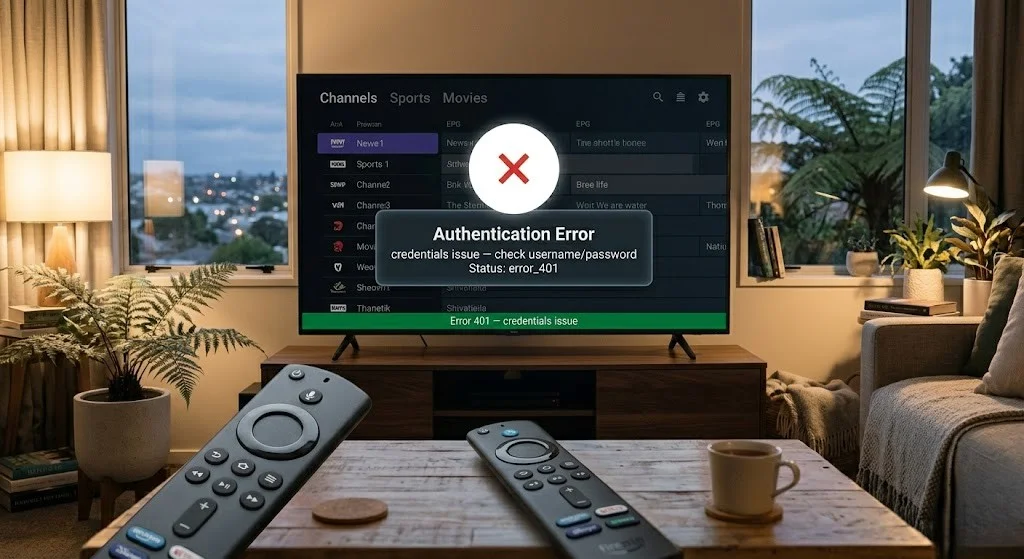
Also shown are “Unauthorised”, “Authentication Failed”, “Login Failed”
What it means:
The server didn’t accept your credentials. The request reached the server but was rejected before any content was returned.
Common causes for NZ setups:
| Cause | Fix |
|---|---|
| Subscription expired | Check expiry in provider email — renew if needed |
| Typo in username/password | Re-enter manually — lowercase ‘l’ vs number ‘1’ is common |
| Trailing space from copy-paste | Type credentials directly; don’t copy-paste |
| Session expired | Log out completely and log back in |
| The provider changed the password. | Check provider email for updated credentials |
Fix:
Delete the existing profile in your app. Then, manually re-enter the server URL, username, and password from your original provider email.
If using a VPN, disable it temporarily and retry. Some providers block VPN traffic and return 401 specifically because of this issue.
Error 3 — 403 Forbidden / Access Denied
Also shown as “Forbidden”, “Access Denied”, “Not Permitted”
access credentials, but it still refused access What it means:
The server understood your request and recognised your credentials, but it still refused access anyway. This scenario is different from 401. Your login worked; something else is blocking you.
Common causes:
| Cause | Detail |
|---|---|
| Maximum connections exceeded | Same account logged in on too many devices |
| Account restricted | The provider has flagged or limited the account |
| IP-based restriction | Some providers restrict access by region or IP range |
| Connection limit per plan | Check your subscription’s device limit |
resolveFix:
Close the IPTV app on all other devices logged into the same account, wait 2 minutes, then retry. If the error persists, contact your provider — 403 errors are usually account-level, not something you can resolve on your device.
Error 4 — 404 Not Found / No Data
Also shown are “Not Found”, “No Data”, “No Signal”, “Resource Not Found”
What it means:
The app requested a specific channel or resource, and the server couldn’t locate it at that address.
Common causes:
| Cause | Fix |
|---|---|
| Server URL incorrect | Verify exact URL from provider email — check for typos |
| M3U link missing parameters | Re-copy the full M3U URL — partial copies cause this |
| Channel removed by provider | Wait for provider to update the playlist or contact support |
| Endpoint changed | The provider may have moved servers — request updated URL |
A 410410 error is closely related — it means the resource was permanently removed rather than temporarily missing. If you see 410 repeatedly on the same channel, it’s not coming back. Contact your provider for an updated channel list.
Fix:
Re-enter your server URL and credentials from scratch; please delete the existing entry and recreate it instead of editing it. If specific channels show 404 while others work fine, the issue is provider-side. See IPTV Not Working NZ Step 8 is for the phone test to confirm.
Error 5 — 429 Too Many Requests
Also shown are “Too Many Requests”, “Rate Limited”, “Slow Down”
What it means:
You’re sending requests to the server faster than it allows. This is a rate-limiting response — the server protects itself from being overwhelmed by requests, and your app has hit that limit.
Common causes for NZ IPTV setups include:
| Cause | Fix |
|---|---|
| App aggressively retrying a failed connection | Close the app completely, wait 2–3 minutes, reopen |
| EPG refreshing too frequently | TiviMate: Settings → EPG → Update Time — set to once daily, not continuous |
| Rapid channel switching | Pause for a few seconds between channel changes if you see this repeatedly |
| Multiple app instances hitting the same account | Close IPTV on other devices using the same login |
Fix: Wait 2–3 minutes before retrying — rate limits typically reset after a short cooldown. If the issue happens consistently rather than occasionally, check that your EPG refresh interval isn’t set too aggressively.
Error 6 — 500 / 502 / 503 / 504 Server Errors
Also shown are “Internal Server Error”, “Bad Gateway”, “Service Unavailable”, “Gateway Timeout”
These four codes are all server-side — meaning the problem is on your provider’s end, not your device or app settings.
| Code | Meaning | What it tells you |
|---|---|---|
| 500 | Internal Server Error | The provider’s server has a fault |
| 502 | Bad Gateway | The provider’s server couldn’t get a valid response from another server in their system |
| 503 | Service Unavailable | The server is overloaded or under maintenance |
| 504 | Gateway Timeout | The provider’s server took too long to respond |
What you can do:
Nothing on these specifically fixes them from your side — they’re not caused by your settings. What you can do is confirm it’s provider-side:
Install IPTV Smarters Pro on your phone, switch to mobile data (not home Wi-Fi), and test the same channel with the same credentials. If you get the same error code on mobile data, it’s a confirmed provider issue.
Temporary 503s often clear within 30–60 minutes, typically during maintenance windows. Persistent 500/502 errors over several hours indicate a genuine server problem — contact your provider.
🇳🇿 NZ Context
Provider server load is most common 7–10pm NZST on weeknights and during major sports events (All Blacks tests and Super Rugby). If you get a 503 specifically during a big match, the error is usually temporary server load, not a permanent fault.
Error 7 — Cloudflare Errors (520 / 522 / 525)
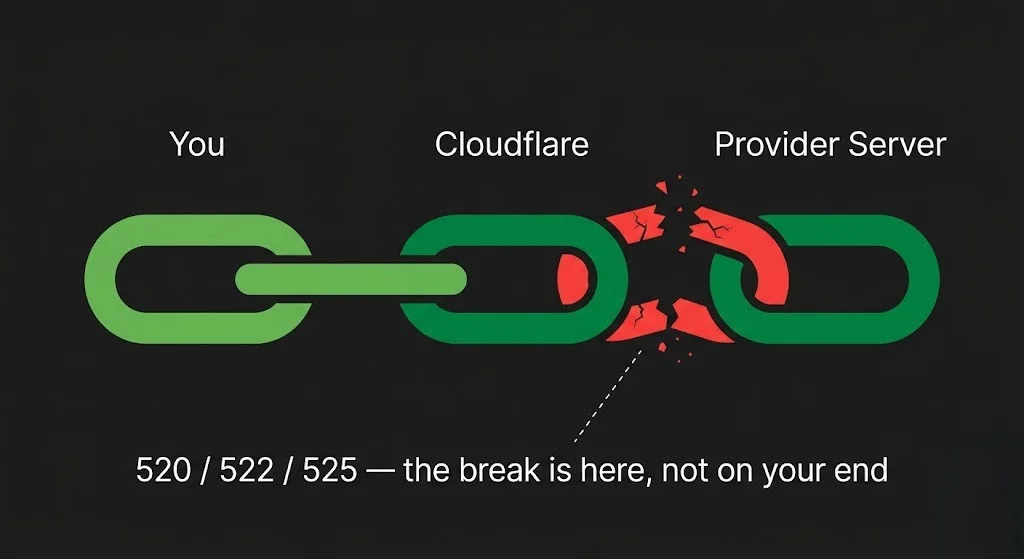
Also shown are “Web Server Returned Unknown Error” (520), “Connection Timed Out” (522), “SSL Handshake Failed” (525)
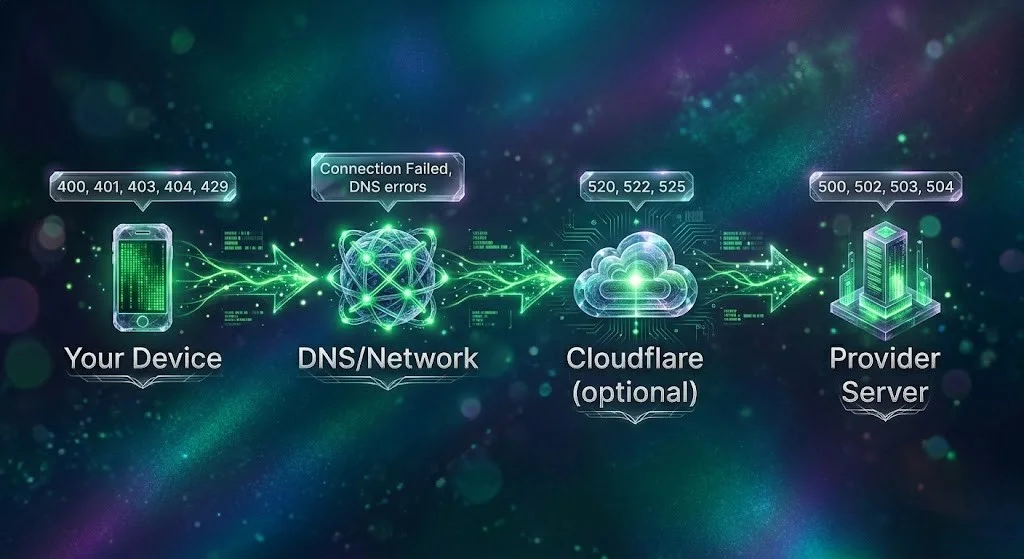
These are not standard HTTP codes — they’re specific to Cloudflare, a network service many IPTV providers use to protect and route their servers. If your provider sits behind Cloudflare, you may see these instead of a standard 5xx error.
| Code | Meaning |
|---|---|
| 520 | Cloudflare reached the provider’s server but got back an empty or malformed response |
| 522 | Cloudflare couldn’t even establish a connection to the provider’s server — it’s unreachable or overloaded |
| 525 | The SSL handshake between Cloudflare and the provider’s server failed |
What it tells you:
All three indicate a problem between Cloudflare and your provider’s actual server, excluding any issues between you and Cloudflare or with your device or settings. The issue is entirely on the provider’s infrastructure side.
If the issue persists beyond an hour, please reach out to your provider and mention the specific code (520/522/525)Fix: Nothing can be fixed from your end. These typically resolve once the provider’s server issue clears — often within 15–30 minutes for transient overload, and longer if it’s a configuration problem on their side. If the issue persists beyond an hour, please reach out to your provider and mention the specific code (520/522/525)
Error 8 — Connection Failed / DNS Errors
Also shown are “Could Not Resolve Host”, “Connection Failed”, “Cannot Connect to Server”
What it means:
Your device can’t even reach the server — this happens before authentication. Either your internet isn’t working, or DNS can’t translate the server address.
Most common cause in NZ: DNS failure on Spark NZ or One NZ, particularly after a router restart or ISP firmware update.
Fix — change DNS to 1.1.1. 1.
- Firestick: Settings → Network → Wi-Fi → Advanced → DNS →
1.1.1.1 - Samsung TV: Settings → General → Network → Network Settings → IP Settings → DNS → Manual →
1.1.1.1 - Android TV: Settings → Network & Internet → connection → Advanced → DNS →
1.1.1.1
Force close the app completely after changing DNS, then reopen.
Also check: confirm your internet works at all by opening YouTube or Netflix on the same device. If those fail too, the problem is your internet connection, not the IPTV service.
Error 9 — Maximum Connections Reached
Also shown are “Max Connections”, “Connection Limit Exceeded”, “Too Many Active Sessions”
What it means:
Your subscription has a device limit, and you’re currently logged in on more devices than your plan allows.
Fix:
Close the IPTV app completely on every other device using the same account—phone, tablet, and second TV. Wait 2–3 minutes for the session to clear on the provider’s server, then retry.
If the issue happens repeatedly, you may need a plan with more simultaneous connections. Review your subscription details or contact your provider to discuss upgrading.
Error 10 — IPTV M3U Playlist Not Loading
Also shown are “Playlist Empty”, “No Channels”, “Loading…” that never finishes
What it means:
The app connected successfully but received zero channels, or the M3U file failed to parse correctly.
Common causes:
| Cause | Fix |
|---|---|
| M3U URL expired | Some NZ providers set expiry dates on M3U links — request a fresh one |
| Incomplete URL copied | Re-copy the entire M3U URL — check nothing is missing at the end |
| Xtream Codes account has no channels assigned | Rare — usually a provider account issue; contact support |
| Wrong URL format | M3U URLs are a single long link, not a username/password pair — confirm you’re using the right field in your app |
Fix: Open your app’s playlist settings, delete the existing M3U entry completely, and re-add a freshly copied URL from your provider email. Please do not edit the existing entry; instead, start with a clean one.
Error 11 — Playback Error
Also shown are “Playback Failed”, “Format Not Supported”, “Cannot Play This Channel”
What it means:
The channel list loaded fine, and the stream is reachable, but your device can’t actually decode and display it. This situation is almost always a decoder issue rather than a connection issue.
Fix: Switch decoder — Tivimate: Settings → Playback → Player → ExoPlayer or FFmpeg. IPTV Smarters Pro: Settings → Player Settings → switch the player option. See IPTV Black Screen NZ for the full decoder troubleshooting guide, including the Tivimate-specific tunnelled playback and AFR settings that can also trigger this error.
Error 12 — EPG Load Failed
are also shown as “EPG Error”, “Guide Not Available”, “No Programme Data”
What it means:
Channels play fine, but the programme guide (EPG) won’t load or shows incorrect information.
Common causes:
| Cause | Fix |
|---|---|
| Wrong timezone | Settings → EPG → Timezone → Pacific/Auckland (UTC+12) |
| EPG URL invalid | Remove and re-add the EPG URL from the provider. |
| First-boot sync delay | Wait 3–5 minutes; do not restart during the sync. |
| EPG server separate from stream server | Some providers use separate EPG URLs – check provider email |
This error doesn’t affect channel playback — only the guide data. If channels work but times look wrong, it’s almost always the timezone setting.
How Each App Shows These Errors
Same underlying problem — different wording per app. This inconsistency is why two NZ viewers can describe “the same error” completely differently.
| Underlying Issue | TiviMate Shows | IPTV Smarters Pro Shows | GSE Smart IPTV Shows |
|---|---|---|---|
| 401 | “Authentication Error” | “Login Failed” | “Invalid Credentials” |
| 404 | “Stream Not Found” | “No Data” | “Channel Unavailable” |
| 429 | “Server Busy — Retry” | “Connection Error” | “Too Many Requests” |
| 503 | “Server Unavailable” | “Connection Error” | “Server Busy” |
| DNS failure | “Connection Timeout” | “Cannot Connect” | “Network Error” |
| Decoder issue | “Playback Failed” | “Player Error” | “Format Not Supported” |
From Ryan Mitchell:
When someone tells me their “IPTV isn’t working” and mentions an error, the first thing I ask is the exact wording or number on screen. “Connection failed” and “Authentication failed” sound similar but point to completely different fixes – one is DNS, the other is your login. If you can screenshot the exact message before contacting your provider, you’ll get a faster resolution. See IPTV Not Working NZ Step 9 for the full support contact checklist.
Client-Side vs Server-Side — Quick Test
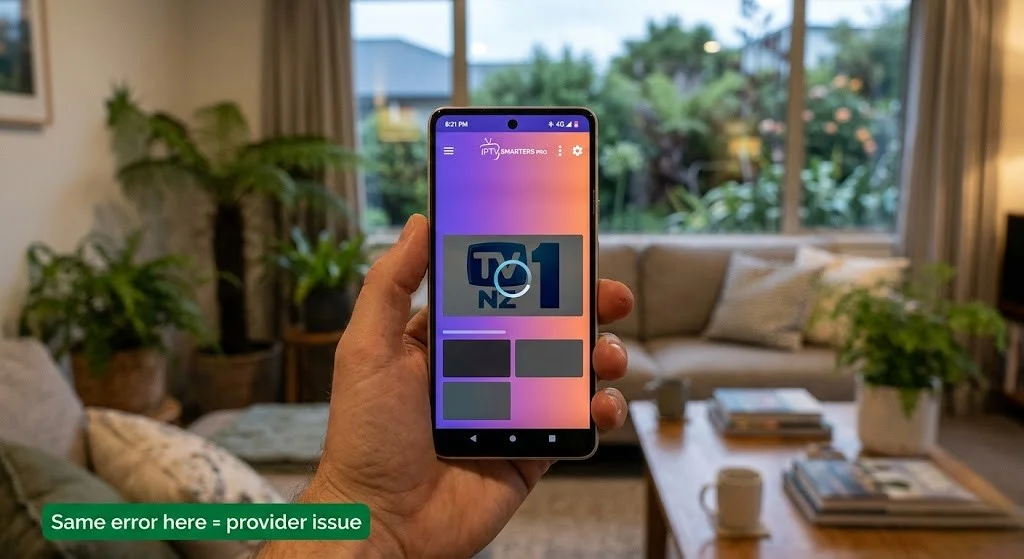
Not sure if an error is something you can resolve or something only your provider can address Use this test.
| Error Type | Codes | Fixable by you? |
|---|---|---|
| Client-side | 400, 401, 403, 404, 429, DNS errors | ✅ Usually — credentials, URL, or settings |
| Server-side | 500, 502, 503, 504, 520, 522, 525 | ❌ Provider-side — wait or contact support |
The quick test: install IPTV Smarters Pro on your phone, switch off Wi-Fi and use mobile data, and test the same channel with the same credentials.
- Same error on mobile data → confirmed server-side or account-side → contact provider
- Works fine on mobile data → confirmed client-side → the problem is your home network or device settings
This single test saves the most time of anything in this guide — it immediately tells you which half of this article applies to your situation.
Explore More — IPTV Troubleshooting NZ
Published:
Coming soon:
- IPTV Keeps Disconnecting NZ
- IPTV App Not Loading NZ
- IPTV Service Down NZ
Related:
Conclusion
Every IPTV error — numeric or plain text — points to one of four places: your credentials, your connection, your decoder, or the provider’s server. Identifying which one saves time and avoids unnecessary troubleshooting.
Three things worth remembering:
① 4xx errors are usually your side. 400, 401, 403, 404, 429 — fixable by re-entering details correctly, adjusting refresh settings, or waiting out a rate limit.
② 5xx and Cloudflare errors are provider-side. 500, 502, 503, 504, 520, 522, 525 — not fixable from your device. Please confirm with the mobile data test, then wait or contact your provider with the specific code.
③ Screenshot the exact message. Different apps may express the same error in different ways. Having the exact text or code ready makes troubleshooting — and contacting support — much faster.
For complete IPTV failure beyond a specific error code, see IPTV Not Working NZ.
If I cannot explain it simply, I will not publish it. — Ryan Mitchell
Sources
- NZ Copyright Act 1994 — legislation.govt.nz
- Spark NZ broadband — spark.co.nz/broadband (accessed June 2026)
- Cloudflare error code reference — developers.cloudflare.com (accessed June 2026)