
IPTV Samsung TV NZ guides tend to make the same promise: install one named app from the Samsung App Store, and you are done. That advice is often wrong, and it is wrong in a way that wastes an evening. App availability on Samsung televisions varies by model, by region and over time, and the app a guide names confidently may simply not appear in your store.
This guide covers what genuinely holds true across Samsung sets, how to work out what your television can run, and the specific risk that catches people out on this platform more than any other.
This guide sits in the IPTV Devices NZ category and forms part of the Kiwi IPTV Guide.
Can I Get IPTV on My Samsung TV?
Usually, yes — but there is a qualification worth understanding before you start.
Samsung televisions run Tizen, Samsung’s own operating system, rather than Android. That single fact drives everything else on this page. Because Tizen is not Android, you cannot download an APK from a website and install it the way you might on a streaming stick or Android box. Apps come from the Samsung App Store, and Samsung controls what appears there.
So the honest answer on IPTV Samsung TV NZ setups is this: Samsung Smart TVs can run IPTV services through compatible player apps, but whether a particular app is available to you depends on your model, your region’s store, and what Samsung is carrying at the time you look. That is a different answer from “Yes, install this app”, and it is the accurate one.
IPTV on Samsung TV NZ — Which App Actually Works?
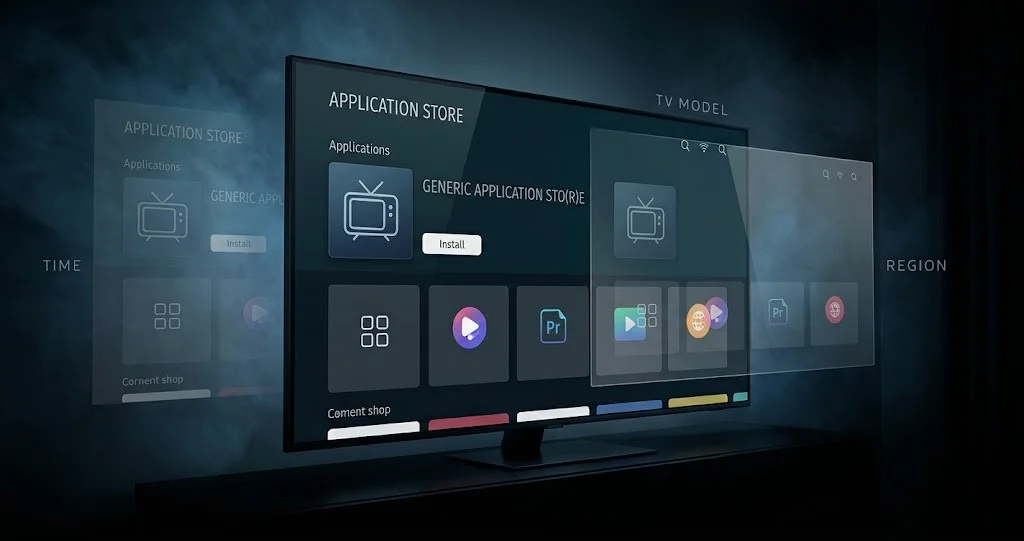
There is no single app that can be guaranteed available on every Samsung television, and any guide claiming otherwise is describing one moment.
Three things make the situation messier than it should be.
Names vary. The same underlying player has appeared under several different names across Samsung’s store, and guides written at different times name different things. Searching for the exact title from an older article often returns nothing.
Availability differs by region. An app present in one country’s Samsung store may be absent from another’s. Guidance written for a US or UK audience does not reliably transfer to a New Zealand store account.
Availability changes over time. Apps get removed from Samsung’s store and, in some cases, restored later. A guide that was accurate when published can be out of date within months, even if the author has done nothing wrong.
What to do instead: open the Samsung app store on your television and search there before deciding anything. Search broad terms rather than an exact title from an article, see what actually appears for your set, and work from there. Ten seconds of searching on your TV beats any list.
If nothing suitable appears, that is not a dead end — see the section on older and restricted televisions below.
Watch Out for Clone Apps
This section is the part most IPTV Samsung TV NZ guides skip, and it matters more here than on other platforms.
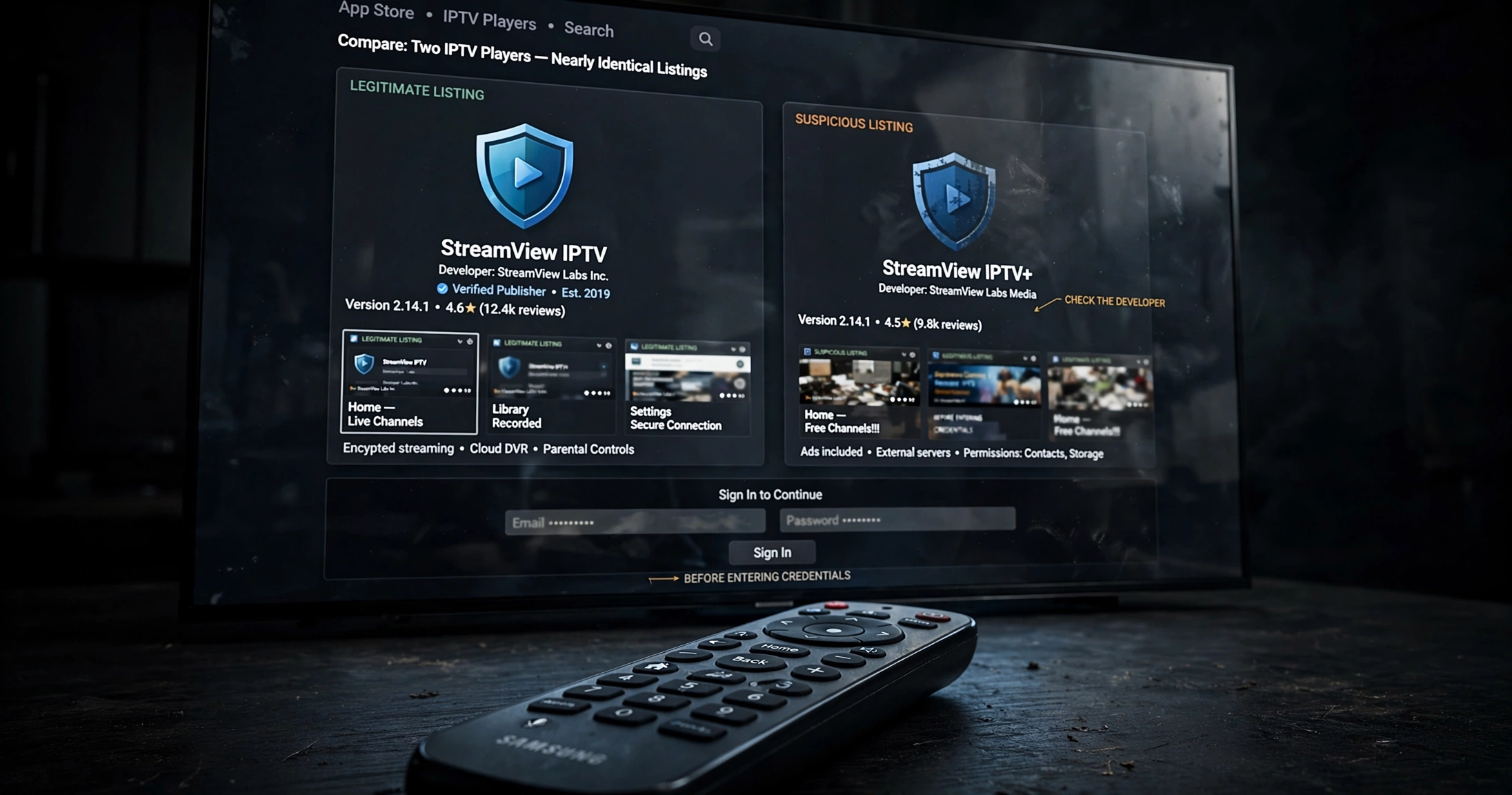
When a popular player app is unavailable or hard to find, imitations appear. Apps with near-identical names, similar icons and copied descriptions show up in store listings, and they are not the same software. Some are simply poor. Others carry genuine security concerns, given you are about to type subscription credentials into them.
How to check before installing:
- Look at the developer name, not just the app name. Compare it against the developer listed on the official website of the app you were actually looking for.
- Be suspicious of near-misses. Extra words, altered spacing, or a slightly different word order in the name are the most common tells.
- Check the listing quality. Broken English, generic screenshots, or a description that never names the developer are all warning signs.
- Never install a player that arrives through a link someone sent you rather than through the store itself.
The credentials you enter into an IPTV player are the keys to your subscription. It is worth thirty seconds of checking who wrote the software before handing it over.
How to Install IPTV on Samsung Smart TV
The process is the same regardless of which player you end up using.
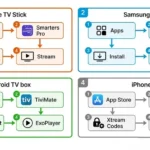
Step 1 — Open the app store on your television. Press Home on the remote and navigate to Apps, then open the search function.
Step 2 — Search broadly. Use general terms rather than an exact title from an article, since names vary. Look at everything that comes back rather than installing the first result.
Step 3 — Verify the app before installing. Check the developer name against the official source for whichever player you intend to use. This step takes seconds and is the entire clone-app defence described above.
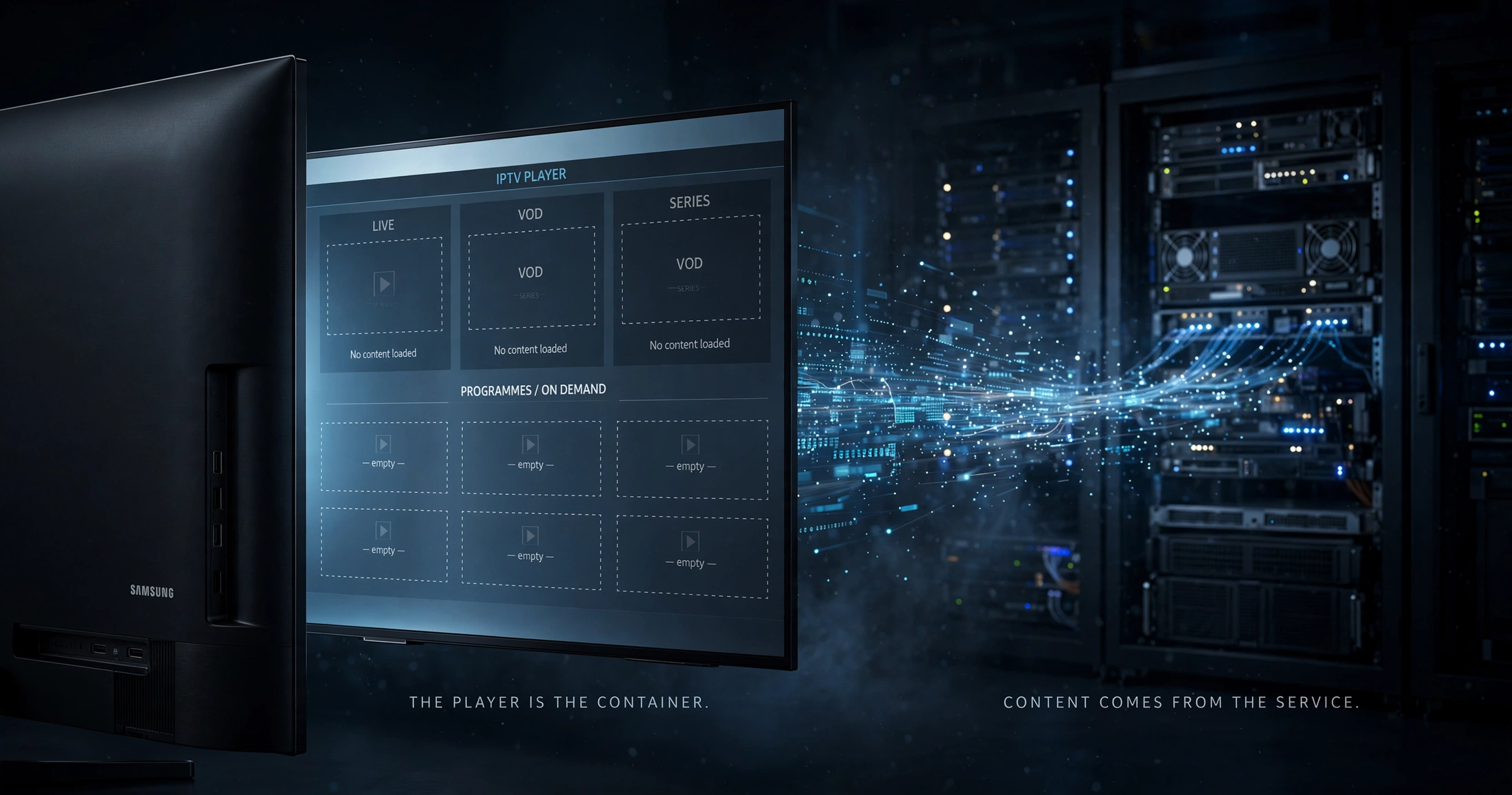
Step 4 — Install and open it. A player app opens empty. It contains no channels and no content of its own — it is a container waiting for credentials.
Step 5 — Enter the details your provider gave you. Most players accept either an Xtream Codes login (a username, password and server address) or an M3U playlist link. Your provider supplies whichever applies; type them exactly, since a single stray character produces a login failure that looks like a bigger problem than it is.
Step 6 — Set the guide to New Zealand time. If the app offers a timezone setting for its programme guide, set it to New Zealand time. Without this adjustment, every listing displays at the wrong hour, and the guide becomes useless.
Step 7 — Check playback before committing. Open several channels, including the ones you actually subscribed for rather than the first in the list, and see how they behave.
For the wider setup picture across devices, see the IPTV Setup Guide NZ.
Is Netflix Included in IPTV?
No, and this misunderstanding causes real disappointment.
Netflix, Disney+, Prime Video and similar services are separate subscription platforms with their apps and their own accounts. An IPTV subscription does not include them, and no IPTV player provides you access to them. If a service claims to bundle major streaming platforms into a subscription, that claim deserves considerable scepticism, not excitement.
On a Samsung television, this distinction rarely matters in practice, because those services have their apps in the same store. You run them alongside an IPTV player rather than through it.
How Many Channels Do You Get?
It’s the wrong question, though an understandable one.
Channel counts are the most heavily marketed and least useful figure in this industry, and they tell you nothing useful when comparing IPTV Samsung TV NZ options. Services advertise tens of thousands of channels routinely, and the number tells you nothing about whether the specific content your household watches is included, working, or correctly listed.
What actually determines whether a service is any good:
- Does it carry the specific content you want in the plan you are buying?
- Is the programme guide accurate, and does it show New Zealand time correctly?
- Does it perform well during the hours you actually watch, rather than just at midday on a Tuesday?
- Can the provider explain what it is licensed to carry?
- Does support answer before you pay, not just after?
A service with a smaller, well-maintained lineup covering what you watch beats one advertising an enormous number of channels you will never open. For the full evaluation framework, see How to Choose an IPTV Service in NZ.
What Are the Disadvantages of IPTV on Samsung TVs?
It is worth stating plainly, because a guide that only lists advantages is not worth trusting on anything else.
App availability is outside your control. Samsung decides what is in its store. An app you rely on can be removed, and there is no appeal.
Names and versions shift. Keeping up with which player is current is an ongoing minor annoyance rather than a one-time setup step.
Clone apps are a genuine risk, as covered above, and Samsung’s store is where they surface.
Performance depends on things outside the app. Your connection, your provider’s servers and your home network all matter more than which player you chose. If you are getting stuttering or freezing, see IPTV Buffering Fix NZ.
Guide quality varies enormously between providers, and a poor programme guide undermines the whole experience, regardless of the stream quality.
Support ranges from professional to absent depending entirely on the provider, not on Samsung.
Older televisions may not run current apps at all, which is a hardware limitation no setting will fix.
Is It Worth Paying for IPTV on a Samsung TV?
That depends on what you are trying to watch, and it is worth being honest about the alternatives.
If official services already carry it, an official platform’s own app on your Samsung is simpler, better supported and carries no licensing questions. Check that first.
If you want content that no official service carries here — particularly international channels in other languages — that is the genuine gap, and that is where a broader service earns its place.
If your television cannot run a suitable player, a streaming device is generally cheaper than replacing a working television, and it opens up options unavailable on Tizen. That is a hardware decision rather than a service one.
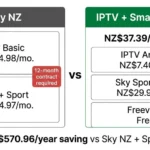
The useful comparison is not IPTV against other IPTV, but the total annual cost against what the official route would charge for the same content. See IPTV vs Sky NZ for that comparison.
If Your Samsung TV Is Older
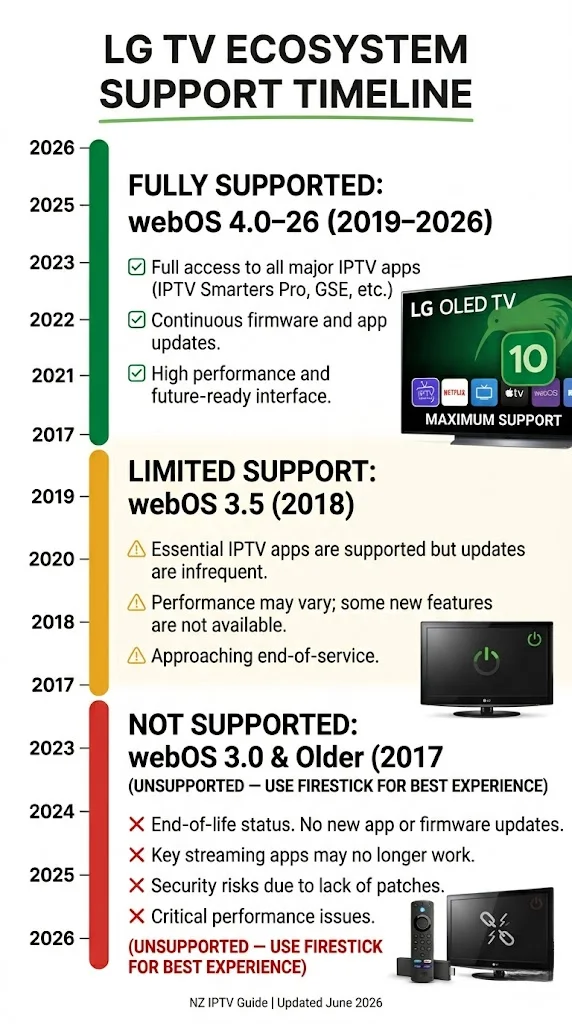
Older Samsung sets run older Tizen versions, and at some point apps stop supporting them. There is no single cut-off year that applies to every model and every app, so the practical test is simply whether the app you want appears in your store and installs successfully.
If it does not, you have two sensible options.
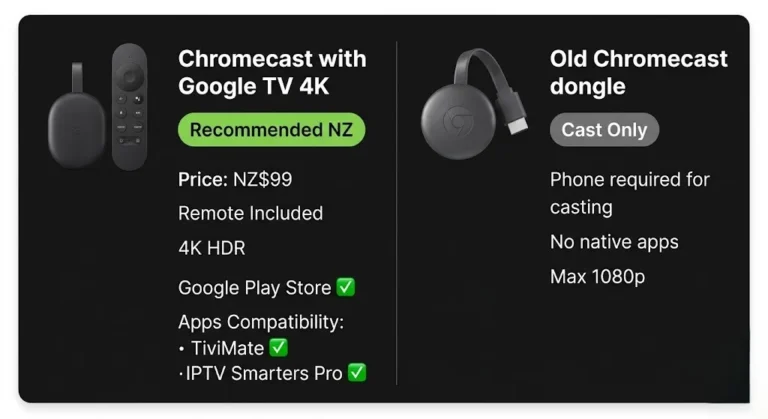
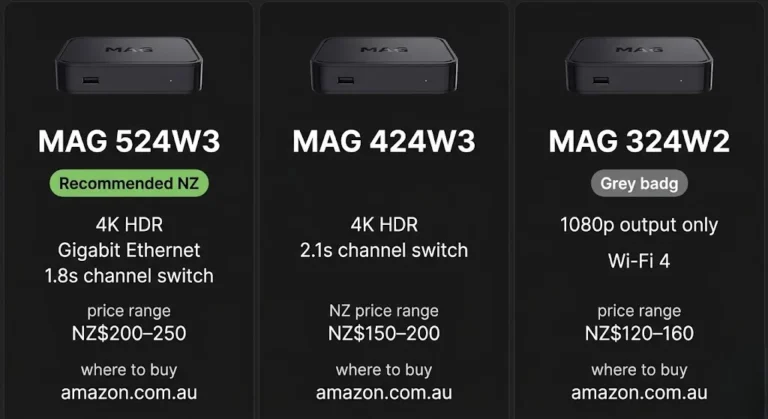
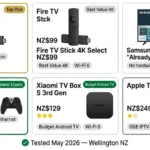
Add a streaming device. A television with an HDMI port can run current apps once a streaming stick or box is plugged in, and these devices generally run Android-based systems with wider app availability than Tizen. This costs a fraction of replacing a television that otherwise works perfectly well. See Best IPTV Devices NZ.
Use casting as a fallback. Playing on a phone or tablet and casting to the television works, though it is better as an occasional solution than a daily one.
What is not worth doing is replacing a functioning television purely to run an app. The external device solves the same problem for considerably less.
Common Misconceptions
“There is one best IPTV app for Samsung.” There is no app that is guaranteed to be available on every Samsung set. What is in your store depends on your model, region and timing.
“If the app is in the Samsung store, it is safe.” Store presence is not verification. Clone apps with near-identical names appear regularly, and checking the developer is the only reliable defence.
“An IPTV app gives me channels.” Player apps contain no content whatsoever. They are containers. Everything you watch comes from a separate subscription with a different provider.
“IPTV includes Netflix and other streaming services.” It does not. Those are separate platforms with their own apps and accounts.
“You need to sideload apps onto Samsung TVs.” Samsung’s store is the intended route, and being pushed to install software from outside it is a signal worth paying attention to, rather than a normal technical step.
Legal Note
IPTV player apps are media players — they do not supply channels or content. What you watch depends entirely on the subscription service you connect to, and services that stream content without valid licensing operate in breach of the Copyright Act 1994. Always verify your provider holds appropriate rights for what it distributes. See Is IPTV legal in NZ?
The Bottom Line
Samsung televisions can run IPTV through compatible player apps, provided the app you need is available for your set and your region. For many households with a reasonably recent television, this means they don’t need any extra hardware. But the platform has quirks worth knowing before you start: apps come only from Samsung’s store, what is in that store varies and changes, names shift between versions, and imitation apps turn up whenever a genuine one is difficult to find.
The practical approach to IPTV on Samsung TVs in NZ is short. Search your own television’s store rather than trusting a list. Check the developer before installing anything. Remember the app is an empty container — everything that matters comes from the service you connect to it. And if your Samsung cannot run a suitable player, a compatible streaming device can solve the app-availability problem without replacing a working television.
Related NZ Streaming Guides
- Best IPTV Devices NZ — device comparison including streaming sticks
- IPTV Setup Guide NZ — setup across all devices
- How to Choose an IPTV Service in NZ — evaluating any provider
- IPTV Buffering Fix NZ — if playback stutters
- Is IPTV Legal in NZ? — the legal position explained
Sources
- Tizen platform behaviour and app distribution through the Samsung App Store: Samsung developer documentation
- NZ Copyright Act 1994: legislation.govt.nz
- Consumer rights when a service fails to match its description: consumer protection. govt.nz