
By Ryan Mitchell · IPTV Setup NZ · Last updated: August 2026
The channels play. The picture is sharp, the sound is fine, and everything switches the way it should. Then you open the Tdiscoveride and find nothing — empty cells stretching across every channel, or the words “No Information” repeated down the screen. Nothing about the setup looks broken, and yet the one thing that makes a channel list usable is missing.
That combination confuses people, and it shouldn’t. IPTV EPG setup in NZ households fails in a small number of predictable ways, and an empty guide is telling you something specific about which one you have hit.
Quick Answer The programme guide is a separate data feed from your channels, so a stream can play while the guide stays blank. Fix it in this order: confirm a guide source is set; check it is linked to your playlist; force a refresh; clear the cache. Adjust time settings only if the guide loads with wrong times.
If you have not set your service up yet, work through the IPTV setup guide for New Zealand first — this article assumes your channels are already playing.
What Is an EPG and Why Does It Fail by Itself?
EPG stands for Electronic Programme Guide. It is the schedule data behind the on-screen guide: programme names, start and finish times, episode descriptions, and the category labels your player uses to organise everything.
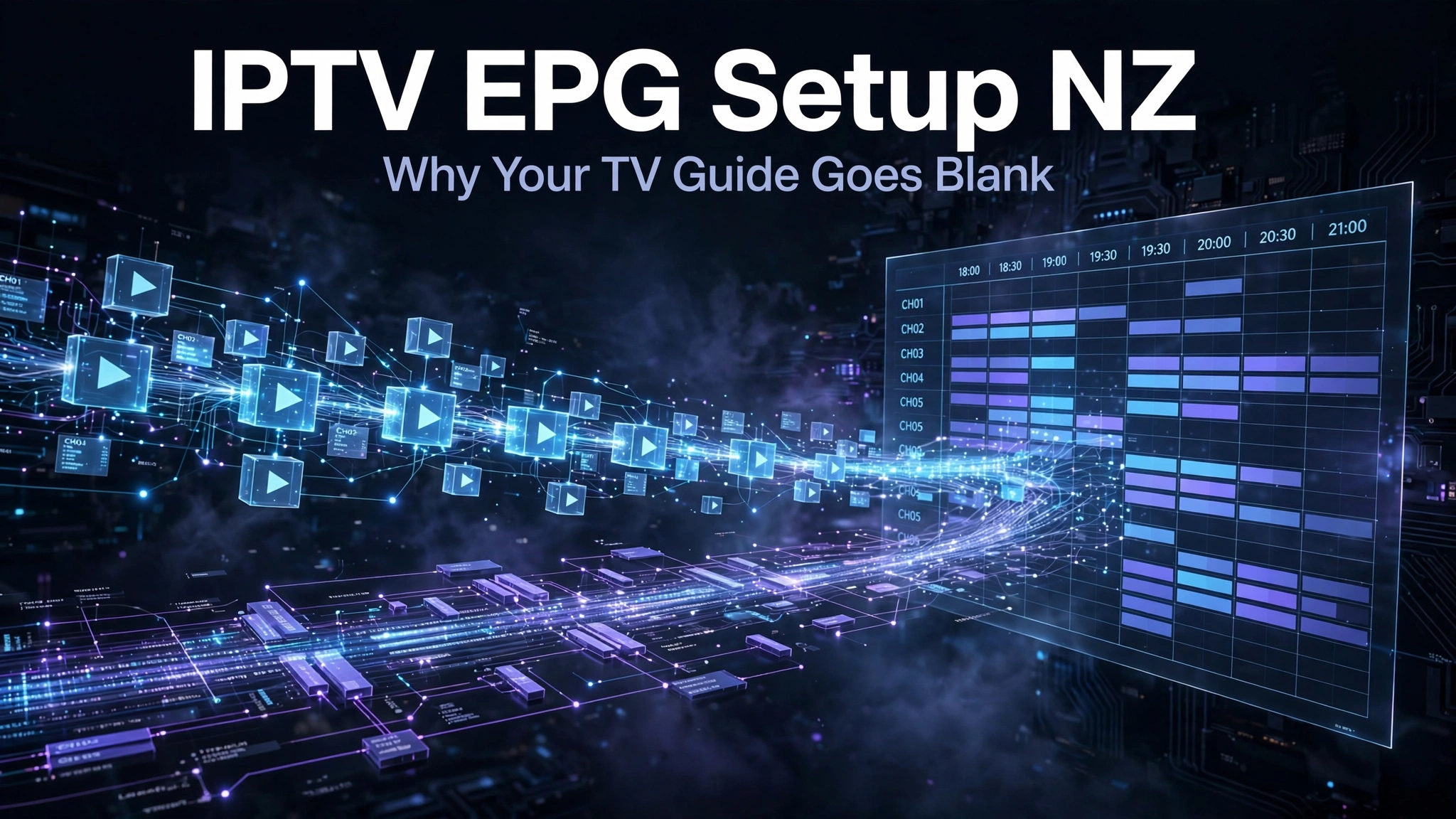
The thing to understand is that the information information is metadata, not video. Your channels arrive as one kind of traffic — the actual audio and video being streamed to your screen. The guide arrives as a completely separate file, usually in a format called XMLTV, downloaded on its own schedule and stored on your device. This means there are two separate deliveries and two separate points of failure.
Which is why a blank guide tells you almost nothing about your subscription or your connection. If the channels play, the streaming side is working. The guide sits on a different track entirely, and something on that track has gone wrong.
Key takeaway: Channels and guide data are separate feeds – working channels tell you nothing about why the guide is empty.
Your EPG URL and Your Playlist URL Are Not the same thing.
This causes more confusion than any other part of the setup, so it’s worth being blunt.
Your playlist link – an M3U URL or a set of Xtream Codes credentials – tells your player which channels exist and where to fetch them. Your guide link is a different address entirely, pointing at an XMLTV file that holds the schedule. Some services bundle both together, which is why Xtream Codes logins often pull in guide data with no extra configuration. Others supply two separate links, and the guide link has to be entered by hand.
This issue is the first thing to rule out in any IPTV EPG setup NZ viewers are troubleshooting, because a working playlist proves nothing about the guide.
IPTV EPG Setup NZ: The Configuration Steps
The IPTV EPG setup that viewers in NZ most often need falls into one of two shapes, depending on the player. The two below are structured completely differently, and knowing which one you have saves time.
TiviMate (Android TV, Google TV, and Fire TV) keeps everything inside the app. Guide sources live under the EPG section of Settings, where you add a source, name it, and paste the XMLTV URL. The exact menu path shifts between versions: in current builds, it sits under Settings → EPG → EPG sources, while older versions place the same control under the individual playlist.
If your version puts it somewhere else, look for the same function under playlist or EPG settings rather than assuming the feature is gone.
IBO Player (Samsung Tizen, LG webOS, and others) works the opposite way, using a device-based management workflow. You identify your television in the app’s management portal — it displays an identifier on screen for this purpose — and configure the playlist and any available guide data there rather than on the television itself. The exact fields vary by portal and app version.
It is a longer path the first time, but it means typing a long URL on a computer keyboard instead of an on-screen one, which removes the single most common source of setup errors.
There is one structural difference worth knowing: IBO Player has no independent guide system of its own. It displays whatever schedule data your service supplies. If no guide data is provided, the app has nothing to activate.
After adding a source in either player, allow it time. A full guide download for a large channel list is a substantial file, and the first sync can take several minutes. A guide that appears empty thirty seconds after setup may simply not have finished.
Why Isn’t My IPTV EPG Guide Loading?
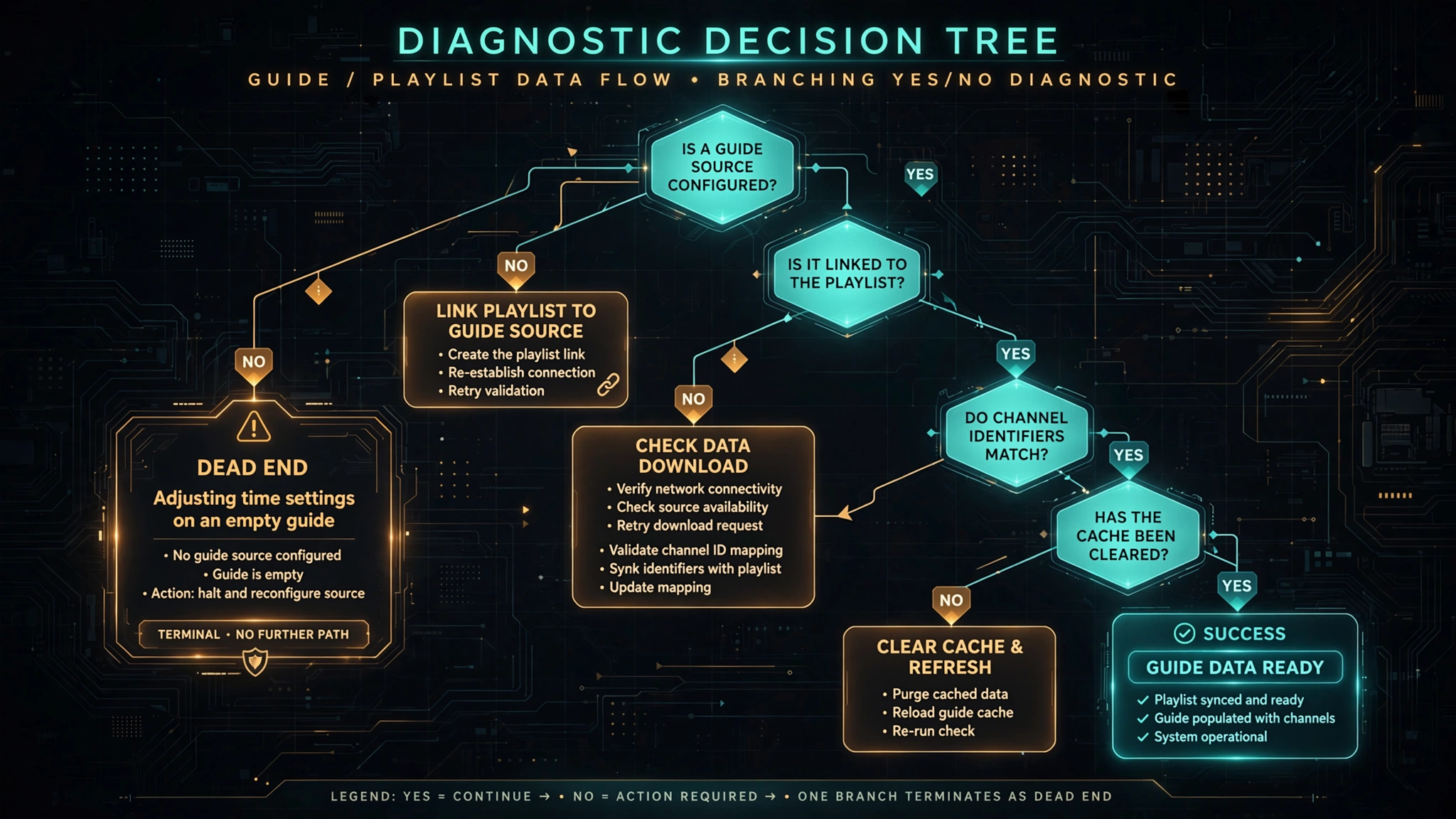
Before anything else: do not touch the time offset. A blank guide and a mistimed guide are different faults, each with different causes. Changing the time settings on a guide that has no data cannot help, and once you have several altered settings, you can no longer tell which change did what. Diagnose the feed first. Time settings come later, and only if the guide is actually loading.
Work through these five in order.
| Symptom | Likely cause | What to check |
|---|---|---|
| Guide completely empty | No source configured, or the URL is wrong or expired | The guide source field in your player |
| Guide empty on one playlist only | Guide downloads switched off for that playlist | The playlist’s own guide setting |
| Some channels populated, others blank | Channel identifiers don’t match the guide data | Channel mapping |
| Old programmes still showing | The refresh failed silently | The last-updated timestamp |
| Guide loads but times are wrong | Time interpretation, not a feed fault | See the next section |
The Guide Source Is Missing or Expired
Open your player and confirm an address is actually present in the guide source field. If it is empty, nothing else you do will matter. If an address is there, check it against what your service supplied — these links can be changed or retired without notice, and an address that worked last month can quietly stop returning data.
Watch for one specific transcription error. Copying a URL on a phone or television keyboard frequently produces https what the address requires because autocorrect capitalises or completes it. The address looks correct at a glance and fails silently.
The Source Is Set but Not Linked to Your Playlist
Some players let you disable guide downloads for an individual playlist while keeping the source configured globally. The result is a correctly configured source that is being ignored for the channels you actually watch. If you have more than one playlist, check each one separately.
Channel Identifiers Don’t Match
If some channels show a full schedule and others are blank, the feed is working. Your player matches guide entries to channels using identifiers, and where a channel’s identifier in your playlist has no counterpart in the guide data, that channel stays empty no matter how many times you refresh.
This is not something a refresh will fix. Some players offer channel mapping to correct the pairing manually; where that is unavailable, the mismatch has to be resolved by whoever supplies the data.
The Cache Is Holding a Corrupted File
If a download is interrupted partway through, an incomplete file can get stuck and block new data from being read. Clearing the app cache removes it and allows a clean download.
Be careful which option you choose. Clearing the cache removes temporary files and is safe. Clear data wipes your playlists and settings entirely and means starting from scratch. On Fire TV: Settings → Applications → Manage Installed Applications → your player → Clear cache. On Android TV or Google TV: Settings → Apps → See all apps → your player → Clear cache.
The Refresh Failed Without Telling You
Players update guide data automatically on a schedule, and when that update fails, it usually fails quietly. Your player will show a last-updated timestamp somewhere in its settings. If that date is old, the automatic refresh has not been working, and a manual one is needed.
Why Are My Programme Times Wrong?
If the guide loads with the right programmes at the wrong times, the data is fine. The problem is interpretation — the timezone recorded in the guide data does not match how your player is reading it.
Guide data contains programme timestamps that your player has to interpret. Depending on the feed, those timestamps may carry timezone information of their own or be expressed relative to a time standard such as UTC. When the player’s interpretation differs from what the data actually holds, every programme shifts by the same amount in the same direction. That consistency is the signature of a timezone problem rather than a data problem.
Why Does My Guide Show Programmes 12 or 13 Hours Out in New Zealand?
New Zealand sits at UTC+12 during standard time and UTC+13 during daylight saving. If a guide feed and a player interpret programme timestamps differently, that distance can produce a very large visible shift — which is why a guide error here can push an evening programme into the morning rather than moving it by an hour or two.
Worth being precise about this: the size of the error reflects New Zealand’s distance from UTC. It is not evidence that guide data is inherently wrong for New Zealand viewers, and a correctly interpreted guide needs no adjustment at all. A large shift is a symptom of incorrect timezone interpretation, nothing more.
The seasonal change matters too. Because New Zealand’s offset from UTC changes when daylight saving starts and ends, a manual correction entered under one set of conditions may no longer be right after the clocks change. If your guide was accurate for months and then went wrong around late September or early April, that timing is your explanation.
Key takeaway: A uniform shift across every programme points to timezone interpretation, not corrupted guide data.
Setting the Time Offset for New Zealand
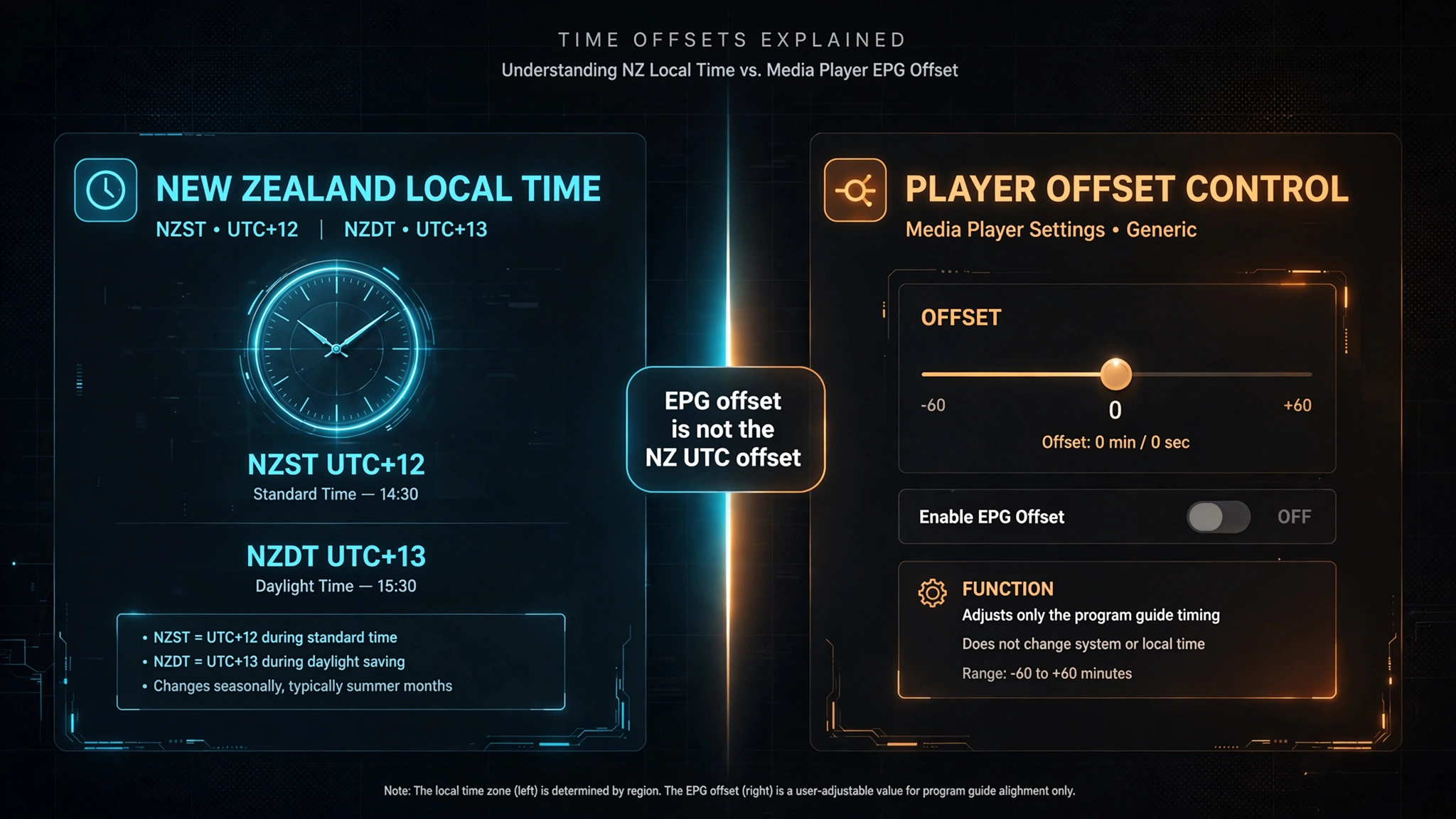
Work through this in order. Each step rules something out, and skipping ahead is how people end up with several wrong settings stacked on top of each other.
First, check your device clock. Open your television or streaming device’s own date and time settings and confirm both the time and the timezone are correct for New Zealand, with automatic date and time enabled if the option exists. A device with the wrong timezone will produce a wrong guide no matter what the player is set to, and this costs thirty seconds to verify.
Second, refresh the guide and look again. If the device clock were wrong, correcting it may resolve everything without further changes.
Third — and only if the times are still wrong — apply a manual offset. In Tivimate, this is the time offset control attached to the guide source; some versions also allow an offset on an individual channel through its options menu. In players that expose an equivalent setting, look for a time offset or time shift control near the guide configuration.
| New Zealand local time | UTC offset | Period |
|---|---|---|
| NZST (standard time) | UTC+12 | Early April to late September |
| NZDT (daylight saving) | UTC+13 | Late September to early April |
These figures describe New Zealand local time. They are not instructions to enter +12 or +13 into your player. The offset your player needs is the size of the error you are actually seeing, not New Zealand’s distance from UTC — in most correctly configured setups, the required offset is zero. If programmes appear two hours early, the correction is two hours. Match the adjustment to the gap on screen, then check against a programme whose real start time you know.
How Do I Force the Guide to Update?
A manual refresh downloads the schedule again rather than waiting for the next scheduled attempt. In Tivimate this sits under the EPG settings as an update option; in other players, look for a refresh, update, or reload control near the guide configuration. The wording varies, but the function is the same.
Give it time to finish. A large channel list means a large file, and the download can take several minutes on the first attempt.
One thing not to do: refreshing repeatedly. Schedule data is typically regenerated once or twice a day at the source, so a refresh every fifteen minutes cannot retrieve newer information than exists. Repeated refreshes will not create newer schedule data if the source has not published an update, and the extra load is worth avoiding if you are also working through buffering problems.
When the EPG Is Working but the Programme Data Is Outdated
There is a third failure that neither of the sections above covers. The guide loads, times are correct, and the layout looks right — but the programmes listed are not what are actually broadcasting. Yesterday’s schedule, or last week’s.
This is worth separating from a stale channel list, because the two look similar and have different causes. If the guide is old but your channel list matches what you expect, the schedule feed at the source has not been regenerated, and a refresh will not produce data that does not yet exist. If channels have appeared, disappeared, or moved position, the playlist itself is out of date and needs refreshing separately — a different operation from a guide update.
Check your player’s last-updated timestamp to tell them apart. A recent timestamp against old programme data means the fault is upstream. An old timestamp means your player has not successfully downloaded anything, which puts you back in the refresh section above.
A Note on Legality
Whether a stream is lawful in New Zealand depends on whether its source holds the rights to distribute the content, and the Copyright Act 1994 governs that. If your goal is New Zealand television or sport, the licensed platforms that officially carry it are the direct route — TVNZ+ and ThreeNow for free-to-air catch-up, MĀORI+ for Māori broadcasting, Sky Sport Now for sport, and Neon for entertainment.
This article is for educational and comparison purposes only. Verify the licensing status of any streaming service and ensure compliance with New Zealand copyright law before subscribing.
Explore More
Setup and devices: IPTV setup guide NZ · Best IPTV app NZ · TiviMate NZ · IPTV Smarters Pro NZ · Firestick IPTV NZ · Samsung TV IPTV NZ
Troubleshooting Internet speed for IPTV NZ · IPTV buffering fix NZ · IPTV not working NZ · IPTV keeps disconnecting NZ
Bottom Line
IPTV EPG setup NZ problems are almost always configuration faults rather than broken subscriptions, and the order you work in matters more than the individual steps. Three situations cover most of it:
The guide is completely empty. Confirm a guide source is configured and correctly transcribed, check it is enabled for the playlist you are using, then force a refresh and wait. Leave every time setting alone until data appears.
The guide loads, but times are wrong. Check your device clock and timezone first. If the times are still out, apply an offset matching the size of the error you can see — not New Zealand’s offset from UTC, which is a different number entirely.
Some channels have data and others don’t. The feed is working, and the identifiers don’t match. Channel mapping is the fix where your player supports it; refreshing will not change the outcome.
SOURCES
- Copyright Act 1994 — New Zealand Legislation: https://www.legislation.govt.nz/act/public/1994/0143/latest/DLM345634.html
- Time Service, Measurement Standards Laboratory of New Zealand — NZ time and daylight saving: https://www.msl.govt.nz/time-services/
- Electronic programme guide — definition and background: https://en.wikipedia.org/wiki/Electronic_program_guide