
By Ryan Mitchell | Wellington | Updated June 2026
IPTV black screen NZ—diagnosed and fixed across Fire Stick 4K Max, Samsung, LG, Sony, and Android TV boxes in Wellington, June 2026.
Before changing any settings, answer one question: do you hear audio?
That single answer tells you exactly which cause you’re dealing with. Every fix in this guide starts there.
Why is my IPTV showing a black screen in NZ?
IPTV black screen in New Zealand has five distinct causes: wrong video decoder (audio plays, no picture); HDMI handshake failure (total black, no audio); HDCP compliance issue (4K channels only); Fire Stick resolution mismatch or Tivimate-specific settings. Each has a different solution Identify your symptom first.
⚖️ Legal Note
This guide covers technical troubleshooting only. Always use licensed IPTV services compliant with the NZ Copyright Act 1994—legislation.govt.nz.
This guide is part of the IPTV Troubleshooting NZ section. For complete IPTV failure beyond a black screen, see IPTV Not Working NZ.
What’s Your Symptom? — Find Your Fix Fast
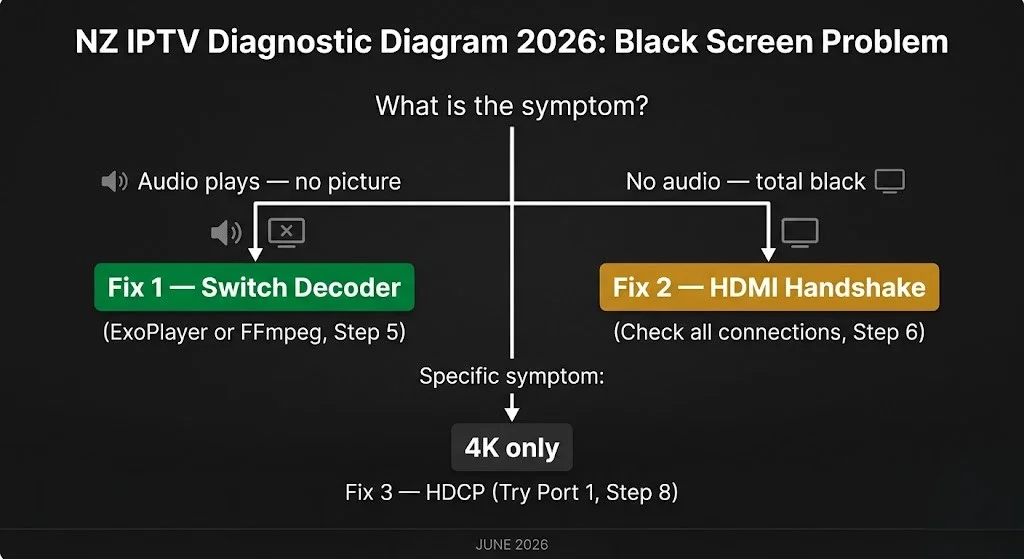
| Symptom | Cause | Fix |
|---|---|---|
| Audio plays—no picture | Wrong video decoder | Fix 1 |
| Total black—no audio | HDMI handshake failure | Fix 2 |
| 4K channels only — black screen | HDCP compliance issue | Fix 3 |
| Firestick — all channels black | Resolution mismatch | Fix 4 |
| TiviMate—black when switching channels | Tunneled Playback setting | Fix 5 |
| TiviMate—audio then cuts to black | AFR setting | Fix 5 |
| VOD works—Live TV black screen | Decoder or stream issue | Fix 1 |
| Works on phone — black screen on TV | HDMI or device issue | Fix 2 or Fix 4 |
| The screen goes black every few minutes | Provider or stream dropout | Fix 6 |
In This Troubleshooting Section
- IPTV Buffering Fix NZ ✅
- IPTV Not Working NZ ✅
- IPTV Black Screen NZ ✅ — you are here
- IPTV Freezing on Firestick NZ (coming soon)
- IPTV Error Codes NZ (coming soon)
- IPTV Keeps Disconnecting NZ (coming soon)
- IPTV App Not Loading NZ (coming soon)
- IPTV Service Down NZ (coming soon)
How We Tested This
Ryan Mitchell tested black screen scenarios across Firestick 4K Max, Samsung QE55Q80C, LG OLED C5, Sony XR-55A80L, and Nvidia Shield TV Pro on Chorus UFB 200 and One NZ UFB 100 in Wellington in June 2026. Apps tested: TiviMate 4.7 and IPTV Smarters Pro 3.1.
Last tested: June 2026 — Wellington
Fix 1 — IPTV No Picture But Sound NZ
You hear the channel—commentary, music, or sound effects—but the screen is completely black.
This is the most common cause of IPTV black screen in NZ. The stream is arriving. Your device receives the audio. But the video decoder can’t render the picture — usually because the stream uses HEVC (H.265) encoding that the device’s hardware decoder struggles with.
Most NZ IPTV providers use HEVC to reduce bandwidth. Older devices – Firestick HD, Samsung 2018–2019, and budget Android TV boxes – sometimes fail to decode it without switching the decoder manually.
Solution in TiviMate:
Long press OK on the problem channel → Audio/Video Settings → Video Decoder → switch between the following:
- ExoPlayer — default, works for most NZ streams
- FFmpeg—software decode, solves HEVC on older devices
- Hardware+ — if available, try this on Nvidia Shield
Test each option. One will work for your specific stream.
Fix in IPTV Smarters Pro:
Settings → Player Settings → Player Selection → switch between Built-in Player and ExoPlayer
Fix in GSE Smart IPTV (Apple TV):
Settings → Player → switch to alternative player option
Quick test: Open a VOD movie from your IPTV app. If VOD plays with a picture, the issue is specific to your live TV stream format, not your device or HDMI. Fix 1 is your solution.
From Ryan Mitchell:
I’ve seen this specific issue on Samsung 2019 and LG 2020 models with HEVC streams. The TV’s hardware decoder handles audio but drops video. Switching to FFmpeg in IPTV Smarters Pro fixed it immediately on both. If your IPTV app doesn’t offer FFmpeg, switch apps. See Best IPTV App NZ for a comparison of decoder options across all NZ-compatible apps.
Fix 2 — Total Black Screen — No Audio
There is complete silence and complete blackness. The channel isn’t playing at all.
This is an HDMI handshake failure — your streaming device and TV are not communicating correctly.
Step 1 — Unplug and reconnect HDMI:
Unplug the HDMI cable from both the TV and the streaming device, wait 10 seconds, then reconnect it firmly at both ends.
On a Fire Stick with an HDMI extender: remove the extender and connect the Fire Stick directly to the HDMI port. The extender is a common cause of handshake failures on NZ TV models.
Step 2 — Try a different HDMI port:
Most NZ TVs have 3–4 HDMI ports. Port 1 is almost always the primary certified port. If you’re using Port 2 or Port 3, move to Port 1 and retry.
Step 3 — Replace the HDMI cable:
HDMI cables degrade over time. A five-year-old cable may pass 1080p but fail on 4K or protected content signals. If you have a spare HDMI cable, swap it and test.
Step 4 — Check the soundbar or AV receiver:
If your TV routes audio through a soundbar or AV receiver via HDMI ARC, the handshake involves three devices, not two. Try connecting the streaming device directly to the TV and bypassing the soundbar temporarily. If it works directly, the soundbar is breaking the HDCP chain.
Fix 3 — 4K Channels Only — HDCP Issue
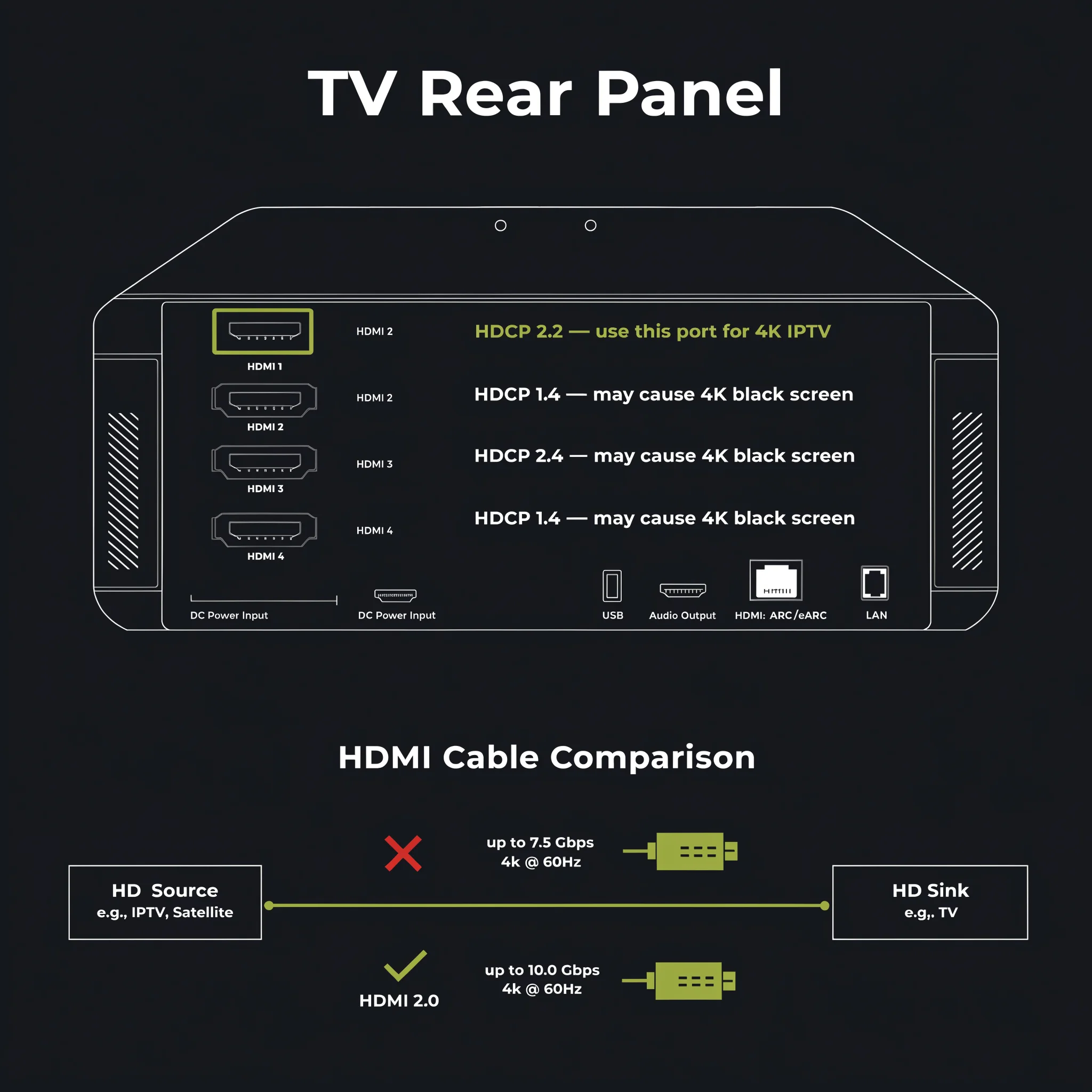
Standard channels play fine. Only 4K or premium channels show a black screen. Audio may or may not play.
4K protected content requires HDCP 2.2 compliance through the entire HDMI chain. A single HDMI 1.4 port or cable breaks the chain and produces a black screen.
Fix: Try HDMI port 1.
Port 1 on Samsung, LG, Sony, and most NZ smart TVs is certified HDCP 2.2. Port 2 or Port 3 may only support HDCP 1.4.
Move your Fire Stick or Android TV box to Port 1, then retry the 4K channel.
Fix/verify HDMI cable:
HDMI 2.0 cable required for 4K HDR with HDCP 2.2. Older HDMI 1.4 cables won’t carry the signal. HDMI 2.0 cables are available at Noel Leeming and PB Tech from NZ$15.
Fix — soundbar bypass:
Same as Fix 2 Step 4 — if audio routes through a soundbar via HDMI ARC, the soundbar must also support HDCP 2.2. Older soundbars don’t. Bypass the soundbar temporarily to test.
Fix 4 — Firestick Black Screen NZ
Firestick-specific black screen on all channels — not just 4K.
① Resolution mismatch — most common:
Fire Stick’s auto-resolution setting sometimes fails to negotiate with certain IPTV streams or NZ TV models, producing a black screen on launch or channel switch.
Settings → Display & Sounds → Display → Video Resolution → switch from Auto to 1080p
Test. If channels appear, Auto was the issue. You can try setting it back to ‘auto’ later to see if it was a temporary negotiation problem.
② Tunnelled playback causing a channel switch black screen:
This is a Fire Stick 4K Max-specific issue that most NZ guides completely miss. Tunnelled Playback is a feature that syncs video and audio better, but it can be buggy with IPTV streams and cause a black screen when switching channels.
In TiviMate:
Settings → Playback → Tunneled Playback → OFF
③ Fire Stick sleep/wake black screen:
Firestick sometimes wakes from sleep with a black screen that persists on IPTV apps. Fix: hold the Home button, go to App Switcher, swipe up to close the IPTV app, then reopen it.
④ Firestick firmware update broke video output:
After automatic Firestick firmware updates, video output settings occasionally reset. Settings → Display & Sounds → Display → Video Resolution → reselect your preferred resolution.
Fix 5 — TiviMate Black Screen — Two Hidden Settings
TiviMate has two settings that cause black screen issues specifically—and most NZ troubleshooting guides don’t mention either of them.
① Tunneled Playback
Tunnelled playback syncs video and audio at a hardware level. On the Fire Stick 4K Max and Nvidia Shield, it sounds useful, but it’s notoriously unreliable with IPTV streams. It causes a black screen when switching between channels.
Fix:
Settings → Playback → Tunneled Playback → OFF
Test by switching channels rapidly. If the black screen disappears, Tunnelled Playback is the cause.
② AFR — Adaptive Frame Rate
AFR automatically switches your TV’s refresh rate to match the video’s frame rate (e.g., switching to 50Hz for NZ sport content). If your TV or soundbar is slow to complete the handshake, the screen stays black while audio plays briefly and then cuts.
This is particularly noticeable on older Samsung and LG models in NZ testing—the TV takes 2–3 seconds to negotiate the new refresh rate, and Tivimate times out the stream during that window.
Fix:
Settings → Playback → AFR → OFF
After disabling both settings, restart TiviMate completely and test.
From Ryan Mitchell:
I spent an embarrassing amount of time diagnosing a black screen on a Fire Stick 4K Max before finding the tunneled playback setting. Channels were switching to black every time, but only on sports channels. Turning off Tunnelled Playback fixed it in 10 seconds. This setting is buried in Tivimate, and I’ve never seen it mentioned in any NZ-specific IPTV guide. If you’re on Tivimate with a Fire Stick 4K Max and getting intermittent black screens on channel switches—start here before anything else.
Fix 6 — IPTV Keeps Going Black NZ
The screen goes black every few minutes then recovers—or blacks out repeatedly on the same channel.
This is different from a permanent black screen. The stream is working but dropping out intermittently.
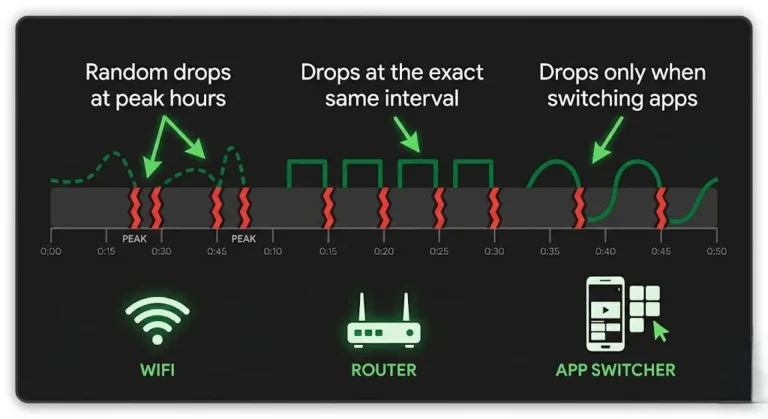
① Wi-Fi packet loss at peak hours
2.4GHz Wi-Fi at 6–10pm NZST drops packets, causing stream interruptions that appear as repeated black screens.
Fix: Ethernet connection. This issue occurs on Samsung, LG, and Sony TVs with built-in support. USB-C adapter (NZ$15–25) for Fire Stick and Chromecast.
② Buffer too small
The default buffer in Tivimate and IPTV Smarters Pro is too small for NZ peak hour network conditions. The stream arrives and plays, then a black screen appears while the buffer refills.
TiviMate: Settings → Playback → Buffer Size → Large (10 seconds)
IPTV Smarters Pro: Settings → Player Settings → Buffer Size → increase to maximum
③ Provider server load
Some NZ IPTV providers serve streams from servers that become overloaded at peak hours. Streams play, then black out as the server struggles.
Test: try a different channel category or a channel from a different region. If those play without blackouts, your original channel’s server is under load. Contact your provider.
Device-Specific Black Screen Fixes
Android TV Box IPTV Black Screen NZ
Generic Android TV boxes (H96 Max, X96 Mini) often produce a black screen because of the following:
- The sideloaded TiviMate APK uses wrong decoder for the device’s chipset
- Amlogic or Rockchip processors require specific ExoPlayer configuration
Fix: In Tivimate or IPTV Smarters Pro, try all three decoder options (ExoPlayer, FFmpeg, and Hardware+) systematically. On Amlogic processors, Hardware+ often works where ExoPlayer fails.
Certified Android TV boxes (Xiaomi TV Box S, Nvidia Shield) use Google Play versions of Tivimate—these are more stable and less prone to decoder issues.
Samsung Smart TV IPTV Black Screen NZ
Samsung Tizen OS has a known issue with IPTV Smarters Pro on 2018–2020 models: a black screen appears after the app idles for 10 or more minutes.
Fix: Settings → Support → Device Care → Manage Storage → IPTV Smarters Pro → Clear Cache. Also disable Samsung’s auto-screen-off setting: Settings → General → System Manager → Time → Screen Saver → Off.
LG Smart TV IPTV Black Screen NZ
LG webOS’s screen saver activates during IPTV playback on some models, causing a black screen that looks like a stream failure.
Fix: Settings → General → OLED Care (or Energy Saving) → Screen Off Timer → Off. Also: Settings → General → System → Screen Saver → Off.
Best IPTV Player for Black Screen Fix NZ
If you’re consistently experiencing a black screen across multiple channels, the app itself may be the issue.
| App | Decoder Options | Black Screen Risk | Best For |
|---|---|---|---|
| TiviMate | ExoPlayer, FFmpeg, Hardware+ | Low (if configured) | Firestick, Android TV |
| IPTV Smarters Pro | Built-in ExoPlayer | Medium | Samsung, LG, iOS |
| GSE Smart IPTV | Limited | Medium | Apple TV |
| SS IPTV | Limited | Higher | Older Samsung/LG |
TiviMate gives the most granular decoder control of any app available in NZ, which makes it the best choice for resolving persistent black-screen issues. See Best IPTV App NZ for a full comparison.
When Black Screen Is a Provider Issue
If all the fixes above haven’t resolved it, the black screen may be on your provider’s end.
Signs it’s a provider issue:
- Black screen on specific channels only (others work fine)
- Black screen appears after provider maintenance window
- Phone test fails on same channels with same credentials
- The issue appeared suddenly with no device or setting changes
Test: Install IPTV Smarters Pro on your phone. Test the problem channel on mobile data (4G/5G, not home Wi-Fi). If it shows a black screen on mobile data too, it’s a provider stream issue, not your device.
What to tell your provider:
- Which specific channels show black screen
- Which channels work normally
- Your device and app
- Result of mobile data test
For a full guide on identifying provider-side issues, see IPTV Service Down NZ (coming soon).
FAQ
Q: Why is my IPTV showing a black screen with sound in NZ?
A: Audio plays but no picture means your device’s video decoder can’t render the stream format — usually HEVC (H.265). To fix this in Tivimate, long press OK on the channel, then go to Audio/Video Settings, select Video Decoder, and switch to ffmpeg. To fix this in IPTV Smarters Pro, go to Settings → Player Settings and switch to ExoPlayer. Test each option — one will work for your specific stream.
This issue is the most common cause of IPTV black screens on older Fire Stick and Samsung models in NZ.
Q: Why does my IPTV keep going black in NZ?
A: A repeated black screen every few minutes has three main causes: Wi-Fi packet loss at peak hours (6–10pm NZST)—resolve with Ethernet; buffer too small—increase to large (10s) in TiviMate settings; or provider server load—test a different channel to confirm.
If a specific channel blacks out consistently while others work, contact your provider about that stream’s server.
Q: Why is Tivimate showing a black screen when I switch channels?
A: Two TiviMate-specific settings cause this issue. First, disable Tunnelled Playback: Settings → Playback → Tunnelled Playback → OFF. Second — disable AFR: Settings → Playback → AFR → OFF.
Both settings are enabled by default and cause intermittent black screens when Second—disablels, particularly on the Fire Stick 4K Max during NZ testing. Turning both off resolves the issue in most cases.
Q: Why is my IPTV screen black on 4K channels only in NZ?
A: 4K protected content requires HDCP 2.2 through the entire HDMI chain. Older HDMI ports or cables (HDMI 1.4) break the chain and produce a black screen on 4K channels only while standard channels work. Fix: move your streaming device to HDMI Port 1 on your TV (HDCP 2.2 certified on most NZ TVs). Also ensure you’re using an HDMI 2.0 cable — available at Noel Leeming and PB Tech from NZ$15.
Q: My Android TV box shows a black screen on IPTV in NZ—how do I fix it?
A: An Android TV box black screen is usually caused by decoder incompatibility. Open TiviMate or IPTV Smarters Pro, go to player/decoder settings, and test ExoPlayer, FFmpeg, and Hardware+ optiPro in sequence. On Amlogic processors and common budget Android boxes in NZ, Hardware+ often works where ExoPlayer fails.
If using a generic no-brand box with a sideloaded APK, consider upgrading to a certified Android TV device like the Xiaomi TV Box S (NZ$129, PB Tech) for more stable decoder support.
Q: Samsung TV IPTV black screen — how do I fix it?
A: The Samsung Tizen black screen has two common causes: the wrong decoder in IPTV Smarters Pro (go to Settings → Player → switch to ExoPlayer) or app cache corruption (Settings → Support → Device Care → Manage Storage → IPTV Smarters Pro → Clear Cache). Also check Samsung’s Auto Screen Off setting — disable it to prevent the TV from blanking during IPTV playback.
Explore More — IPTV Troubleshooting NZ
Published:
Coming soon:
- IPTV Freezing on Firestick NZ
- IPTV Error Codes NZ
- IPTV Keeps Disconnecting NZ
- IPTV App Not Loading NZ
- IPTV Service Down NZ
Related:
- Best IPTV App NZ — best decoder options for NZ
- IPTV Setup Guide NZ
- TiviMate NZ
- IPTV Firestick NZ
Conclusion
An IPTV black screen always has a specific cause. The audio test tells you which one in five seconds.
Three things that fix the majority of NZ black screen cases:
① Audio plays — switch decoder. ExoPlayer or FFmpeg in your app’s playback settings. It takes 30 seconds and fixes 60% of black-screen cases.
② Total black — reconnect HDMI. Unplug both ends, wait 10 seconds, and reconnect firmly. Move to HDMI Port 1 if the issue persists.
③ Tivimate users—disable tunnelled playback and AFR. Both are enabled by default. Both cause a black screen when switching channels. Settings → Playback → turn both OFF.
For complete IPTV failure beyond black screen, see IPTV Not Working NZ.
If I can’t explain it simply, I don’t publish it. — Ryan Mitchell
Sources
- NZ Copyright Act 1994 — legislation.govt.nz
- Spark NZ broadband — spark.co.nz/broadband (accessed June 2026)