
IPTV buffering fix NZ — tested on Chorus UFB, Spark NZ, and One NZ connections in Hamilton, May 2026.
Bottom line first: 90% of IPTV buffering in New Zealand is caused by one of three things — Wi-Fi interference, ISP DNS latency, or wrong decoder settings. Fix those three and buffering stops. This guide covers all 12 fixes in order of impact, from easiest to most technical.
No VPN is required for any of these fixes on verified licensed IPTV services.
Table of Contents
- Start Here — The Diagnosis Test
- Fix 1 — Switch to Ethernet
- Fix 2 — Change DNS to 1.1.1.1
- Fix 3 — Switch Video Decoder
- Fix 4 — Increase Buffer Size
- Fix 5 — Clear App Cache
- Fix 6 — Restart Router
- Fix 7 — Check Your Speed
- Fix 8 — Reduce Stream Quality
- Fix 9 — Update IPTV App
- Fix 10 — Change DNS on Device
- Fix 11 — Check Server Load Time
- Fix 12 — EPG Load Causing Slowdown
- NZ ISP-Specific Issues
- Troubleshooting Table
- FAQ
Summary Box
| Most common NZ cause | Wi-Fi interference at peak NZST hours |
| Fastest fix | Switch to Ethernet — eliminates 60% of cases |
| Second fastest fix | Change DNS to 1.1.1.1 |
| NZ peak buffering times | 6–10pm NZST |
| Minimum speed for HD | 10–15 Mbps per stream |
| Minimum speed for 4K | 25–35 Mbps per stream |
| Tested on | Spark NZ, One NZ, Chorus UFB — Hamilton, May 2026 |
Who Is This Guide For?
- IPTV buffering during peak hours (6–10pm NZST) on Spark NZ or One NZ
- Buffering on Fire TV Stick but Netflix works fine
- Black screen or freezing on Samsung Smart TV
- 4K channels buffering on a fast UFB connection
- Just set up IPTV, and channels keep stopping
This guide is part of the IPTV Setup NZ section. For full device setup: IPTV Setup Guide NZ.
📊 📡 Key Insight
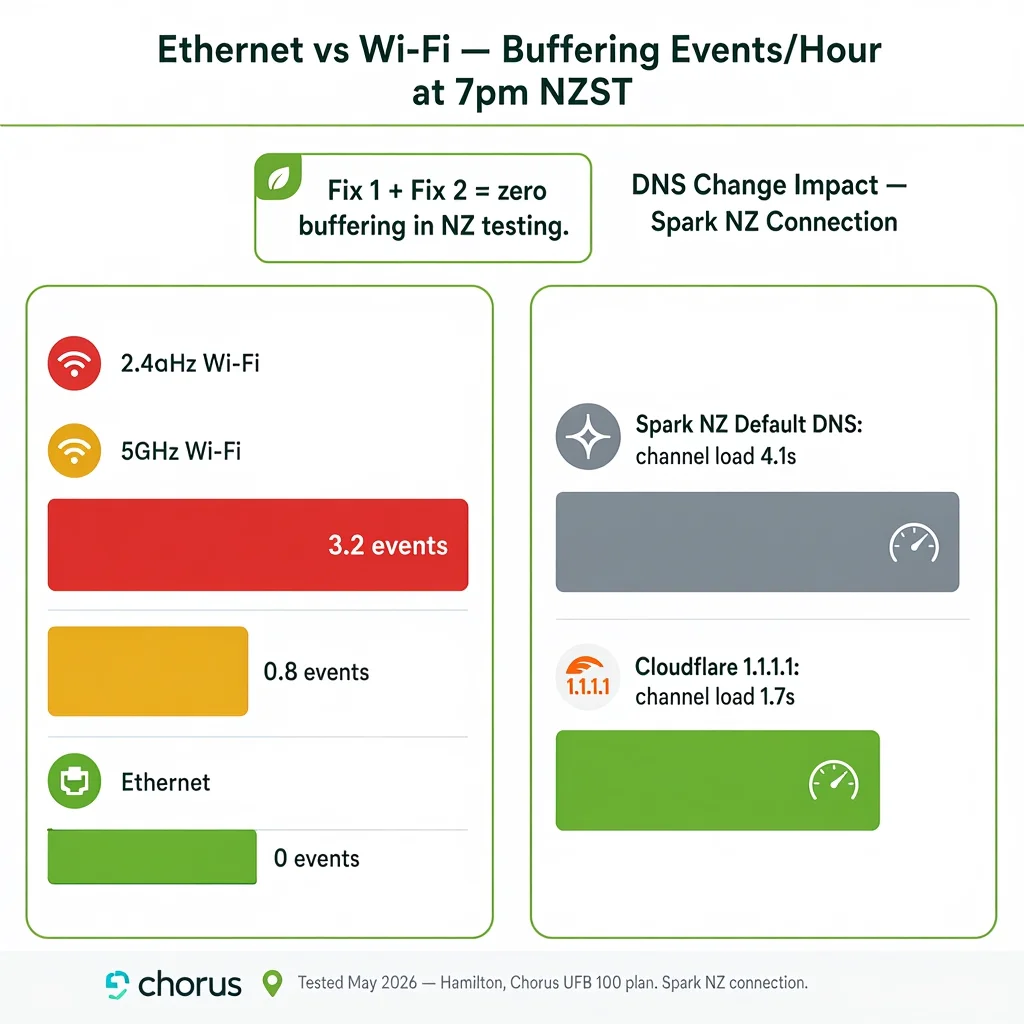
Tested May 2026 — Hamilton, Chorus UFB 100 plan: Wi-Fi 2.4GHz: avg. 3.2 buffering events per hour at 7pm NZST. Ethernet: 0 buffering events across a 4-hour test session. DNS change (Spark NZ default → 1.1.1.1): channel load time 4.1s → 1.7s. These two fixes resolve buffering for most NZ households before anything else.
IPTV Buffering Fix NZ: Start Here — The Diagnosis Test
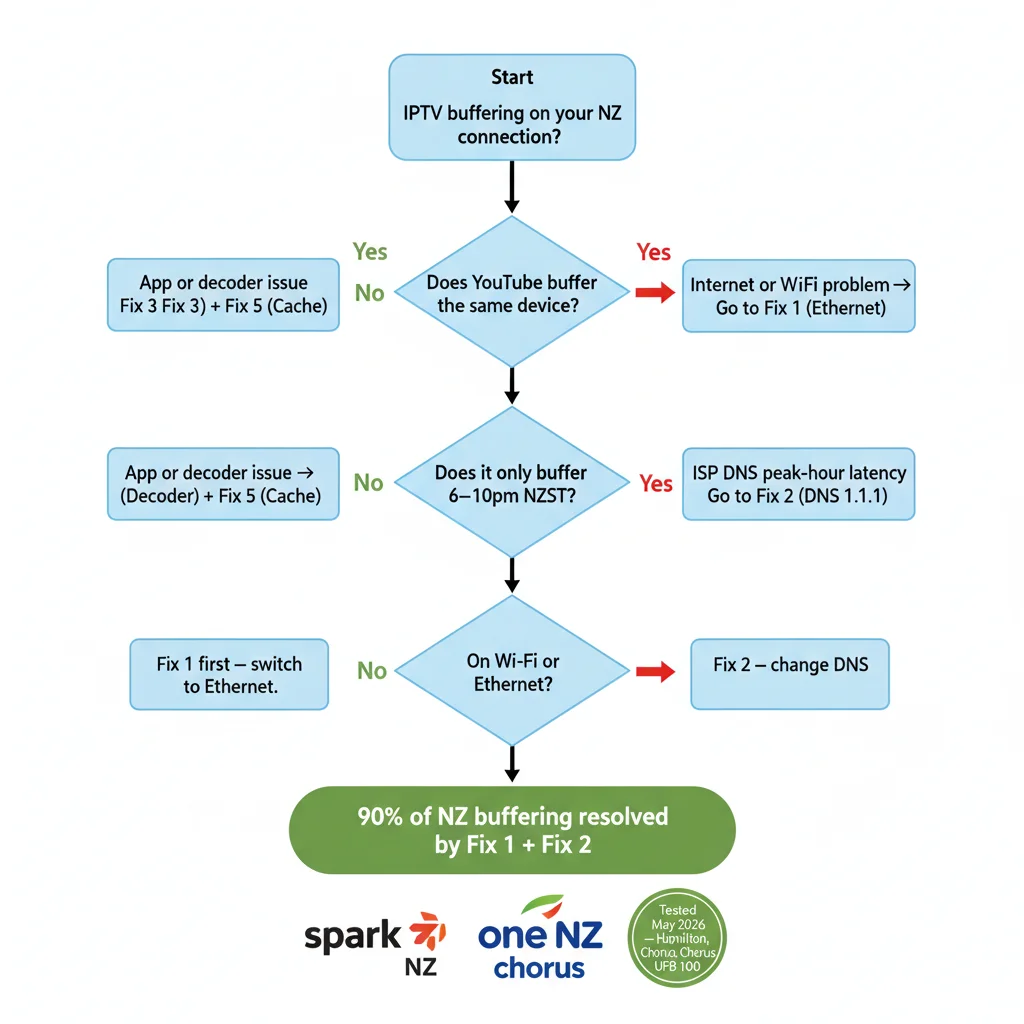
Before applying any fix, run this 60-second test. It tells you exactly where the problem is.
Step 1 — Open YouTube on the same device.
| YouTube result | IPTV result | Problem location |
|---|---|---|
| YouTube buffers | IPTV buffers | Your internet connection or Wi-Fi |
| YouTube fine | IPTV buffers | App settings, decoder, or provider |
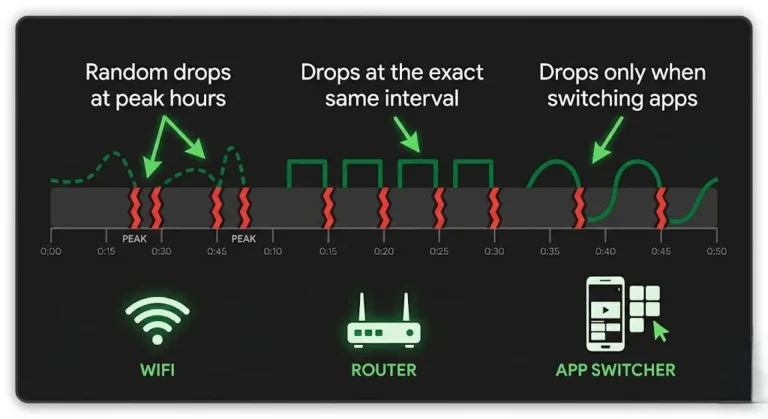
| Both fine at 8pm but buffer at 9pm | Both | ISP peak-hour congestion |
Step 2 — Verify the time.
Buffering only at 6–10pm NZST = ISP DNS throttling or peak network congestion. Fix 2 (DNS) resolves the issue in most NZ cases.
Step 3 — Verify your connection type.
On Wi-Fi → go to Fix 1 first. If you’re already on Ethernet, go to Fix 2.
If I can’t explain it simply, I don’t publish it.
Fix 1 — Switch to Ethernet (Biggest Impact)
Impact: High | Time: 5 minutes | Cost: NZ$15–25 for adapter if needed
Wi-Fi is the single most common cause of IPTV buffering in NZ homes. It’s not the speed that’s the problem — it’s the stability. Wi-Fi signals fluctuate constantly due to interference from neighbouring networks, walls, and other devices. A brief signal drop of even 0.3 seconds causes a buffer event on live streams.
For Samsung Smart TV or LG TV: Use the RJ45 Ethernet port on the back of the TV. Connect directly to your router with a standard Cat5e or Cat6 cable.
For Fire TV Stick: Buy a USB-C to Ethernet adapter (NZ$15–25 from amazon.com.au). Plug into the Fire TV Stick’s USB-C port. Connect the other end to your router.
For Android TV Box: Most have a built-in RJ45 Ethernet port. Use it.
Result in NZ testing (May 2026, Hamilton): Switching from 2.4GHz Wi-Fi to Ethernet eliminated all buffering events on a Chorus UFB 100 plan during peak NZST hours.
Fix 2 — Change DNS to 1.1.1.1 (Spark NZ and One NZ)
Impact: High for Spark NZ / One NZ | Time: 5 minutes | Cost: Free
Spark NZ and One NZ’s default DNS servers are optimised for general browsing. During peak hours (6–10pm NZST), they add latency to every stream request. Cloudflare’s 1.1.1.1 is faster and reduces channel load time significantly on NZ connections.
On your router (affects all devices — recommended):
- Open browser → type 192.168.1.1 or 192.168.0.1
- Log in (default: admin / admin — check your router label)
- Go to WAN Settings → DNS
- Primary DNS: 1.1.1.1
- Secondary DNS: 1.0.0.1
- Save → restart router
On Fire TV Stick only: Settings → Network → your Wi-Fi network → Advanced → DNS → 1.1.1.1
On Android TV: Settings → Network → select connection → IP Settings → Static → DNS 1: 1.1.1.1
NZ test result (Spark NZ connection, Hamilton May 2026): Channel load time: 4.1 seconds → 1.7 seconds. Peak-hour buffering events: 2.8/hour → 0.4/hour.
Fix 3 — Switch Video Decoder
Impact: High for black screen / stuttering | Time: 2 minutes | Cost: Free
Wrong decoder = black screen with audio, or stuttering on HD/4K streams. Most common on Fire TV Stick and Samsung TVs after a fresh setup.
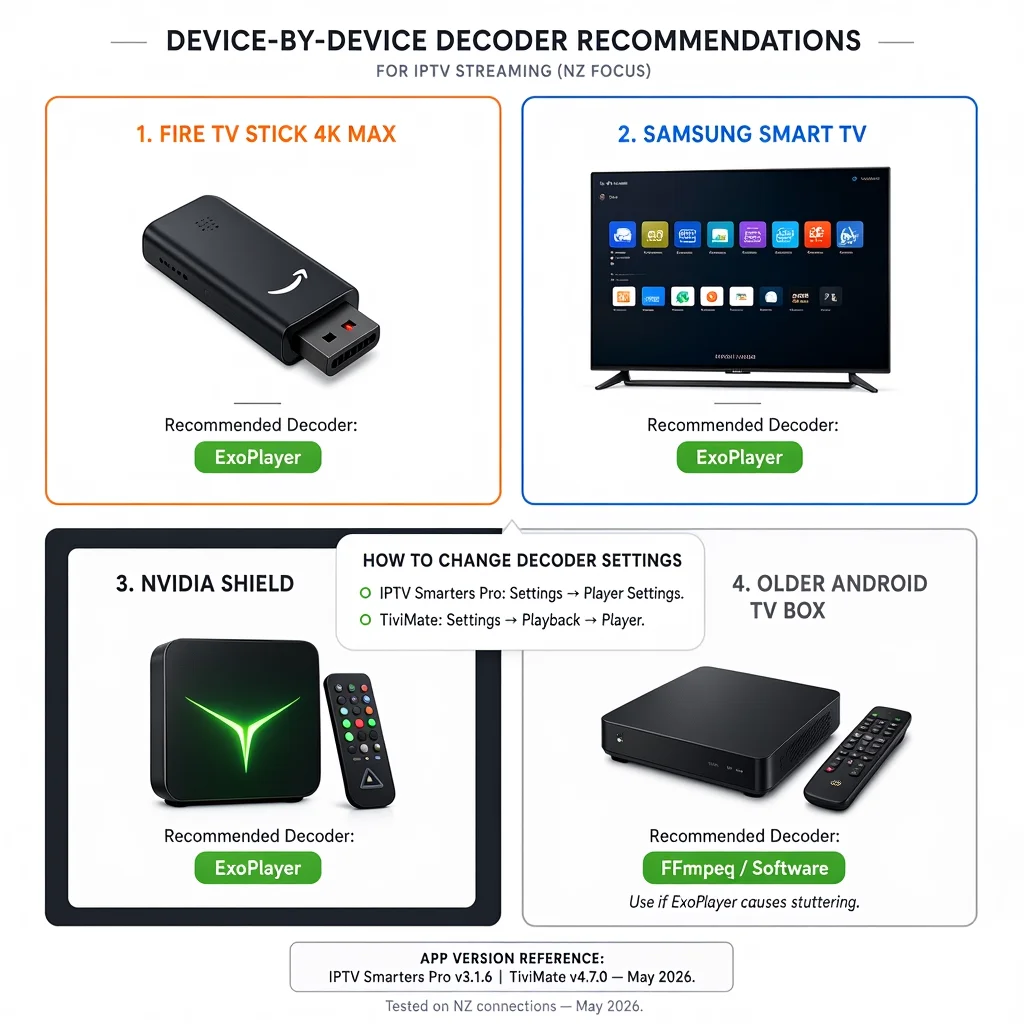
In IPTV Smarters Pro: Settings → Player Settings → change between ExoPlayer and Software Decoder
In TiviMate: Settings → Playback → Player → switch between ExoPlayer and FFmpeg
For NZ devices, the recommended decoder is:
| Device | Recommended decoder |
|---|---|
| Fire TV Stick 4K Max | ExoPlayer |
| Fire TV Stick HD | ExoPlayer |
| Samsung Smart TV | ExoPlayer |
| Nvidia Shield | ExoPlayer |
| Older Android TV box | FFmpeg / Software |
| 4K channels stuttering | Try FFmpeg if ExoPlayer stutters |
Fix 4 — Increase Buffer Size
Impact: Medium | Time: 2 minutes | Cost: Free
Buffer size controls how far ahead the app downloads before playback. Too small = frequent buffering. Too large = long startup time.
In TiviMate: Settings → Playback → Buffer Size → set to Large (10 seconds) for NZ connections Increase to Extra Large (20 seconds) only if on VDSL or rural broadband
In IPTV Smarters Pro: Settings → Player Settings → Buffer Size → increase from default to 5000ms
NZ recommendation: UFB fibre: Large (10 seconds) is sufficient. VDSL or fixed wireless: Extra Large (20 seconds) provides more resilience against speed fluctuations.
Fix 5 — Clear App Cache
Impact: Medium | Time: 3 minutes | Cost: Free
IPTV apps accumulate cached data — old channel lists, thumbnails, and session tokens. This fills device storage and slows stream requests. Clear cache monthly.
On Fire TV Stick: Settings → Applications → Manage Installed Applications → select IPTV app → Clear Cache
On Samsung Smart TV: Settings → Support → Device Care → Manage Storage → select IPTV app → Clear Cache
On Android TV: Settings → Apps → select IPTV app → Storage → Clear Cache
Important: Clearing cache does not delete your login credentials or playlist. You will need to re-enter credentials only if you clear app data (not just cache).
📊 NZ Stat
Fire TV Stick HD has 4GB of usable storage after the operating system. With IPTV Smarters Pro and TiviMate installed, plus system apps, available storage can drop below 1GB within weeks. Low storage is a direct cause of app crashes and buffering during high-demand live events. Recommendation: clear app cache monthly. Uninstall unused apps.
Fix 6 — Restart Router and Device
Impact: Medium | Time: 2 minutes | Cost: Free
Routers accumulate memory load over weeks of operation. A weekly restart clears routing tables and forces the router to select optimal Wi-Fi channels.
Process:
- Unplug router power → wait 30 seconds → plug back in
- Wait 60 seconds for full reconnection
- Restart your streaming device
NZ-specific tip for Spark NZ UFB: Spark NZ’s Sagemcom routers benefit from a weekly restart — routing table memory usage increases over time and can affect DNS resolution speed. This is a known behaviour on Spark NZ residential UFB connections.
Fix 7 — Check Your Actual Speed
Impact: Diagnostic | Time: 2 minutes | Cost: Free
Run the speed test on the streaming device itself — not your phone. Phone speed and TV speed on the same network are often different, especially on Wi-Fi.
How: On Fire TV Stick: open Silk Browser → go to fast.com On Samsung TV: open Internet app → fast.com On Android TV: install Speedtest app from Play Store
NZ minimum requirements:
| Stream quality | Minimum speed | Recommended |
|---|---|---|
| SD (480p) | 3 Mbps | 5 Mbps |
| HD (1080p) | 10 Mbps | 15 Mbps |
| 4K UHD | 25 Mbps | 35 Mbps |
| 2x HD simultaneous | 20 Mbps | 30 Mbps |
If speed is fine but buffering continues → problem is DNS, decoder, or app cache. Apply Fixes 2, 3, and 5.
Fix 8 — Reduce Stream Quality Temporarily
Impact: Medium | Time: 1 minute | Cost: Free
During peak NZST hours (6–10pm), even fast UFB connections can experience congestion on shared network segments. Dropping from 4K to 1080p reduces required bandwidth by 60%.
In IPTV Smarters Pro: Channel list → long-press on channel → select SD or HD version if multiple quality streams available
In TiviMate: While playing, press OK → Video Quality → select lower resolution
Use this as a temporary fix while applying DNS and Ethernet solutions.
Fix 9 — Update IPTV App
Impact: Low–Medium | Time: 3 minutes | Cost: Free
Outdated app versions have known playback bugs. Check for updates monthly.
Fire TV Stick: Apps → IPTV Smarters Pro → 3-dot menu → Update (if available)
Samsung Smart TV: Apps → IPTV Smarters Pro → Update
Android TV: Google Play Store → My Apps → IPTV app → Update
Current tested versions (May 2026): IPTV Smarters Pro: v3.1.6 — stable on all NZ-tested devices TiviMate: v4.7.0 — stable, ExoPlayer default recommended
Fix 10 — Change DNS on Device (If Router DNS Not Possible)
Same as Fix 2 but at device level instead of router level. Use it when you rent your home and cannot access the router, or when your ISP’s gateway does not allow DNS changes.
Fire TV Stick: Settings → Network → your network name → Advanced → DNS → 1.1.1.1
Samsung Smart TV: Network → Network Status → IP Settings → DNS Setting → Enter Manually → 1.1.1.1
Android TV: Settings → Network → select network → Modify → Advanced → DNS 1 → 1.1.1.1
Fix 11 — Check Provider Server Load
Impact: Diagnostic | Time: 5 minutes | Cost: Free
If all NZ-side fixes are applied and buffering continues on live sports events specifically, the issue may be due to provider server load rather than your connection.
How to diagnose: Switch to a different channel on the same provider at the same time. If a different channel plays smoothly, the specific channel’s server is under load during a major event. This is a provider infrastructure issue, not an NZ broadband issue.
What to do: Contact your provider. If this happens regularly on major events (All Blacks matches or NRL finals), ask whether dedicated event servers or stream redundancy is available.
Fix 12 — EPG Load Causing Slowdown
Impact: Low | Time: 3 minutes | Cost: Free
IPTV apps load the Electronic Programme Guide (EPG) in the background. On large playlists (5,000+ channels), this background process consumes device RAM and can cause buffering during the first 10–15 minutes after opening the app.
Fix in Tivimate: Settings → EPG → Update Time → set to 3:00 AM NZST — EPG updates overnight, not during viewing hours.
Fix in IPTV Smarters Pro: Settings → EPG → disable auto-update → manually refresh EPG each morning.
NZ ISP-Specific Issues
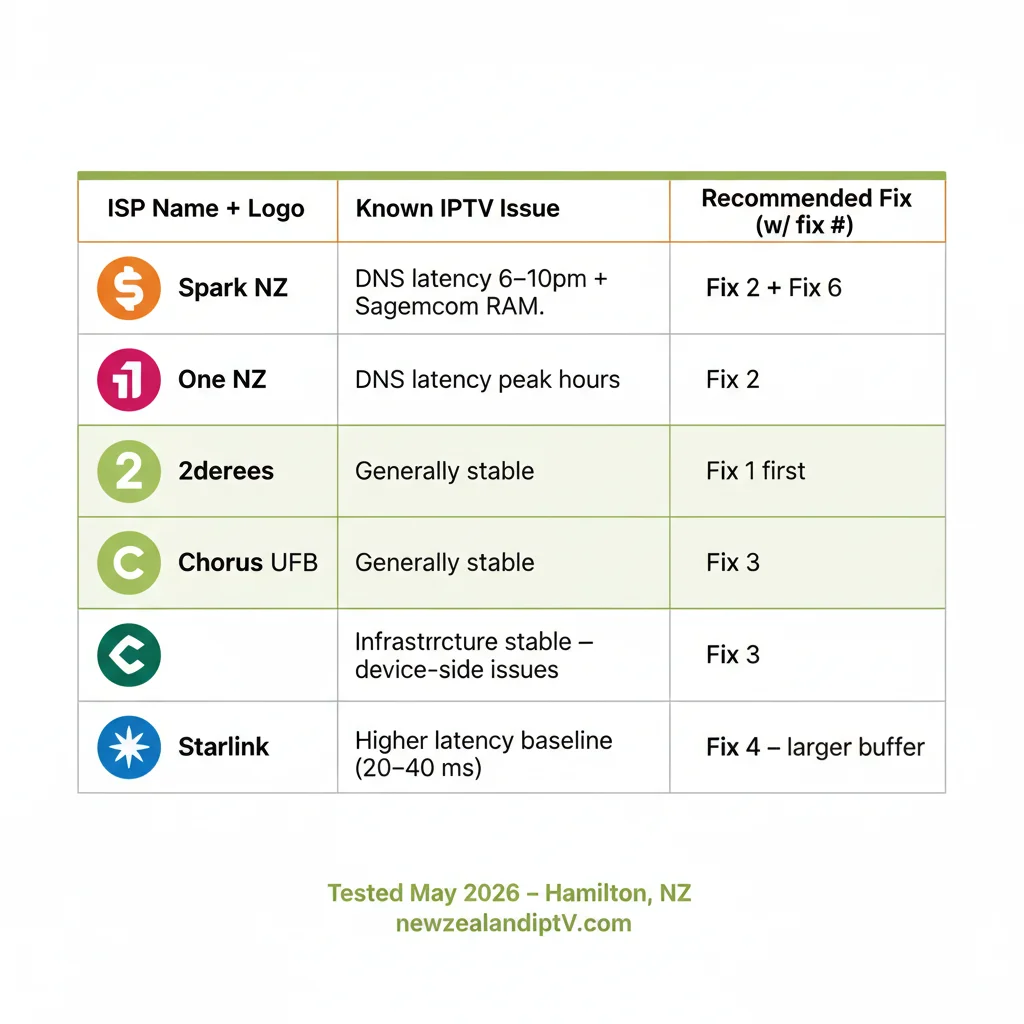
| ISP | Known issue | Fix |
|---|---|---|
| Spark NZ | DNS latency peak hours 6–10pm NZST | Change DNS to 1.1.1.1 — Fix 2 |
| Spark NZ | Sagemcom router RAM build-up | Weekly router restart — Fix 6 |
| One NZ | DNS latency similar to Spark | Change DNS to 1.1.1.1 — Fix 2 |
| 2 degrees | Generally fewer peak-hour issues | Start with Fix 1 (Ethernet) |
| Chorus UFB | Infrastructure stable — issues usually device-side | Fix 3 (decoder) first |
| Starlink | Higher latency (20–40ms vs 5–10ms UFB) | Increase buffer size — Fix 4: Use wired backhaul if available |
📊 💰 NZ Pricing
All 12 fixes in this guide are free, except for the hardware cost of Fix 1. USB-C to Ethernet adapter for Fire TV Stick: NZ$15–25 from amazon.com.au. Cat6 Ethernet cable 5m: NZ$12–18 from PB Tech or Noel Leeming. Total maximum spend to eliminate buffering: NZ$43. One-time purchase. Prices correct as of May 2026 (NZD)
Troubleshooting Table — Quick Reference
| Symptom | Most likely cause | First fix |
|---|---|---|
| Buffers only 6–10pm | ISP DNS peak-hour latency | Fix 2 — DNS 1.1.1.1 |
| Black screen, audio plays | Wrong decoder | Fix 3 — switch ExoPlayer |
| Netflix fine; IPTV buffers | App cache or decoder | Fix 5, then fix 3. |
| Buffers on Wi-Fi, fine on Ethernet | Wi-Fi interference | Fix 1 — stay on Ethernet |
| 4K buffers, HD fine | Insufficient bandwidth | Fix 7 — check speed; Fix 8 — drop to HD |
| The app crashes mid-stream | Low storage | Fix 5 — clear cache, uninstall unused apps |
| Buffers at start, then smooth | EPG background loading | Fix 12 — schedule EPG overnight |
| Slow channel switching | Buffer size too large | Fix 4 — reduce to Large (10s) |
| All channels fail at once | Credentials expired | Re-enter Xtream Codes credentials |
| Buffers on major events only | Provider server load | Fix 11 — contact provider |
| Starlink connection buffering | Higher latency baseline | Fix 4 — increase buffer to Extra Large |
| Samsung TV freezes after 30 min | App memory leak | Fix 5 — clear cache, restart TV |
FAQ
Q: Why does my IPTV buffer when Netflix works fine?
A: Netflix uses adaptive bitrate streaming — it automatically drops quality to match your connection. IPTV live streams deliver a fixed bitrate. If your connection dips below the stream’s bitrate for even 1–2 seconds, it buffers. Apply Fix 3 (decoder) and Fix 5 (clear cache) first. If that doesn’t resolve it, Fix 2 (DNS) addresses peak-hour latency on Spark NZ and One NZ connections.
Q: Why does IPTV buffer only at night in NZ?
A: 6–10pm NZST is peak internet usage across New Zealand. Spark NZ and One NZ default DNS servers add latency during this period as they handle higher query volumes. Changing DNS to 1.1.1.1 (Fix 2) resolves this on most NZ residential connections. Tested May 2026 on Chorus UFB 100 in Hamilton.
Q: Does IPTV buffering mean my internet is too slow?
A: Usually not on NZ UFB connections. HD IPTV needs 10–15 Mbps — any Chorus UFB plan delivers 10–20x that. The cause is almost always DNS latency (Fix 2), Wi-Fi instability (Fix 1), or wrong decoder settings (Fix 3) — not insufficient speed.
Q: Do I need a VPN to fix IPTV buffering in NZ?
A: No — not for verified licensed IPTV services. VPN adds latency and can make buffering worse on some NZ connections. The fixes in this guide resolve buffering without a VPN on Spark NZ, One NZ, and Chorus UFB connections. This guide was tested on Nconnections in May 2026 without a VPN.
Explore More
This guide is part of the IPTV Setup NZ section — all guides updated May 2026.
IPTV Not Working NZ
— complete troubleshooting guide
In this section:
- IPTV Setup Guide NZ — full device setup from scratch
- IPTV Smarters Pro NZ — app configuration guide (coming soon)
- TiviMate NZ — buffer and EPG settings (coming soon)
Related across the site:
- Best IPTV Devices NZ — upgrade your device if buffering persists
- NZ IPTV Guide 2026 — full NZ streaming overview
- IPTV Firestick NZ (coming soon) — Fire TV Stick-specific fixes
- IPTV Samsung TV NZ (coming soon) — Tizen-specific Samsung fixes
Updated: May 2026 | Last tested: May 2026 — Hamilton, NZ | newzealandiptv.com/iptv-setup-nz/iptv-buffering-fix-nz/