
By Ryan Mitchell | Hamilton | Updated June 2026
IPTV not working in NZ: The complete guide to diagnosing and fixing every common IPTV problem on NZ broadband.
Whether your IPTV has completely stopped working, is showing a black screen, keeps disconnecting, or is throwing error codes you don’t recognise — this guide tells you what’s wrong and how to fix it.
Most problems resolve in under five minutes once you identify the correct cause.
Why is IPTV not working in NZ?
The most common reasons IPTV stops working in New Zealand are expired subscriptions, incorrect login credentials, DNS issues on Spark NZ or One NZ connections, app cache corruption, or provider-side service interruptions.Running a phone test with the same credentials is the fastest way to identify the root cause.
⚖️ Legal Note
This guide covers technical troubleshooting only. Always use licensed IPTV services compliant with the NZ Copyright Act 1994 — legislation.govt.nz
This guide is part of the IPTV Troubleshooting NZ section. For buffering and freezing specifically, see IPTV Buffering Fix NZ — that’s a different problem with different fixes.
What’s Your Problem? — Jump to the Right Guide
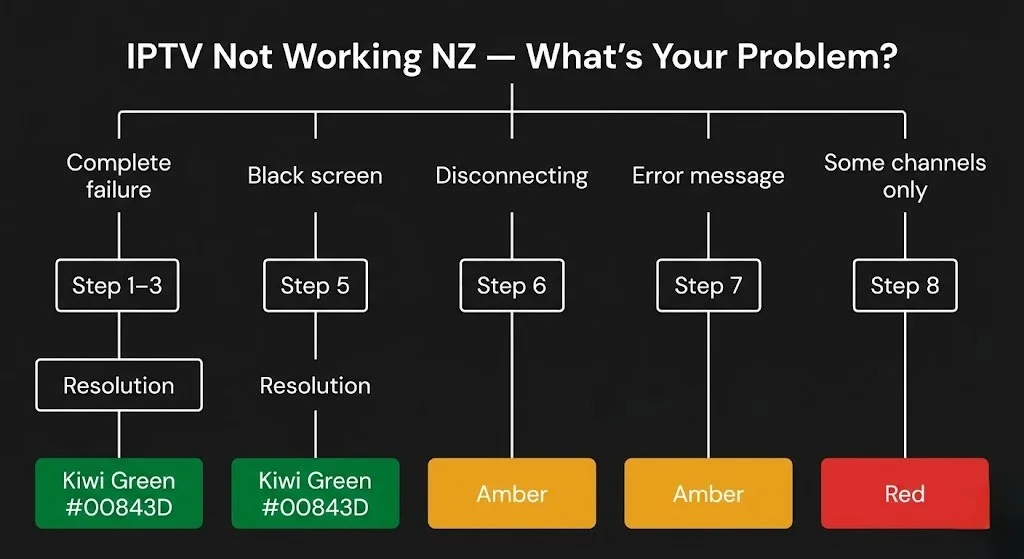
| Problem | Where to Go |
|---|---|
| IPTV completely stopped working | This guide — Step 1 |
| Buffering and freezing | IPTV Buffering Fix NZ |
| Black screen — audio plays | This guide — Step 5 |
| Black screen — no audio | This guide — Step 5 |
| Keeps disconnecting | This guide — Step 6 |
| The app opens, but nothing loads | This guide — Step 4B |
| Error codes on screen | This guide — Step 7 |
| The app won’t open or crashes | This guide — Step 4 |
| Some channels missing | This guide — Step 8 |
| Provider outage | This guide — Step 8B |
| IPTV slow but working | IPTV Buffering Fix NZ |
| Black screen on 4K only | IPTV Black Screen NZ (coming soon) |
| Firestick freezing | IPTV Freezing Firestick NZ (coming soon) |
| Need to contact support | This guide — Step 9 |
In This Troubleshooting Section
All guides written and tested on NZ broadband by Ryan Mitchell.
- IPTV Buffering Fix NZ ✅ — fix freezing and buffering
- IPTV Not Working NZ ✅ — you are here
- IPTV Black Screen NZ (coming soon)
- IPTV Freezing on Firestick NZ (coming soon)
- IPTV Error Codes NZ (coming soon)
- IPTV Keeps Disconnecting NZ (coming soon)
- IPTV App Not Loading NZ (coming soon)
- IPTV Service Down NZ (coming soon)
🧪 How We Tested This
Ryan Mitchell documented these troubleshooting steps across Firestick 4K Max, Samsung QE55Q80C, LG OLED C5, Sony XR-55A80L, and Xiaomi TV Box S on Spark NZ UFB, One NZ UFB 200, Chorus UFB 200, and Starlink rural connections in Hamilton and Wellington in June 2026.
📅 Last tested: June 2026 — Hamilton + Wellington
Table of Contents
- Quick Diagnosis
- Step 1 — Subscription and Credentials
- Step 2 — Test Your Internet
- Step 3 — The Phone Test
- Step 4 — Clear App Cache
- Step 4B — IPTV App Not Loading NZ
- Step 5 — Fix Black Screen
- Step 6 — Fix Disconnections
- Step 7 — Error Codes
- Step 8 — Some Channels Not Working
- Step 8B — How to Tell If IPTV Service Is Down
- Step 9 — How to Contact IPTV Support NZ
- NZ-Specific Issues by ISP
- FAQ
Quick Diagnosis
| Symptom | Jump To |
|---|---|
| The app opens — no channels load | Step 1 |
| “Authentication Failed” error | Step 1 |
| Internet not working at all | Step 2 |
| It works on the phone but not on the TV. | Step 4 |
| The app opens, but nothing loads | Step 4B |
| Black screen — audio plays | Step 5 |
| Black screen — no audio | Step 5 |
| Disconnects every few minutes | Step 6 |
| Error message on screen | Step 7 |
| Some channels work; others don’t | Step 8 |
| Everything down — provider outage? | Step 8B |
| Need provider support | Step 9 |
Step 1 — Subscription and Credentials
The most common cause of IPTV not working is also the most overlooked.
Check subscription expiry:
Log in to your provider’s portal or check your signup email. Look for the expiry date. If passed, renew first, then return here.
Check credentials carefully:
| Common mistake | Example |
|---|---|
| Lowercase ‘l’ vs number ‘1’ | lPTV vs 1PTV |
| Uppercase ‘I’ vs lowercase ‘l’ | IPTV vs lPTV |
| Trailing space from copy-paste | username vs username |
| Missing ‘http://’ in server URL | provider.com vs http://provider.com |
Fix: Delete the existing profile in your IPTV app. Re-enter all three credentials manually from your original provider email. Please type each field directly; do not copy and paste.
Step 2 — Test Your Internet
Open YouTube or Netflix on the same device. If those also fail, your internet is the problem, not IPTV.
Fix: restart your router
Unplug from power → wait 30 seconds → plug back in → wait 60 seconds for full reconnection.
If the internet works but IPTV doesn’t:
Run a speed test at fast.com on the same device.
| Stream quality | Minimum | Recommended |
|---|---|---|
| HD (1080p) | 15 Mbps | 30 Mbps |
| 4K | 35 Mbps | 100 Mbps |
Speed is above these numbers, and IPTV is still failing — the problem is not your connection speed. Continue to Step 3.
Step 3 — The Phone Test
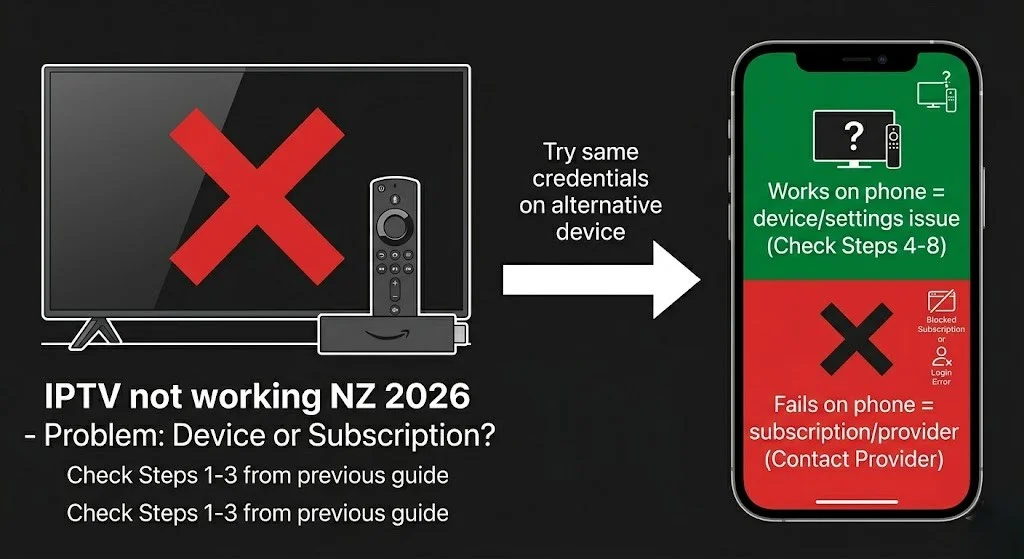
This single test saves more time than anything else in this guide.
Install IPTV Smarters Pro on your phone (free — from the iOS App Store or Google Play). Enter the same credentials as your TV or Firestick setup. Test a channel.
| Result | Meaning | Next step |
|---|---|---|
| Works on phone ✅ | Credentials correct — device issue | Step 4 |
| Fails on phone ❌ | Subscription or credentials issue | Step 1 or contact the provider. |
This test tells you in 60 seconds whether the problem is your device or your account. Every other troubleshooting step depends on this answer.
Step 4 — Clear App Cache
If Step 3 confirmed that the problem is your device, a corrupted app cache is the most likely cause.
Firestick:
Settings → Applications → Manage Installed Applications → IPTV app → Clear Cache → Clear Data → relaunch → re-enter credentials
Android TV:
Settings → Apps → IPTV app → Storage → Clear Cache → Clear Data → relaunch
Samsung Smart TV:
Settings → Support → Device Care → Manage Storage → IPTV app → Clear Cache
LG Smart TV:
Settings → Support → Additional Settings → Application Manager → IPTV app → Clear Cache
After clearing the cache, re-enter credentials manually. Do not rely on saved login data.
💡 From Ryan Mitchell:
One issue I’ve seen repeatedly after Firestick automatic updates: TiviMate or IPTV Smarters Pro stops loading channels because the update resets the app’s network permissions. Fix: Settings → Applications → Manage Installed Applications → your IPTV app → Permissions → enable network access. Takes 30 seconds.
Step 4B — IPTV App Not Loading NZ
Different from app crashing, the app opens, but the channel list never appears, or the loading spinner runs indefinitely.
① Playlist URL expired or wrong
M3U URLs have expiry dates on some NZ providers. If the app opens but shows an empty playlist or endless loading:
Open app → playlist settings → delete existing playlist → re-enter your credentials from the original provider email.
- Xtream Codes: re-enter server URL, username, password
- M3U: paste fresh M3U URL from provider
② Server connection timeout
The app is trying to connect, but the provider server isn’t responding. Force close the app → wait 2 minutes → reopen it. If it loads, it’s a brief server spike. If it consistently fails, run the phone test (Step 3).
③ The app needs an update.
Outdated app versions sometimes fail to connect to updated provider servers.
- Firestick: Amazon App Store → search IPTV app → check for Update
- Android TV: Google Play → My Apps → check for updates
- Samsung: Samsung App Store → updates section
④ Wrong EPG URL causing load failure
Some apps fail to load the channel list if the EPG URL is invalid. Remove the EPG URL temporarily and test — if channels load without it, the EPG URL is the issue. Contact your provider for an updated EPG URL.
For a full guide covering all app loading failures, see IPTV App Not Loading NZ (coming soon).
Step 5 — Fix Black Screen
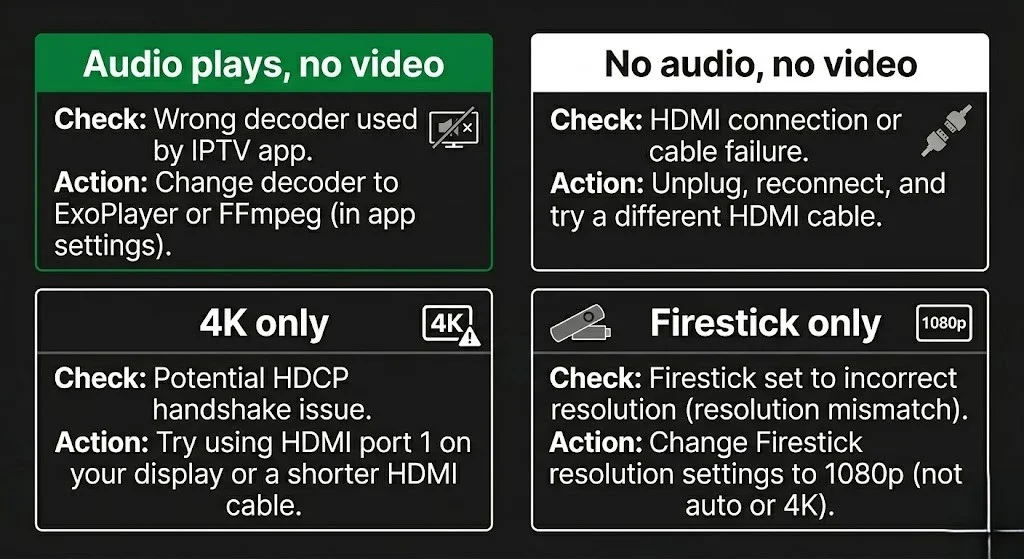
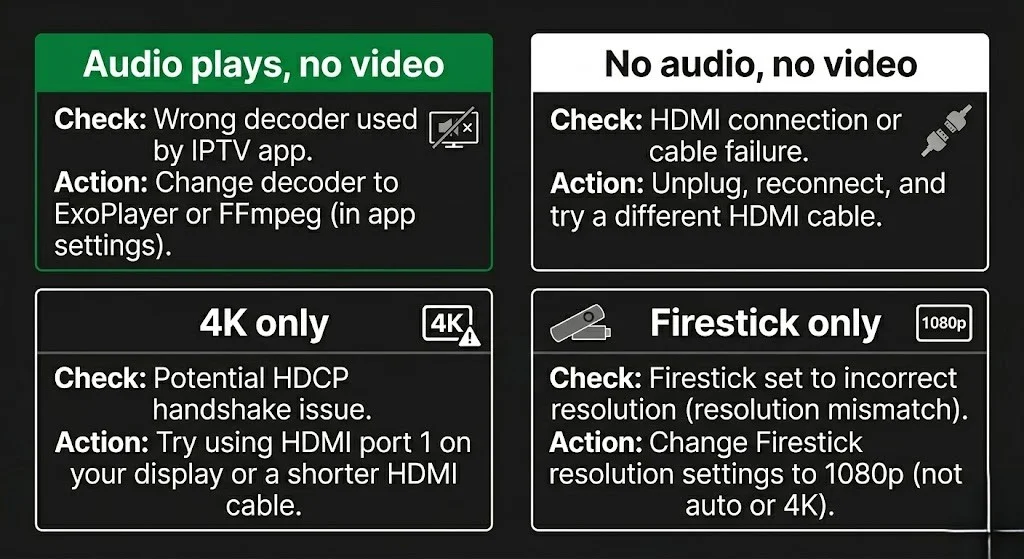
A black screen is one of the most misdiagnosed IPTV problems. Four separate causes — four different fixes.
① Black screen — audio plays — wrong decoder
The stream is arriving, but your device can’t render the video.
TiviMate: Settings → Playback → Player → switch between ExoPlayer and FFmpeg
IPTV Smarters Pro: Settings → Player Settings → switch to ExoPlayer
Test after each switch. One will work for your specific stream type.
② Black screen — no audio — HDMI failure
Unplug the HDMI cable from both the TV and the device, wait 10 seconds, then reconnect it firmly.
If you are using a Fire Stick with an HDMI extender, try removing the extender and connecting the Fire Stick directly to the HDMI port.
③ Black screen on 4K channels only — HDCP issue
4K protected content requires HDCP 2.2. Older HDMI ports (HDMI 1.4) won’t pass 4K protected streams.
Fix: try a different HDMI port on your TV. Port 1 on most NZ TVs is HDCP 2.2 certified.
④ Firestick — resolution mismatch
Settings → Display & Sounds → Display → Video Resolution → switch from Auto to 1080p
Auto resolution sometimes fails to negotiate with certain IPTV streams.
For a dedicated black screen guide covering all devices, see IPTV Black Screen NZ (coming soon).
Step 6 — Fix IPTV Keeps Disconnecting
Disconnecting is different from buffering. Buffering is slow delivery. Disconnecting is a complete loss of connection requiring the stream to restart.
Wi-Fi drops — most common cause
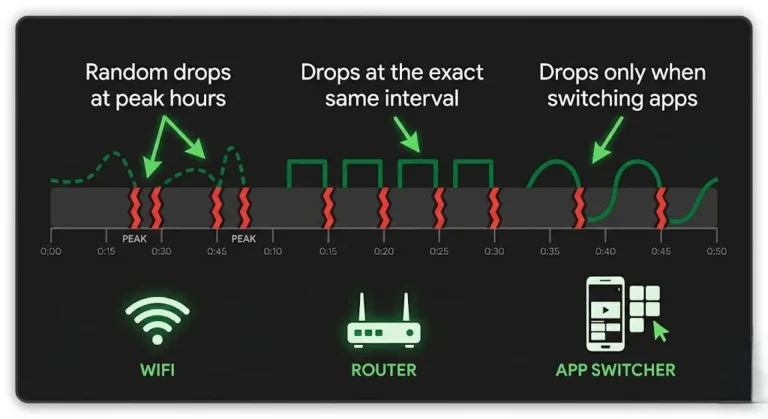
2.4GHz Wi-Fi loses packets during peak hours (6–10pm NZST), causing complete disconnections.
Fix: Ethernet connection. This feature is built into Samsung, LG, and Sony TVs. USB-C adapter (NZ$15–25) for Fire Stick and Chromecast. Eliminates Wi-Fi disconnections permanently.
Router idle timeout
Some NZ routers — particularly Spark-supplied Sagemcom models — drop idle connections after 10–15 minutes.
Fix: Router admin panel → WAN settings → disable idle timeout or set it to 0.
App background kill — Fire Stick and Android TV
Firestick and Android TV aggressively close background apps to free memory. If IPTV disconnects when you switch apps and return, enable Keep App Running in Background in your device’s battery/power settings.
Provider session timeout
Some providers enforce a maximum session duration. After a set number of hours, the stream cuts.
Please contact your provider to discuss session duration settings or to request a server URL without a session timeout.
For a full disconnection guide including Starlink-specific fixes, see IPTV Keeps Disconnecting NZ (coming soon).
Step 7 — Error Codes
| Error Message | Cause | Fix |
|---|---|---|
| “Authentication Failed” | Wrong credentials or expired subscription | Step 1 — re-enter manually |
| “Could Not Resolve Host” | DNS failure | ISP section below — DNS → 1.1.1.1 |
| “Connection Timed Out” | Network or provider down | Step 2 and Step 3 phone test |
| “Maximum Connections Reached” | Simultaneous stream limit | Close IPTV on all other devices |
| “No Data” / “No Signal” | Wrong server URL or provider outage | Step 1 — verify server URL |
| “Playback Error” | Wrong decoder | Step 5 — switch ExoPlayer/FFmpeg |
| “Playlist Empty” | M3U URL expired | Re-enter M3U URL from provider email |
| “EPG Load Failed” | Timezone mismatch | Settings → EPG → Pacific/Auckland (UTC+12) |
For a complete reference covering every error message across TiviMate, IPTV Smarters Pro, and GSE Smart IPTV, see IPTV Error Codes NZ (coming soon).
Step 8 — Some Channels Not Working
If some channels work and others don’t, the issue is almost always provider-side, not a local problem.
Diagnosis — phone test:
Install IPTV Smarters Pro on your phone. Test the non-working channels with the same credentials.
- Works on phone → local device or app issue — Steps 4–5
- Fails on phone too → provider server issue for those channels
It is normal for specific channels to go down temporarily. Wait 2–4 hours and retry. If the same channels are consistently down for more than 24 hours, contact your provider with the channel names and phone test results.
Peak hours (6–10pm NZST):
Channels that fail at 7–9pm but work at other times indicate provider capacity — not your setup. Contact your provider about server capacity or request an alternative server URL.
Step 8B — How to Tell If IPTV Service Is Down NZ
Before spending time troubleshooting your local setup, confirm the problem is actually on your provider’s end.
Four quick checks:
① Test on mobile data
Turn off Wi-Fi on your phone → switch to 4G/5G → open IPTV Smarters Pro with the same credentials.
- Works on mobile data = problem is your home network or router
- Fails on mobile data = likely provider outage
② Test on a second device
Try IPTV on a different device on the same network. If it fails on every device simultaneously, it’s a provider outage or credentials issue.
③ Check other channels
If specific channels are down but others work, it’s an individual stream issue on the provider’s server. If everything is down at once, it’s a provider-wide outage.
④ Check provider status
Most NZ IPTV providers have a Telegram or WhatsApp status channel. Check for outage announcements before raising a support ticket.
| Test | Result | Meaning |
|---|---|---|
| Works on mobile data | ✅ | Home network issue — check router |
| Fails on mobile data | ❌ | Provider outage — contact support |
| Some channels work | Mixed | Provider stream issue — wait or report |
| All channels down | ❌ | Provider outage or credentials |
| Provider status: outage posted | — | Wait — it’s not a local issue |
🇳🇿 NZ Context
Provider outages are most common between 7 and 10pm NZST on weekdays when server load peaks. If everything stops at 7:30pm and the mobile data test also fails, wait 30 minutes and retry before raising a support ticket.
For a full guide on identifying NZ provider outages, see IPTV Service Down NZ (coming soon).
Step 9 — How to Contact IPTV Support NZ
If Steps 1–8B haven’t resolved it, contact your provider. Having the right information ready cuts resolution time significantly.
Information to prepare before contacting:
| What to provide | Why it matters |
|---|---|
| Exact error message (screenshot) | Identifies server-side vs app issues |
| Device name and IPTV app | Helps provider check compatibility |
| All channels or specific ones | Isolates stream vs account issue |
| Your NZ ISP | Spark NZ, One NZ, 2degrees, Chorus, Starlink |
| Phone test result | Confirms credentials work |
| The time problem started | Helps identify server events |
| Mobile data test result | Confirms home network vs provider |
How most NZ providers offer support:
Most NZ IPTV providers offer support via WhatsApp, Telegram, or email. WhatsApp and Telegram typically give the fastest response. If your provider has a Telegram status channel, check it first before contacting support directly.
Contact your provider when:
- Subscription is active, credentials confirmed correct — but nothing loads
- Phone test (Step 3) fails with same credentials
- Mobile data test (Step 8B) also fails
- Specific channels down for more than 24 hours
- The “maximum connections reached” error persists after closing all other devices
- All steps above completed without resolution
NZ-Specific Issues by ISP
| ISP | Common IPTV Issue | Fix |
|---|---|---|
| Spark NZ | DNS latency — slow channel load | DNS → 1.1.1.1 |
| One NZ | DNS resets after router restart | Re-check DNS after every reboot |
| 2 degrees | Generally stable | Standard setup sufficient |
| Chorus UFB | PPPoE session drops cause freezes | Network → Forget → Reconnect |
| Starlink | High latency causes stream timeouts | TiviMate buffer → Extra Large (20s) |
DNS fix — device paths:
- Firestick: Settings → Network → Wi-Fi → Advanced → DNS →
1.1.1.1 - Samsung TV: Settings → General → Network → Network Settings → IP Settings → DNS → Manual →
1.1.1.1 - Android TV / Chromecast: Settings → Network & Internet → connection → Advanced → DNS →
1.1.1.1 - LG TV: Settings → General → Network → Advanced Settings → DNS → Manual →
1.1.1.1 - Sony Bravia: Settings → Network → Network Setup → Expert Settings → DNS →
1.1.1.1
After changing DNS, force-close your IPTV app completely and reopen it. Do not just press Back.
Spark NZ and One NZ: Both ISPs occasionally reset DNS to their own servers after firmware updates. Re-check DNS after every router restart even if you’ve set it before.
Chorus UFB — PPPoE drops: Brief session drops cause apps to freeze without showing an error. Fix: Settings → Network → Forget network → Reconnect to force a fresh session.
Starlink — latency timeouts: variable latency causes timeout errors even when the connection is functional. Fix in TiviMate: Settings → Playback → Buffer Size → Extra Large (20 seconds).
For the full buffering fix guide, see IPTV Buffering Fix NZ.
FAQ
Q: Why did my IPTV suddenly stop working in NZ?
A: Most common causes: expired subscription, DNS failure after a Spark NZ or One NZ router restart, or a provider server outage. Run the phone test first — install IPTV Smarters Pro on your phone and test with the same credentials.
Works on phone = local device issue (Step 4). Fails on phone = subscription or provider issue (Step 1 or contact provider).
Q: Why is my IPTV showing a black screen in NZ?
A: Black screen with audio playing — wrong decoder, switch between ExoPlayer and FFmpeg in playback settings. Black screen with no audio — HDMI handshake failure; unplug and reconnect the HDMI cable.
Black screen on 4K only — HDCP issue; try a different HDMI port. Firestick only — resolution mismatch; set video resolution to 1080p. See Step 5 for all four fixes.
Q: Why does my IPTV say “authentication failed” in NZ?
A: The app can’t verify credentials with the provider’s server. Check for an expired subscription; typos in the username or password (lowercase ‘l’ vs number ‘1’ is common); trailing spaces from copy-paste; or a missing server URL.
Delete the existing profile and re-enter all credentials manually from your provider email — do not copy-paste.
Q: Why do some IPTV channels work but others don’t in NZ?
A: Almost always a provider-side issue. Run the phone test (Step 3) — if the same channels fail on your phone with the same credentials, contact your provider with the channel names. Wait 2–4 hours before assuming a permanent issue. Channels failing specifically at 7–9pm NZST and working at other times indicate provider server load — not your setup.
Q: Why does my IPTV keep disconnecting in NZ?
A: Most common cause: 2.4GHz Wi-Fi packet loss at peak hours (6–10pm NZST). Fix: Ethernet connection — built-in on Samsung, LG, and Sony TVs; USB-C adapter (NZ$15–25) for Fire Stick and Chromecast.
Other causes: router idle timeout (disable in the admin panel), app background kill (enable background running in device settings), or provider session timeout (contact the provider).
Q: How do I contact IPTV support in NZ?
A: Most NZ providers offer support via WhatsApp or Telegram — fastest response. Before contacting, prepare the exact error message (screenshot), device and app name, your NZ ISP, whether all or specific channels are affected, your phone test result, and your mobile data test result.
This information significantly reduces resolution time. See Step 9 for the full checklist.
Q: How do I know if my IPTV service is down in NZ?
A: Turn off Wi-Fi on your phone and test IPTV on 4G/5G mobile data with the same credentials. If it works on mobile data, the problem is your home network. If it fails on mobile data too, it’s a provider outage. Check your provider’s Telegram or WhatsApp status channel before raising a support ticket.
Explore More — IPTV Troubleshooting NZ
Published:
- IPTV Buffering Fix NZ — fix freezing and buffering on NZ broadband
Coming soon:
- IPTV Black Screen NZ — four causes, four fixes, all devices
- IPTV Freezing on Firestick NZ — Firestick-specific freeze and lag fixes
- IPTV Error Codes NZ — every error message explained for NZ setups
- IPTV Keeps Disconnecting NZ — stop repeated disconnections
- IPTV App Not Loading NZ — when the app opens but channels won’t load
- IPTV Service Down NZ — how to tell if it’s your provider or your setup
Related guides:
Conclusion
Most IPTV problems come down to four things: expired subscription, DNS failure, app cache, or wrong decoder. Work through the steps in order.
Three fixes that resolve the majority of cases:
① Phone test first. 60 seconds to tell you whether the problem is your device or your account — and determines every subsequent step.
② DNS 1.1.1.1: DNS failure on Spark NZ and One NZ looks identical to an IPTV outage. Change DNS before assuming a provider issue.
③ Ethernet over Wi-Fi. 2.4GHz Wi-Fi at peak hours (6–10pm NZST) causes disconnections that no app setting can fix. Every Smart TV has a built-in Ethernet port — use it.
For freezing and buffering specifically, see IPTV Buffering Fix NZ.
If I can’t explain it simply, I don’t publish it. — Ryan Mitchell
Sources
- NZ Copyright Act 1994 — legislation.govt.nz
- Spark NZ broadband — spark.co.nz/broadband (accessed June 2026)
- Chorus UFB — chorus.co.nz (accessed June 2026)