
By Ryan Mitchell | Wellington | Updated June 2026
IPTV keeps disconnecting in NZ — tested on Firestick 4K Max, Samsung Smart TV, MAG 524W3, and Nvidia Shield on Spark NZ UFB and Chorus UFB 200 in Wellington in June 2026.
Disconnecting is different from buffering or freezing. Buffering is slow delivery — the picture stutters but keeps trying. Disconnecting is a complete drop — the app kicks back to the home screen, shows “Connection Lost”, or the stream simply stops and won’t resume without reopening the app.
Most repeated disconnections in NZ trace back to one of six causes: Wi-Fi signal issues, router settings, app background management, IP address conflicts, provider session limits, or device-specific quirks. This guide works through all of them.
Why does my IPTV keep disconnecting in New Zealand?
IPTV disconnecting repeatedly in New Zealand is most commonly caused by weak or congested Wi-Fi, a router reassigning IP addresses mid-session, aggressive background app management on Fire Stick and Android TV, or a provider session timeout. Switching to Ethernet, assigning a static IP, and adjusting background app settings resolve most cases.
⚖️ Legal Note
This guide covers technical troubleshooting only. Always use licensed IPTV services compliant with the NZ Copyright Act 1994 — legislation.govt.nz
This guide is part of the IPTV Troubleshooting NZ section. For buffering and freezing (not full disconnects), see IPTV Buffering Fix NZ or IPTV Freezing Firestick NZ.
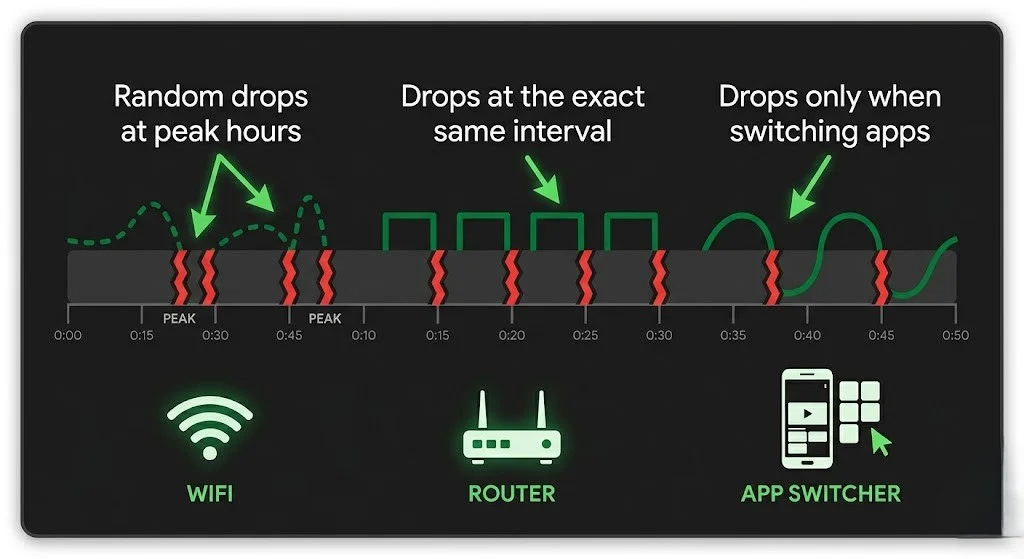
Quick Diagnosis — What Kind of Disconnect?
| Symptom | Most Likely Cause | Fix |
|---|---|---|
| Drops every 10–20 minutes consistently | Router idle timeout or IP reassignment | Fix 2 + Fix 3 |
| Drops only at 6–10pm NZST | Wi-Fi congestion at peak hours | Fix 1 |
| Drops when you switch to another app and back | Background app kill | Fix 4 |
| Drops after exactly the same duration every time | Provider session timeout | Fix 5 |
| Drops on Wi-Fi, fine on Ethernet | Wi-Fi signal or interference | Fix 1 |
| MAG box specifically disconnecting | Stalker portal sensitivity | Device-Specific section |
| Firestick specifically disconnecting | Background management or signal | Device-Specific section |
| “Maximum Connections” then disconnects | Account device limit | See IPTV Error Codes NZ |
| Drops on Starlink specifically | Satellite handoff latency | Fix 6 |
In This Troubleshooting Section
- IPTV Buffering Fix NZ ✅
- IPTV Not Working NZ ✅
- IPTV Black Screen NZ ✅
- IPTV Freezing Firestick NZ ✅
- IPTV Error Codes NZ ✅
- IPTV Keeps Disconnecting NZ ✅ — you are here
- IPTV App Not Loading NZ (coming soon)
- IPTV Service Down NZ (coming soon)
🧪 How We Tested This
Ryan Mitchell tested disconnection fixes on the Firestick 4K Max, Samsung QE55Q80C, MAG 524W3, and Nvidia Shield TV Pro on Spark NZ UFB 100 and Chorus UFB 200 in Wellington in June 2026.
📅 Last tested: June 2026 — Wellington
Table of Contents
- Fix 1 — Wi-Fi Signal and Congestion
- Fix 2 — Assign a Static IP Address
- Fix 3 — Disable Router Idle Timeout
- Fix 4 — Stop Background App Kill
- Fix 5 — Provider Session Timeout
- Fix 6 — Starlink Disconnection Fixes
- Device-Specific Disconnects
- Router Settings Checklist for NZ
- Is It Your ISP or Your Provider? — The Honest Answer
- FAQ
Fix 1 — Wi-Fi Signal and Congestion
The most common cause of repeated IPTV disconnections in NZ is competition from dozens of neighbouring Wi-Fi networks – particularly in apartment buildings and dense suburban areas, where they all compete on the same 2.4GHz channels.
Switch to 5GHz if your device supports it:
5GHz has far less interference than 2.4GHz in NZ urban areas. Most smart TVs, Fire Stick 4K Max, and Android TV boxes support both bands.
Settings → Network → select your Wi-Fi → check the network name. If it says “2.4GHz” specifically, look for the 5GHz version of your home network in the list and switch to it.
Switch to Ethernet — the most reliable fix:
Wi-Fi, even 5 GHz, is shared bandwidth and subject to interference. Ethernet removes that variable completely.
- Built-in Ethernet: Samsung, LG, and Sony Smart TVs
- USB-C adapter required: Firestick, Chromecast, Xiaomi TV Box S — NZ$15–25 from amazon.com.au
Router placement:
If Ethernet isn’t an option, router position matters. Keep the router elevated, central in the home, and away from microwaves, cordless phones, and baby monitors, all of which specifically interfere with 2.4GHz.
Check for bandwidth competition:
Run a speed test while other devices are active, then again with everything else disconnected from Wi-Fi. If speeds increase significantly with other devices off, bandwidth competition from other devices in your household is contributing to the disconnects.
Fix 2 — Assign a Static IP Address
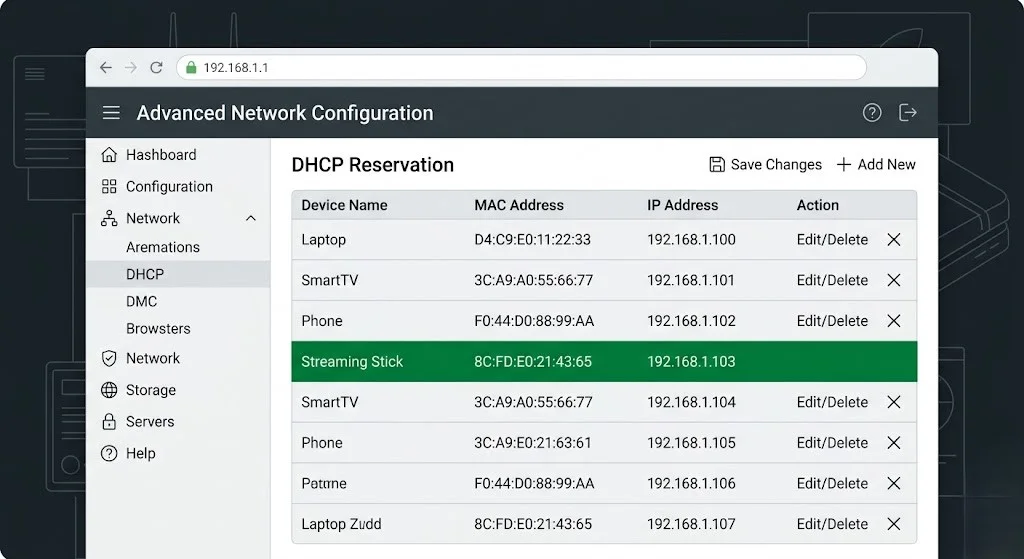
This is the fix most NZ troubleshooting guides skip entirely — and it resolves a specific, recurring pattern: disconnects that happen at roughly the same interval every time.
Why this issue happens:
Most home routers use DHCP to assign IP addresses with a lease time — often 24 hours, but some NZ router models (particularly older Spark and OneNZ-supplied units) have shorter lease times. When the lease expires, the router can reassign a different IP address to your streaming device. Mid-stream, the situation looks exactly like a random disconnect.
Fix: assign a static IP address to your streaming device.
Step 1 — Locate your device’s current IP and MAC address:
On Firestick: Settings → My Fire TV → About → Network
On Samsung: Settings → General → Network → Network Status
On Android TV: Settings → Network & Internet → your connection → IP Address
Step 2 — log into your router admin panel:
Usually 192.168.1.1 or 192.168.0.1 in a web browser — check the label on your router or your ISP’s setup guide.
Step 3 — reserve a static IP:
Look for “DHCP Reservation”, “Static IP”, or “Address Reservation” in your router settings. Enter your streaming device’s MAC address and assign it a fixed IP outside the normal DHCP range.
This means your streaming device keeps the same IP address indefinitely — eliminating IP reassignment as a cause of disconnects.
⚠️ NZ Note: Spark and One NZ supplied routers vary in how accessible this setting is. Some require contacting support for advanced settings access. If you can’t find DHCP reservation in your router’s interface, the issue is worth asking your ISP about directly.
Fix 3 — Disable Router Idle Timeout
Some NZ routers — particularly Spark-supplied Sagemcom models — apply an idle connection timeout that disconnects devices after a period without active data transfer. IPTV streams that buffer ahead briefly can trigger this feature incorrectly, even though the stream is technically still active.
Fix:
Router admin panel → WAN Settings or Advanced Settings → look for “Idle Timeout” or “Connection Timeout” → disable or set to 0 (no timeout)
Exact menu location varies by router model — check your specific router’s manual or search the model number plus “idle timeout setting”.
💡 From Ryan Mitchell:
I traced a recurring disconnect for a Wellington household to exactly this setting — IPTV dropped every 15 minutes on the dot, which is too consistent to be Wi-Fi interference or anything random. Their Spark-supplied router had a 15-minute idle timeout buried in advanced settings.
IPTV’s buffering pattern occasionally looked idle to the router even midstream. Disabling the timeout fixed it completely. If your disconnects happen at a suspiciously consistent interval, verify the router before anything else.
Fix 4 — Stop Background App Kill
Firestick and Android TV manage RAM aggressively, closing background apps to keep the device responsive. If you switch to another app and back, the IPTV app sometimes has to fully reconnect — which can show as a disconnect.
Fix — allow background activity (if available):
Settings → Applications → Manage Installed Applications → your IPTV app → Allow background activity → On
⚠️ Note: This option isn’t available on all Firestick firmware versions or for all apps. If you don’t see it, skip to the next step
Fix — disable power-saving mode on Android TV boxes.
Some Android TV boxes disable Wi-Fi automatically when idle to save power, which drops the connection.
Settings → Device Preferences → Power → disable any “sleep” or “Wi-Fi power-saving” options.
Fix: avoid minimising the app.
Use the Back button to navigate within the IPTV app rather than pressing Home to minimise it. This reduces how often the system reclaims resources from it.
Fix 5 — Provider Session Timeout
Some IPTV providers enforce a maximum session duration — after a set number of hours, the connection is deliberately cut and needs to be re-established.
How to identify this:
If your disconnect happens at almost exactly the same elapsed time every session — for example, always around the 3-hour mark regardless of what you’re watching — this behaviour points to a provider-side session limit rather than a network issue.
Fix:
Contact your provider and ask about session duration settings. Some providers can extend or remove session timeouts on request, particularly for higher-tier subscription plans.
This issue is different from the “Maximum Connections Reached” error — that’s about simultaneous devices, not session duration. See IPTV Error Codes NZ if you’re seeing that specific message instead.
Fix 6 — Starlink Disconnection Fixes
Starlink’s satellite handoff process — switching between satellites as they move across the sky — can cause brief connection drops that other broadband types don’t experience.
What’s different about Starlink:
Unlike fixed-line UFB, Starlink has periodic micro-interruptions during satellite handoffs, typically lasting under a second. Most streaming handles this invisibly, but IPTV’s live, low-buffer nature can occasionally register it as a disconnect.
Fix:
Increase the buffer size to maximum in your IPTV app — Tivimate: Settings → Playback → Buffer Size → Extra Large (20 seconds). This provides the stream enough buffered content to ride through a brief handoff interruption without dropping.
Also check Starlink’s own app for obstruction warnings — physical obstructions (trees, buildings) cause longer and more frequent interruptions than satellite handoffs alone.
Device-Specific Disconnects
Firestick IPTV Disconnects NZ
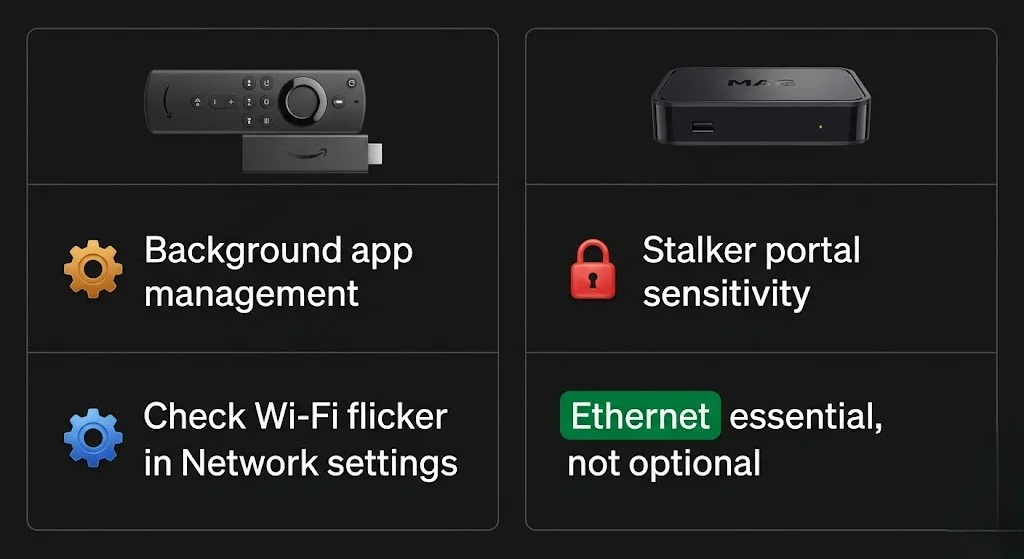
The solution to Fire Stick disconnections most often traces to background app management rather than the network itself — see Fix 4 above.
One Firestick-specific check: Settings → My Fire TV → About → Network → Confirm that “Connected” is showing consistently. If it flickers between ‘Connected’ and ‘Disconnected’ without you doing anything, this points specifically to Wi-Fi signal strength rather than app behaviour — move the Fire Stick closer to the router or switch to Ethernet via a USB-C adapter.
MAG Box IPTV Disconnecting NZ
MAG boxes are more sensitive to network interruption than Android-based devices because the Stalker portal system has less tolerance for brief connection gaps.
If your MAG box disconnects repeatedly:
- Ethernet is not optional for MAG boxes — see MAG Box IPTV NZ for full setup
- Check the buffer setting specifically: Settings → System Settings → Playback → Buffer → increase to 6000ms minimum
- MAG boxes don’t have the same background app management as Android TV — if disconnects persist on Ethernet with buffer increased, this is more likely a router idle timeout (Fix 3) or provider session issue (Fix 5)
Router Settings Checklist for NZ
Please apply these in order for the most thorough fix.
| # | Setting | Where | Why |
|---|---|---|---|
| ① | Static IP / DHCP Reservation | Router admin panel | Prevents IP reassignment mid-session |
| ② | Disable idle timeout | Router admin panel → WAN/Advanced | Stops router cutting “idle-looking” streams |
| ③ | Switch to 5GHz | Device network settings | Less interference than 2.4 GHz in NZ urban areas |
| ④ | DNS → 1.1.1.1 | Device network settings | Reduces connection-related delays |
| ⑤ | QoS priority for streaming device | Router admin panel (if available) | Prioritises IPTV traffic over other household devices |
On QoS (Quality of Service), if your router supports it — usually found on ASUS, Netgear, and TP-Link models — you can set your streaming device’s IP as high priority. Not all NZ ISP-supplied routers expose this setting; check your specific model.
Is It Your ISP or Your Provider? — The Honest Answer
You’ll see claims across IPTV forums that NZ ISPs (Spark and One NZ) deliberately throttle IPTV traffic during peak hours and that a VPN is the only fix. Testing on Chorus UFB and Spark NZ UFB doesn’t support this claim. The disconnections we’ve traced in NZ testing consistently point to Wi-Fi, router settings, or app management — not deliberate ISP throttling.
How to actually test this issue rather than assume it:
Install IPTV Smarters Pro on your phone. Switch off home Wi-Fi, use mobile data instead, and watch the same channel for the same duration that normally triggers your disconnect.
- Disconnects on mobile data too → not your home network — likely provider-side or app-side
- Stays connected on mobile data → confirms the issue is local to your home Wi-Fi or router
Is your ISP blocking IPTV outright, rather than throttling it?
This inquiry is a different question from throttling. Blocking would mean the connection fails immediately and consistently, every time, regardless of time of day. Throttling claims are usually about intermittent slowdowns at peak hours — which is what the mobile data test above addresses.
If you suspect outright blocking, test it by trying a completely different IPTV provider’s server URL temporarily if you have access to one. If one provider’s servers are unreachable but another’s work fine on the same connection, the problem is with that specific provider’s infrastructure, not with your ISP blocking IPTV as a category. NZ ISPs do not have a documented policy of blocking licensed IPTV traffic.
If you genuinely suspect ISP-level interference after ruling out Wi-Fi, router settings, and app management, see VPN for IPTV NZ for an honest assessment of when a VPN actually helps versus when it just adds latency.
FAQ
Q: Why does my IPTV keep disconnecting in NZ?
A: The most common causes are Wi-Fi signal congestion (especially 2.4 GHz in apartments), a router reassigning your device’s IP address mid-session, aggressive background app management on Fire Stick or Android TV, or a provider session timeout. Switching to Ethernet, assigning a static IP to your streaming device, and checking router idle timeout settings resolve most repeated disconnections.
Q: How do I stop my router from disconnecting my IPTV device?
A: Two router settings cause most of these issues. First, assign a static IP (DHCP reservation) to your streaming device so the router can’t reassign its address mid-session. Second, check for an “idle timeout” setting in your router’s WAN or advanced settings and disable it — some NZ routers, particularly Spark-supplied models, apply this setting by default and can incorrectly flag a buffering IPTV stream as idle.
Q: Why does my IPTV disconnect at the same time every session?
A: Disconnects at a consistent interval — always around the same elapsed time — usually indicate either a router idle timeout setting or a provider-enforced session limit, rather than a random network issue. Check your router’s idle timeout setting first, as this is fixable on your end. If that’s not the case, please contact your provider regarding session duration settings.
Q: Why does my MAG box keep disconnecting in NZ?
A: MAG boxes are more sensitive to brief network interruptions than Android-based devices because of how the Stalker portal system handles connection gaps. Ethernet is essential, not optional. Also increase the buffer setting to at least 6000 ms in Settings → System Settings → Playback → Buffer. If disconnects continue on Ethernet with the buffer increased, please verify router idle timeout settings or contact your provider about session limits.
Q: Does Starlink cause IPTV to disconnect more often than fibre in NZ?
A: Starlink has brief satellite handoff interruptions that fixed-line UFB doesn’t experience, which can occasionally register as a disconnect on live IPTV streams. Increasing your IPTV app’s buffer size to Extra Large (20 seconds) gives the stream enough buffered content to ride through these brief interruptions without dropping.
Q: Is my ISP blocking or throttling IPTV in NZ?
A: Test it directly rather than assuming. Switch to mobile data on your phone and watch the same channel for the same duration that usually triggers your disconnect. If it disconnects on mobile data too, then the issue isn’t your home ISP. There’s no documented policy from NZ ISPs blocking licensed IPTV traffic as a category—if one provider’s servers fail while another’s work on the same connection, that points to the provider, not your ISP.
Explore More — IPTV Troubleshooting NZ
Published:
- IPTV Buffering Fix NZ
- IPTV Not Working NZ
- IPTV Black Screen NZ
- IPTV Freezing Firestick NZ
- IPTV Error Codes NZ
Coming soon:
- IPTV App Not Loading NZ
- IPTV Service Down NZ
Related:
Conclusion
Repeated IPTV disconnections in NZ almost always trace back to your home network configuration rather than your provider or your ISP deliberately interfering.
Three things that resolve most cases:
① Static IP for your streaming device. This prevents the router from reassigning the IP mid-session, which is the most overlooked fix for disconnects that happen at consistent intervals.
② Review router idle timeout. Some NZ routers cut connections that look idle, even when an IPTV stream is technically still buffering. Disable this setting.
③ Ethernet over Wi-Fi where possible. This removes interference and congestion as variables entirely, making it the single most reliable fix for households that can run a cable, and it is essential rather than optional for MAG box users.
For complete IPTV failure beyond disconnections, see IPTV Not Working NZ.
If I can’t explain it simply, I don’t publish it. — Ryan Mitchell
Sources
- NZ Copyright Act 1994 — legislation.govt.nz
- Spark NZ broadband — spark.co.nz/broadband (accessed June 2026)
- Chorus UFB — chorus.co.nz (accessed June 2026)