
By Ryan Mitchell | Auckland | Updated June 2026
IPTV freezing on Firestick NZ — tested on Firestick 4K Max and Firestick HD on Spark NZ UFB and Chorus UFB 200 in Auckland, June 2026.
Most Firestick IPTV freezing in NZ comes down to three things: Wi-Fi at peak hours, DNS latency on Spark NZ and One NZ, and buffer size set too low. Fix those three, and most freezing disappears. This guide covers all eight causes — in order of likelihood for NZ setups.
Why does my IPTV keep freezing on Firestick in NZ?
The most common causes of IPTV freezing on Fire Stick in New Zealand are 2.4GHz Wi-Fi packet loss at peak hours (6–10pm NZST), DNS latency on Spark NZ and One NZ connections, buffer size set too low in TiviMate or IPTV Smarters Pro, insufficient Fire Stick storage, and provider server load. Most cases improve significantly by switching to Ethernet, changing DNS to 1.1.1.1, and increasing buffer size to Large.
⚖️ Legal Note
This guide covers technical troubleshooting only. Always use licensed IPTV services compliant with the NZ Copyright Act 1994 — legislation.govt.nz
This guide is part of the IPTV Troubleshooting NZ section. For complete IPTV failure, see IPTV Not Working NZ. For black screen issues, see IPTV Black Screen NZ.
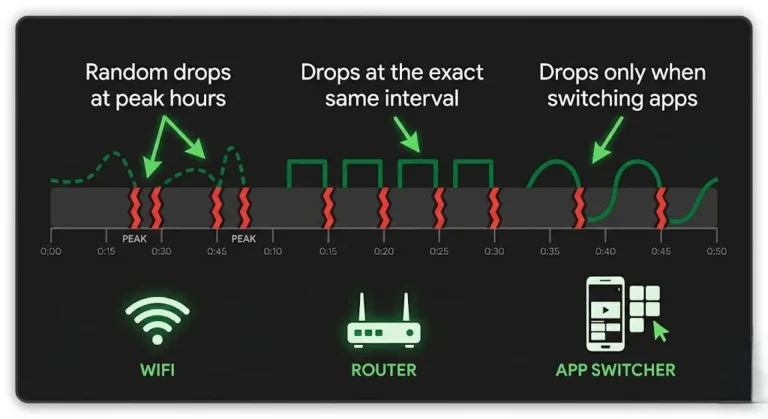
Quick Diagnosis — What Kind of Freezing?
| Symptom | Most Likely Cause | Fix |
|---|---|---|
| Freezes at 6–10pm NZST only | Wi-Fi or DNS at peak hours | Fix 1 + Fix 2 |
| Freezes on all channels all day | Storage or app issue | Fix 3 + Fix 4 |
| Freezes after 10–15 minutes | Background app kill | Fix 5 |
| Freezes on 4K channels only | Insufficient speed or decoder | Fix 6 |
| Freezes, then recovers in 2–3s | Buffer too small | Fix 2 |
| The Fire Stick HD freezes more than the 4K. | Hardware limitation | Fix 7 |
| All fixes tried – still freezing | Provider server issue | Fix 8 |
In This Troubleshooting Section
- IPTV Buffering Fix NZ ✅
- IPTV Not Working NZ ✅
- IPTV Black Screen NZ ✅
- IPTV Freezing Firestick NZ ✅ — you are here
- IPTV Error Codes NZ (coming soon)
- IPTV Keeps Disconnecting NZ (coming soon)
- IPTV App Not Loading NZ (coming soon)
- IPTV Service Down NZ (coming soon)
🧪 How We Tested This
Ryan Mitchell tested freezing fixes on Firestick 4K Max and Firestick HD on Spark NZ UFB 100 and Chorus UFB 200 in Auckland in June 2026. Apps tested: TiviMate 4.7 and IPTV Smarters Pro 3.1. Results reflect typical NZ household conditions — individual results will vary depending on the router, ISP, and provider server.
📅 Last tested: June 2026 — Auckland
Table of Contents
- Fix 1 — Switch to Ethernet
- Fix 2 — DNS Change + Buffer Size
- Fix 3 — Clear Cache on Firestick
- Fix 4 — Free Up Firestick Storage
- Fix 5 — Stop Background App Kill
- Fix 6 — Fix 4K Freezing on Firestick
- Fix 7 — Firestick HD Limitations
- Fix 8 — Improve IPTV Performance Firestick NZ
- Best IPTV Players for Firestick NZ
- FAQ
Fix 1 — Switch to Ethernet
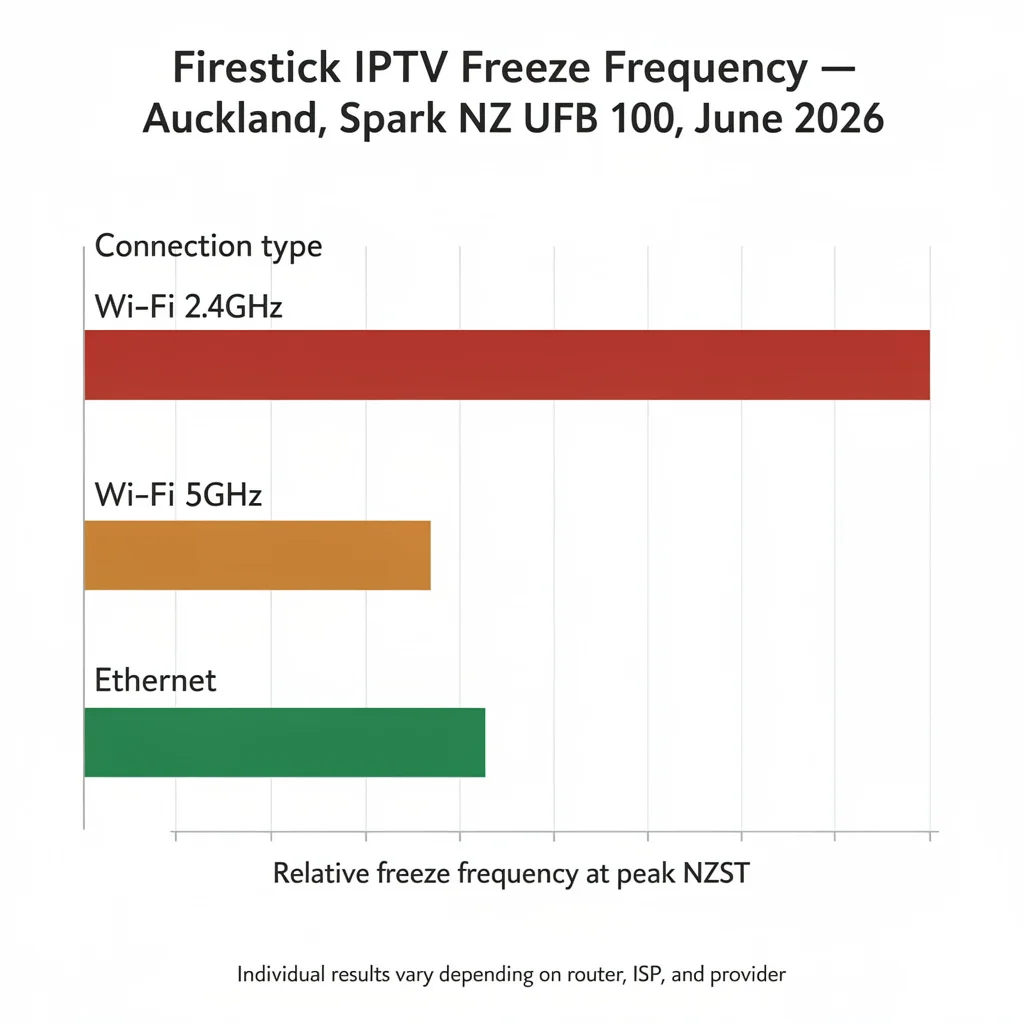
The most consistently effective solution for peak-hour Fire Stick IPTV freezing in NZ is
2.4GHz Wi-Fi on NZ home networks loses packets during peak hours (6–10pm NZST). These packet losses cause IPTV streams to freeze or buffer — even when your overall internet speed is well above the minimum required. A speed test at peak hours might show 80 Mbps while IPTV still freezes. Speed is not always the issue — packet loss is.
Switching to Ethernet significantly reduces packet loss compared to 2.4GHz Wi-Fi. For most NZ households, this is the single most impactful change.
Setup:
Firestick has no built-in Ethernet port — a USB-C to Ethernet adapter is required.
- Where to buy in NZ: amazon.com.au — NZ$15–25 — standard delivery: 3–7 days
- Connection: plug adapter into the Fire Stick USB-C port → connect the Ethernet cable from adapter to router
Firestick automatically detects the wired connection. No configuration needed.
NZ testing observations (Auckland, Spark NZ UFB 100, June 2026):
In personal testing, switching from 2.4GHz Wi-Fi to Ethernet at peak hours produced a noticeable reduction in freeze frequency. 5GHz Wi-Fi also performed better than 2.4GHz. Results will vary depending on your router, home layout, and ISP.
If you’re using 5GHz Wi-Fi and still experiencing freezing, go to Fix 2. If you’re on 2.4 GHz, Ethernet is the first step to try.
Fix 2 — DNS Change + Buffer Size
Two free changes that work together. Apply both at the same time.
DNS Change — Spark NZ and One NZ
Spark NZ and One NZ default DNS can add latency to channel loading and stream initialisation on their connections — particularly during peak hours. This often shows up as a delay or brief freeze when switching channels rather than mid-stream buffering.
On Firestick:
Settings → Network → select your Wi-Fi network → Advanced → DNS → enter 1.1.1.1 → Save
Force close IPTV app → reopen.
NZ testing (Auckland, Spark NZ UFB 100, June 2026):
Channel loading was noticeably faster after switching to Cloudflare 1.1.1.1 compared to the Spark NZ default DNS. This benefit is most visible on channel switching rather than sustained stream quality.
Buffer Size — TiviMate and IPTV Smarters Pro
The default buffer in TiviMate and IPTV Smarters Pro is small. When the network has a brief hiccup, the buffer empties and the stream freezes briefly while it refills. A larger buffer gives the stream more time to recover without showing a visible freeze.
TiviMate:
Settings → Playback → Buffer Size → Large (10 seconds)
IPTV Smarters Pro:
Settings → Player Settings → Buffer Size → increase to maximum available
On Starlink or VDSL connections: set buffer to extra large (20 seconds).
💡 From Ryan Mitchell:
DNS and buffer are the two free changes that produce the most noticeable improvement for NZ Firestick users on Spark NZ and One NZ. DNS reduces channel loading delays. A larger buffer absorbs brief network hiccups before they show as visible freezes. Neither alone is as effective as both together – apply them in the same session.
Fix 3 — Clear Cache on Firestick
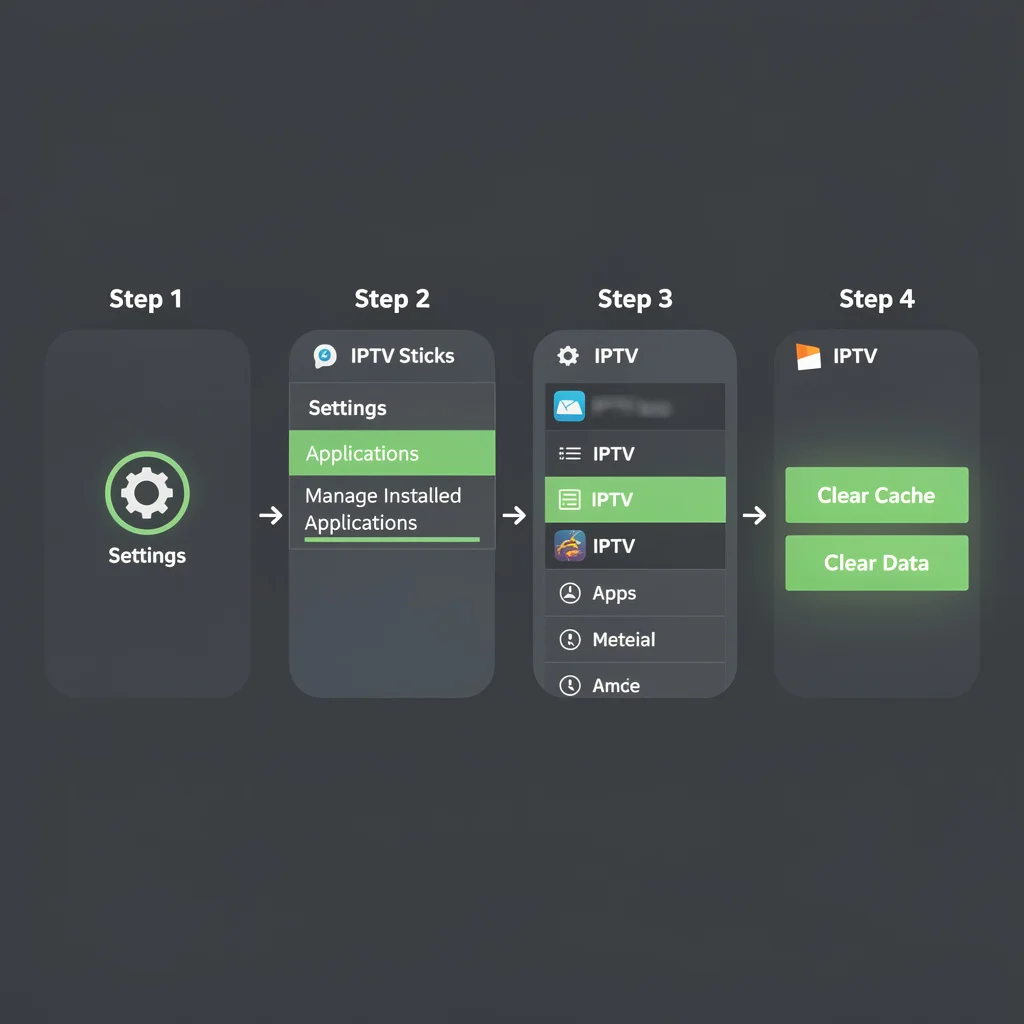
Over time, TiviMate and IPTV Smarters Pro accumulate cached data that can degrade performance. On Firestick, this sometimes shows as increasing freeze frequency after weeks of use — the app gets slower the longer it runs without a cache clear.
Clear cache — step by step:
Settings → Applications → Manage Installed Applications → select your IPTV app (TiviMate or IPTV Smarters Pro)
- Press Clear Cache
- Press Clear Data
Relaunch app → re-enter credentials manually from your provider email.
How often to clear cache:
Every 4–6 weeks for daily IPTV viewers. Monthly for occasional viewers.
Also consider clearing the Amazon Video app, Silk browser, and unused apps — these consume background RAM that IPTV apps need for smooth playback.
After clearing data: EPG may take 3–5 minutes to reload on first launch. This delay is normal — don’t restart during EPG load, or it resets the process.
Fix 4 — Free Up Firestick Storage
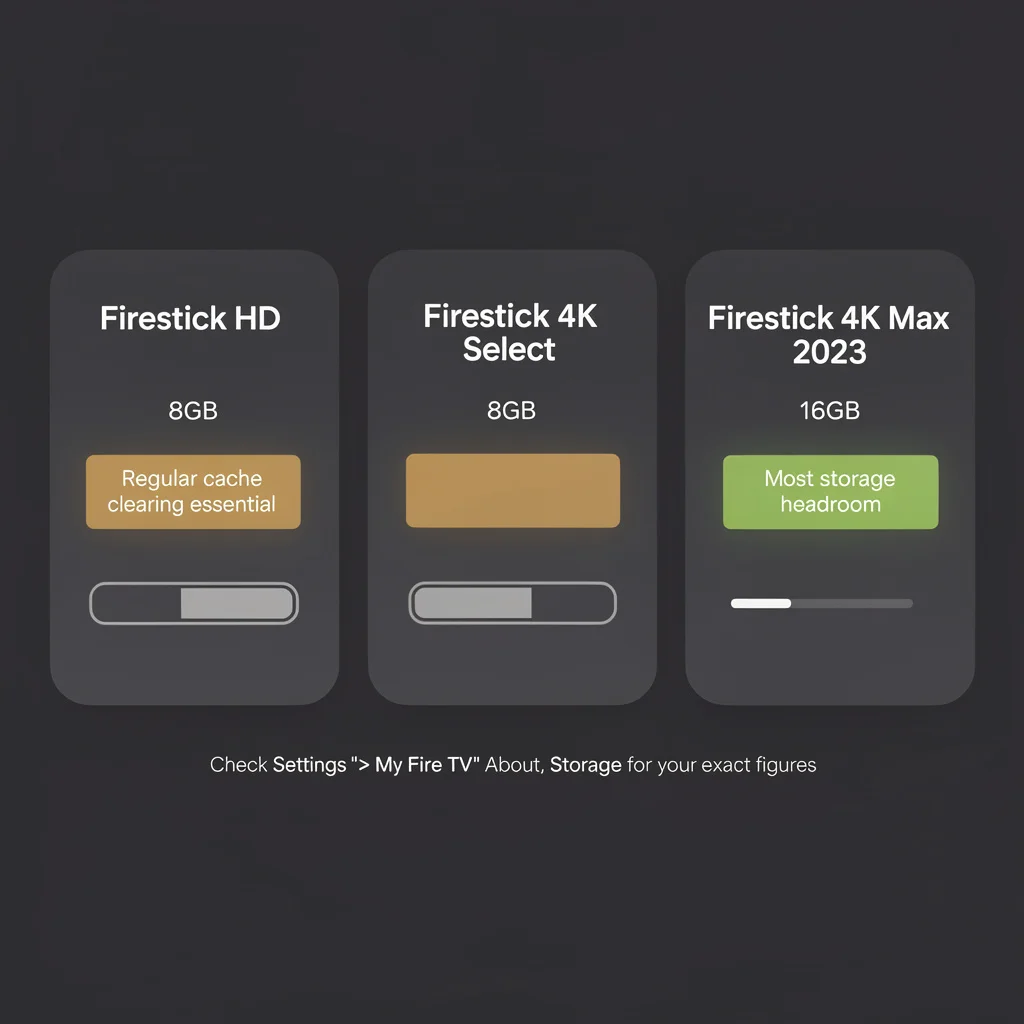
Firestick HD and 4K Select: 8GB storage. Firestick 4K Max (2023 model): 16GB.
Note: Storage specs vary by Fire Stick generation and model year—check Settings → My Fire TV → About → Storage to see your exact available storage.
When available storage drops low, Fire Stick can start aggressively closing background apps and processes – which may affect IPTV app performance and cause mid-stream interruptions.
Check available storage:
Settings → My Fire TV → About → Storage
How to free up storage:
Settings → Applications → Manage Installed Applications
Sort by size. Remove apps you don’t actively use — pre-installed Amazon apps, games, or streaming services you don’t subscribe to.
General target: keep at least 1–1.5GB free for comfortable IPTV operation.
| Firestick Model | Typical Storage | Notes |
|---|---|---|
| Firestick HD | 8GB | Check your specific model |
| Firestick 4K Select | 8GB | Check your specific model |
| Firestick 4K Max (2023) | 16GB | More headroom for daily IPTV |
More free storage generally means fewer background app interruptions during IPTV playback.
Fix 5 — Stop Background App Kill
Firestick manages RAM aggressively to keep the device responsive. This can sometimes cause IPTV apps that are minimised and then reopened to restart the stream from scratch.
Fix — background activity setting:
On some Firestick firmware versions, you can allow background activity for specific apps:
Settings → Applications → Manage Installed Applications → your IPTV app → Allow background activity → On
⚠️ Note: This option may not appear on all Firestick firmware versions or for all apps. If you don’t see it, skip this step.
Fix — avoid minimising the IPTV app.
When switching tasks on the Fire Stick, use the Back button to navigate within the app rather than pressing Home to minimise it. This reduces the chance of a background resource reclaim.
Fix—disable Firestick screensaver:
Firestick’s screensaver can interrupt IPTV streams during idle periods.
Settings → Display & Sounds → Screen Saver → Off or set to 1 hour
Fix 6 — Fix 4K Freezing on Firestick
If HD channels play without freezing but 4K channels freeze consistently, the issue is likely decoder configuration rather than connection speed.
Speed check for 4K IPTV on Firestick:
Run fast.com directly on the Fire Stick (not on another device — the result on your phone doesn’t reflect what the Fire Stick is getting).
| Quality | Minimum | Recommended |
|---|---|---|
| HD | 15 Mbps | 30 Mbps |
| 4K | 35 Mbps | 100 Mbps |
Speed is well above these, but 4K is still freezing; the decoder configuration is likely the cause.
Decoder fix for 4K freezing in TiviMate:
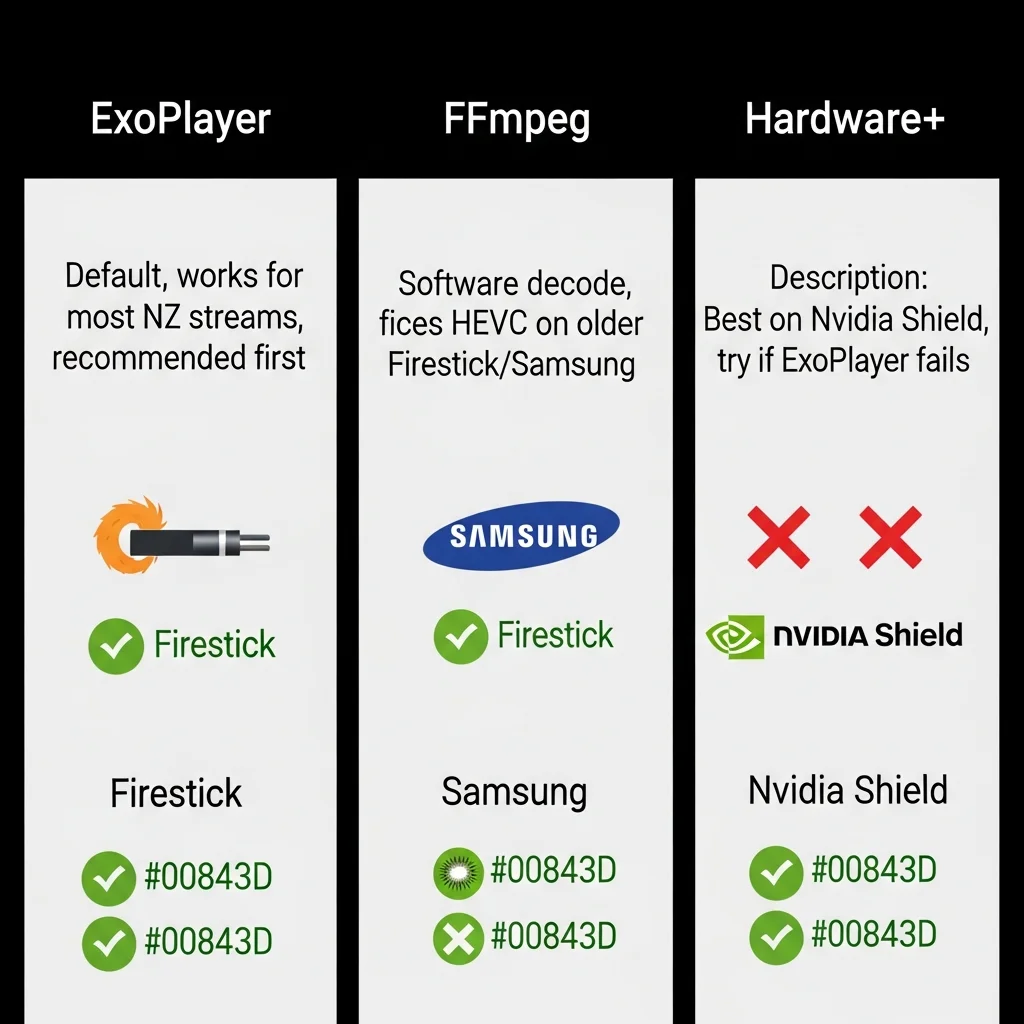
Settings → Playback → Player → try Hardware+
Hardware+ uses the Fire Stick’s dedicated video processor for 4K decode — it can be more efficient than ExoPlayer for high-bitrate streams on some Fire Stick models. Test ExoPlayer and Hardware+ in sequence to see which performs better on your setup.
Also disable AFR if enabled in TiviMate:
AFR (Adaptive Frame Rate) causes brief freezes on 4K channel switches as the TV adjusts its refresh rate. On some NZ TV and soundbar combinations, this handshake takes long enough to cause a visible freeze.
Settings → Playback → AFR → Off
In IPTV Smarters Pro:
Settings → Player Settings → switch to ExoPlayer if not already selected.
Fix 7 — Firestick HD Considerations
Firestick HD (NZ$89) has a slower processor than Firestick 4K Max (NZ$129) and is limited to 1080p output.
Where Firestick HD may struggle with IPTV:
- Large EPG playlists (5,000+ channels) can feel slower to load
- No 4K capability — only relevant if you watch 4K streams
- 8GB storage — same as 4K Select, requires regular cache management
If you’re on Firestick HD with consistent freezing:
① Apply all fixes above first — Ethernet, DNS, buffer, cache clear — before drawing conclusions about hardware limitations
② If still freezing on very large playlists — ask your provider if they offer a lighter M3U playlist option with fewer channels
③ On Ethernet, Firestick HD performs well for HD content on NZ broadband. Most freezing on HD models is connection-related rather than hardware-limited.
Upgrading to Firestick 4K Max (NZ$40 more) gives more storage headroom and a faster processor — which helps with large playlists and sustained IPTV performance.
Fix 8 — Improve IPTV Performance Firestick NZ
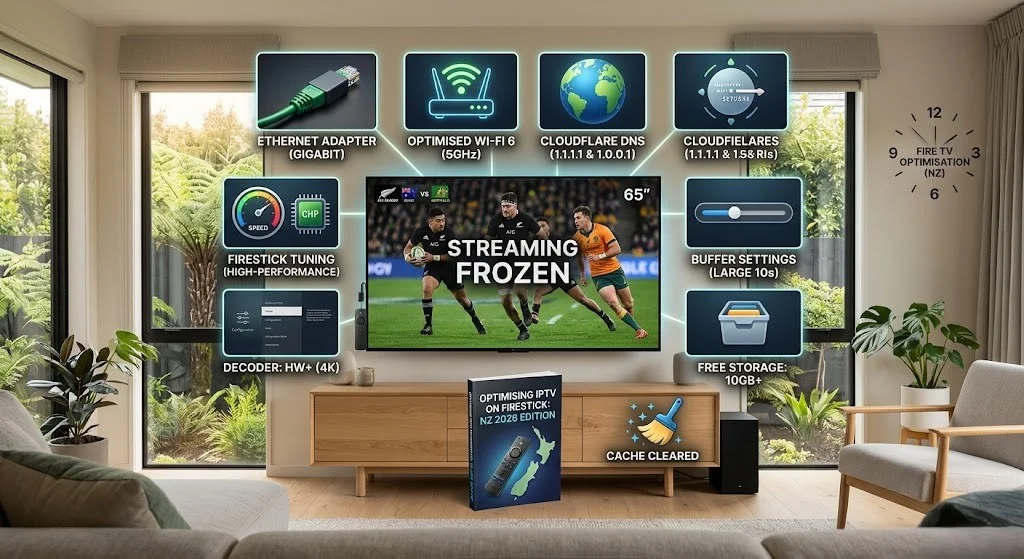
Full optimisation checklist. Apply in order for best results.
| # | Fix | Action | Time |
|---|---|---|---|
| ① | Ethernet | USB-C adapter → wired connection | 2 min |
| ② | DNS | Settings → Network → Advanced → DNS → 1.1.1.1 | 1 min |
| ③ | Buffer | TiviMate: Settings → Playback → Buffer → Large | 30 sec |
| ④ | Cache | Settings → Apps → IPTV app → Clear Cache | 1 min |
| ⑤ | Storage | Settings → About → Storage → free up space | 5 min |
| ⑥ | Decoder | TiviMate → test Hardware+ for 4K, ExoPlayer for HD | 30 sec |
| ⑦ | AFR | TiviMate: Settings → Playback → AFR → Off | 30 sec |
| ⑧ | Screensaver | Settings → Display → Screen Saver → Off | 30 sec |
Total time: under 15 minutes.
Applying all eight in one session gives the best chance of resolving freezing issues before concluding the problem is provider-side.
Best IPTV Players for Firestick NZ
App choice can affect freeze frequency on a Fire Stick — primarily through buffer control and decoder options.
| App | Buffer Control | Decoder Options | Cost |
|---|---|---|---|
| TiviMate | ✅ Detailed | ExoPlayer, FFmpeg, Hardware+ | ~NZ$8/yr |
| IPTV Smarters Pro | Basic | ExoPlayer, Built-in | Free |
| Kodi | Good | Multiple | Free |
TiviMate offers more granular buffer and decoder control than IPTV Smarters Pro, which can help with persistent freezing on NZ broadband. IPTV Smarters Pro is a solid free alternative and works well for most NZ viewers when configured correctly.
See Best IPTV App NZ for a full comparison, including channel switch speeds across devices.
On VPN for Firestick IPTV in NZ:
Some guides recommend a VPN as a freeze fix. On Chorus UFB and Spark NZ UFB connections, a VPN typically adds latency – which can increase rather than reduce freezing on already fast connections. A DNS change to 1.1.1.1 addresses the most common DNS-related delay without the latency overhead of a VPN. See VPN for IPTV NZ for a full assessment.
FAQ
Q: Why does my IPTV keep freezing on Firestick in NZ?
A: The most common causes for NZ viewers: 2.4GHz Wi-Fi packet loss at peak hours (6–10pm NZST) — most effectively addressed with an Ethernet USB-C adapter (NZ$15–25); DNS latency on Spark NZ or One NZ — change DNS to 1.1.1.1 in Settings → Network → Advanced; buffer set too small — increase to large (10 seconds) in TiviMate settings. Applying all three together produces the best results on NZ broadband.
Q: How do I clear the cache on Firestick for IPTV?
A: Settings → Applications → Manage Installed Applications → select your IPTV app (TiviMate or IPTV Smarters Pro) → Clear Cache → Clear Data → relaunch the app → re-enter credentials from your provider email. Clearing cache every 4–6 weeks helps maintain consistent performance for daily IPTV viewers. Furthermore, clearing the Amazon Video app and Silk Browser cache frees additional background RAM.
Q: How do I stop IPTV buffering on Firestick NZ?
A: Three changes address most Firestick buffering in NZ. Switch to Ethernet via USB-C adapter (NZ$15–25) — this reduces packet loss compared to 2.4 GHz Wi-Fi at peak hours. Change DNS to 1.1.1.1 (Settings → Network → Advanced) — improves channel loading speed on Spark NZ and One NZ. Increase TiviMate buffer to large (Settings → Playback → Buffer Size). Most NZ buffering improves noticeably after these three changes.
Q: Why does my Firestick 4K freeze with IPTV in NZ?
A: Firestick 4K freezing is usually one of three things: peak-hour Wi-Fi — address with Ethernet; decoder configuration on 4K streams — try TiviMate → Settings → Playback → Hardware+; or AFR causing brief freezes on channel switches — disable via TiviMate → Settings → Playback → AFR → Off. Also ensure at least 1 GB of free storage on your Fire Stick to avoid background app management issues.
Q: Does a VPN fix Firestick IPTV freezing in NZ?
A: On Chorus UFB and Spark NZ UFB connections, VPN typically adds latency rather than reducing it — which can worsen freezing rather than fix it. The most common causes of freezing in NZ are Wi-Fi packet loss and DNS latency, both of which are better addressed with Ethernet and DNS 1.1.1.1 than with a VPN. VPN may be worth testing on VDSL connections with confirmed ISP throttling. See VPN for IPTV NZ for the full assessment.
Q: What is the best IPTV player for Firestick in NZ?
A: Tivimate and IPTV Smarters Pro are both available on the Amazon App Store for Fire Stick. TiviMate offers more detailed buffer and decoder settings — which gives more control when troubleshooting freezing — and costs approximately NZ$8/year for the full version. IPTV Smarters Pro is free and works well for most NZ viewers without extensive configuration. See Best IPTV App NZ for a detailed comparison.
Explore More — IPTV Troubleshooting NZ
Published:
Coming soon:
- IPTV Error Codes NZ
- IPTV Keeps Disconnecting NZ
- IPTV App Not Loading NZ
- IPTV Service Down NZ
Related:
- IPTV Firestick NZ — Firestick setup guide
- Best IPTV App NZ — TiviMate vs IPTV Smarters Pro
- TiviMate NZ — TiviMate full setup guide
- VPN for IPTV NZ — honest VPN assessment for NZ
- IPTV Setup Guide NZ
Conclusion
IPTV freezing on Firestick in NZ most commonly comes down to connection quality, DNS settings, and buffer configuration. Work through the fixes in order — most cases improve significantly after the first three.
Three changes that help most NZ Firestick users:
① Ethernet USB-C adapter. NZ$15–25. Significantly reduces packet loss compared to 2.4GHz Wi-Fi at peak hours. The most impactful single change for most NZ setups.
② DNS 1.1.1.1 + Large Buffer. Free. Takes two minutes. Improves channel loading on Spark NZ and One NZ, and reduces visible freezes from brief network hiccups.
③ Clear cache regularly. Settings → Apps → IPTV app → Clear Cache. Helps maintain consistent performance over time.
For complete IPTV failure beyond freezing, see IPTV Not Working NZ.
If I can’t explain it simply, I don’t publish it. — Ryan Mitchell
Sources
- NZ Copyright Act 1994 — legislation.govt.nz
- Spark NZ broadband — spark.co.nz/broadband (accessed June 2026)
- Chorus UFB — chorus.co.nz (accessed June 2026)